Best Monitor for the RX 7600 in 2026: 1080p Value Picks
Quick Answer
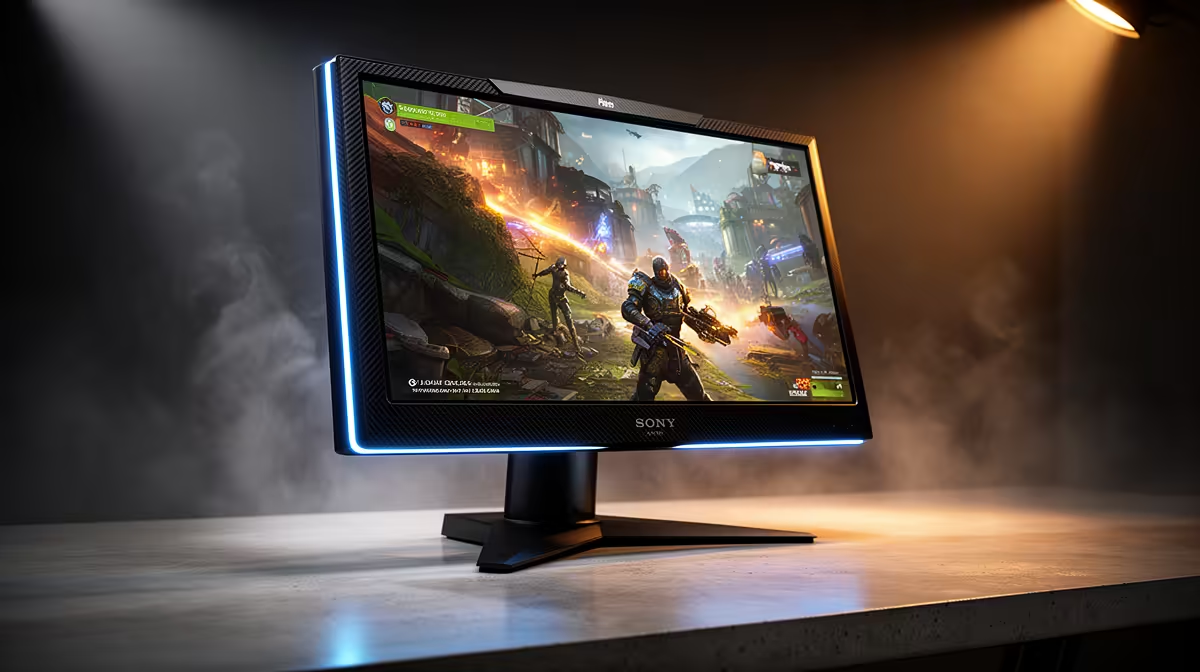
Pair an RX 7600 with a 24-inch 1080p adaptive-sync monitor in the 144Hz to 180Hz range. That combination keeps pixels crisp at a normal desk distance and gives the card enough refresh headroom for esports without making demanding games chase a heavy 1440p load.
The RX 7600 can run games at 1440p. It makes more sense there when you accept tuned settings, upscaling and a lower frame-rate target. For a mixed budget build, 1080p high refresh remains the safer match.
Choose the exact panel on measured motion, contrast and stand quality. A fast label cannot rescue poor overdrive.
Begin With 24-Inch 1080p
At 24 inches, 1920 x 1080 produces a comfortable pixel density for gaming and ordinary desktop work. The screen fits a shallow desk and keeps the whole game view inside your vision.
A 27-inch 1080p panel makes text and edges look softer at the same distance. Some players enjoy the larger image, especially from further back, but measure the desk before assuming bigger is better.
If you work with long documents or detailed creative tools, 1440p offers more desktop space. That is a reason to buy a higher-resolution monitor even when games will need lower settings.
Give Esports Enough Refresh
The RX 7600 can drive high frame rates in competitive games when the CPU keeps up. A 144Hz or 165Hz screen turns that into smoother motion and lower scan-out delay than a 60Hz display.
Going to 180Hz can be worthwhile when the panel costs close to a good 165Hz model. The difference is small enough that response tuning, brightness and ergonomics should decide a close comparison.
A 240Hz monitor serves a narrower buyer. Check your current game, graphics settings and CPU frame rate. If the system spends most of its time below 180fps, a better 165Hz panel can give you more for the budget.
Use Adaptive Sync Across the Middle
Frame rate never stays fixed through every map and fight. Adaptive sync lets the monitor change refresh with the GPU, reducing tearing and the uneven motion you can feel with ordinary V-sync.
Check the monitor's FreeSync range and low frame-rate compensation support. Read testing for flicker and overdrive behaviour across the range. A monitor can look clean at 165Hz and smear at 70Hz if its tuning is weak.
Use the connection and cable specified for 1080p at the chosen refresh and colour depth. Ports on the same display can support different feature combinations.
IPS Is the Easy All-Rounder
IPS suits an RX 7600 build when you want consistent colour, wide viewing angles and predictable motion. Affordable fast IPS screens have made this a strong default for competitive and mixed gaming.
Native contrast is often modest. Dark scenes can look grey in a dim room, and backlight glow varies between units.
VA panels bring deeper blacks and can make horror games and films feel richer. Look for measured dark-transition performance, because slow pixels can leave visible trails behind dark objects.
Pick from the exact review, not the panel acronym. A good VA can beat a weak IPS for your room and games.
Understand the 8GB VRAM Boundary
The RX 7600 has 8GB of VRAM. At 1080p, that can support a broad library, but current games may exceed comfortable memory use at their highest texture and ray-tracing settings.
Watch frame-time consistency rather than chasing an Ultra preset. High textures can look close to Ultra while using less memory. Ray tracing adds another demand and may need a lower setting or upscaling.
A higher-resolution monitor does not add VRAM. At 1440p, the card has to carry both more pixels and the game's memory needs, so tuning becomes more important.
Where FSR Helps
AMD FidelityFX Super Resolution is implemented by each supported game. It can render internally at a lower resolution and reconstruct the output, creating more performance headroom.
At 1080p, aggressive upscaling modes start from a low internal resolution and can lose fine detail. Begin with native rendering, then try the highest-quality FSR mode when you need extra frames.
Frame generation can raise displayed frame rate in supported titles, but it works best from a sound base frame rate. It does not replace the low latency of genuinely rendered frames in a competitive game.
Decide Whether 1440p Is Still Worth It
A 27-inch 1440p adaptive-sync monitor can be a sensible long-term buy when you expect a stronger GPU later. You gain desktop sharpness now and can tune current games to suit the RX 7600.
Do not call the panel wasted merely because the card cannot hold 165fps in every new release. A 1440p screen can show 1080p input, but non-native scaling may look soft. Native 1440p with upscaling or lower settings often gives the cleaner route.
For an RX 7600 build with no near-term GPU upgrade, the money saved on 1080p can go towards a better stand, stronger motion or a larger SSD.
Treat HDR as Optional at This Tier
Many value gaming monitors accept an HDR signal but lack the contrast control and brightness for a convincing HDR image. A badge cannot supply local dimming.
Judge these screens first as SDR monitors. Look for a useful brightness range, good sRGB mode and acceptable uniformity.
If real HDR matters, expect a jump to capable mini-LED or OLED hardware and review its care, warranty and price trade-offs separately.
Check the Small Features
Height adjustment helps you place the top of the screen comfortably. Tilt-only stands can work, but the desk may need a riser or VESA arm.
An extra HDMI input helps when a console or laptop shares the screen. Audio output can route sound from those sources, though built-in speakers on gaming displays are rarely the reason to choose one.
Check warranty and dead-pixel terms. Monitor returns are much easier when you know the process before opening the box.
Build a Two-Screen Shortlist
Browse current PC monitor choices for 24-inch 1080p models around your refresh target. Compare that result with popular monitor options, then verify panel type, adaptive-sync range and stand adjustment on the exact product page.
Choose two finalists. Read measured reviews for response time at maximum and middle refresh, overshoot, contrast and minimum brightness.
The winning screen should perform well through the frame rates your RX 7600 delivers, not only at the number printed on the carton.
Set Up the Monitor and Card
Use native 1920 x 1080 resolution and select the highest supported refresh in Windows. Turn on FreeSync in the monitor controls and AMD software.
Start with the display's balanced overdrive setting. The fastest mode can add inverse ghosting. Set brightness for the room and choose a restrained colour mode for desktop use.
Cap frame rate a few frames inside the adaptive-sync ceiling when you want steadier frame times. Keep drivers and monitor firmware current through official sources.
FAQ
Can the RX 7600 handle 1440p?
Yes. Expect more setting work and lower frame rates in demanding games. Esports and lighter titles can run well.
What refresh rate suits it best?
The 144Hz to 180Hz range suits a mixed library. Consider 240Hz only for a competitive focus and a CPU that supports it.
Is a 1440p monitor wasted?
No. It can improve desktop clarity and prepare for a future GPU, though current games may need upscaling or tuned settings.
Does FSR help?
Yes, in supported games. Start with the highest-quality mode that reaches your target and judge the image in motion.
Should a budget buyer choose Hz or resolution?
Choose refresh for competitive play and 1440p for desktop clarity or a planned GPU upgrade. At this tier, panel quality matters before either extreme.
Compare two 24-inch 1080p adaptive-sync screens across real response tests, ergonomics and price, then keep enough budget for the rest of the build.