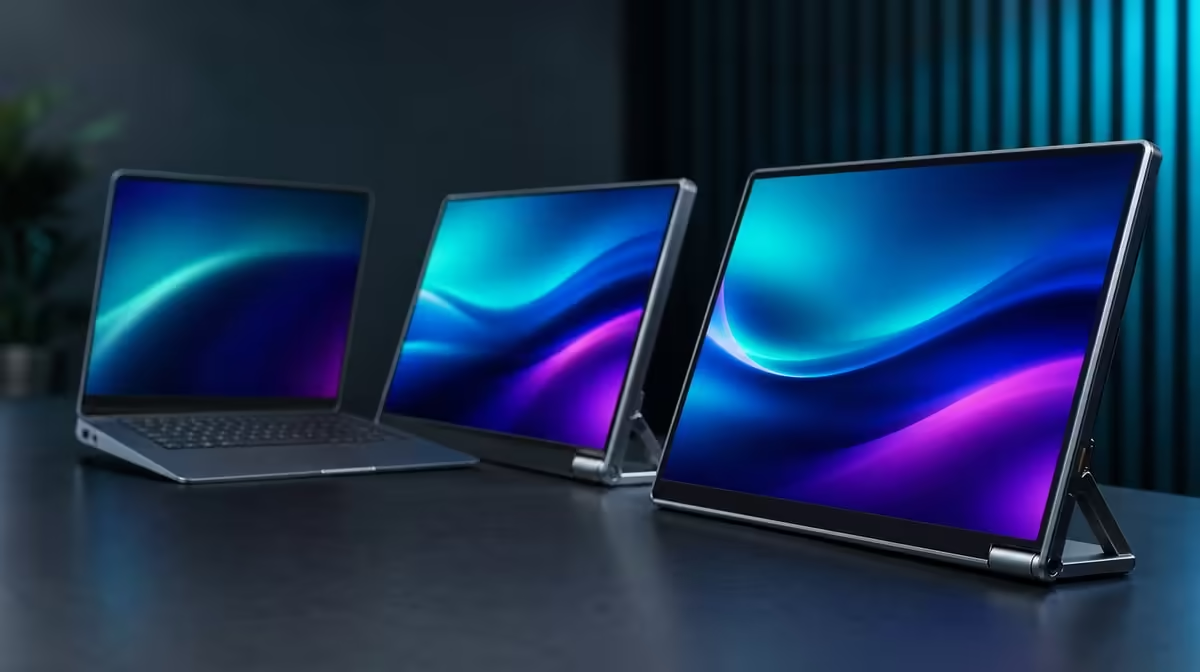
A South African dual-touch budget should begin with the work that direct input and extra display space must improve. The right answer to how much to spend on a dual touch monitor in SA depends on recurring tasks, compatible software and the ownership effort needed to restore the mobile setup.
Quick Answer
Set the budget from essential jobs, then price QHD workspace, multi-touch, pressure input, colour coverage, rotation and support by actual use. The Delta Pro Touch costs R11,999, so its two 16-inch panels and specialist features should replace repeated friction or enable valuable work often enough to earn that exact amount.
💰 Define the job before the ceiling
Write the outcome in one sentence: two detailed creative surfaces beside a laptop, an interactive presentation desk, a colour-aware mobile edit or another specific role. Separate essentials from preferences.
Keep the existing setup in the comparison. Count window switching, missing input capability, colour limitations and time spent rebuilding the workspace. A new screen should improve a known baseline.
Evetech's portable-monitor range can be filtered with the task list ready, while current availability should be checked when the purchase decision is made.
Assign budget weight by frequency
Create daily, weekly, monthly and unused rows. Place dual QHD space, finger gestures, pressure work, sRGB delivery and orientation changes in the appropriate row.
A function used every day carries more of the budget than one opened once for a demonstration. Keep the consequence of absence beside frequency; an occasional task can still be critical.
Price the full workstation without invention
Put the exact R11,999 monitor amount beside equipment already owned and the actual laptop that will drive it. Note any confirmed compatibility work.
Do not add imaginary accessory costs or assume included items. The purpose is to judge the screen system in the buyer's real environment.
Compare a simpler display arrangement
Test whether one passive portable panel or a fixed monitor solves the main job. Use the same applications, readable scale and working duration.
If direct input, a second screen or movement remains unused, the simpler choice may preserve more budget without harming the outcome.
🖥️ Make two QHD panels earn their share
Set both Delta displays to 2560 x 1600 and arrange them beside the laptop. Assign the main application to one and a specific tool, preview or reference role to the second.
Work through a representative project and count hidden windows, resizing and pointer travel. Keep controls readable; an artificially dense layout overstates the gain.
Test source capability
Start with a quiet desktop and open programs gradually. Observe responsiveness while both panels display the actual workload. Save the stable arrangement.
Restart the laptop and confirm that screen order, native resolution and application roles return. A budget should include time lost to recurring recovery.
Give touch an economic task
Map single taps to each screen, then try the multi-finger actions the intended software supports. Time a short task through touch and through normal laptop controls.
Ten-point capacity earns money when supported gestures reduce steps or improve interaction. It carries little value for two passive viewers.
Test pressure through paid or portfolio work
Choose a compatible tool and pressure-aware function. Complete a small creative sequence and compare it with the normal method. No pressure-level count or specific bundled pen is confirmed.
Pressure input can justify more spend when it improves work performed frequently or tied to revenue. An unsupported application cannot carry that part of the price.
🎨 Price colour, motion and rotation correctly
Full sRGB coverage supports projects delivered to that gamut. Open familiar content on both panels and complete the intended export. Keep calibration or measured accuracy as a separate evidence question.
Test the stated 25ms response with representative movement. Do not describe the monitor as a fast-gaming display on the strength of unrelated specifications.
Compare Evetech's PC-monitor category when a permanent colour or business desk is the main goal.
Value sRGB by output frequency
Count the photo, video and design projects delivered to sRGB each month. Note whether the second panel supports preview, tools or reference throughout those jobs.
General office users with no colour target should give the gamut less budget weight. A confirmed feature can still be irrelevant to a particular buyer.
Complete the rotation cycle
Move one panel into a useful portrait or presentation position, wait for gravity sensing and verify touch mapping. Return to the normal layout and time the full cycle.
Auto-rotation saves money only indirectly through smoother recurring work. If the screens stay fixed, reduce its contribution.
Test the built-in support
Place the monitor and laptop on the smallest normal desk. Use corner taps, multi-finger gestures and pressure input at the chosen angle. Watch for movement.
An attached ergonomic support can reduce separate desk hardware, but score it through stability, fit and whether it removes a purchase the setup genuinely needs.
📊 Decide at R11,999 with evidence
Build a table for task improvement, frequency, failed conditions, setup time and exact price. Compare the Delta with the strongest current alternative using the same laptop and project.
Use Evetech's monitor best-seller collection for another live reference. Verify availability when the shortlist is ready; do not make a current stock claim in advance.
Run a feature-removal test
Remove pressure response, full sRGB, rotation, touch and the second QHD panel one at a time. Ask whether the defined job still succeeds.
Protect the functions whose absence stops or materially slows the work. Features that can disappear unnoticed should not dominate R11,999.
Include relocation effort
Disconnect, move and rebuild the laptop workstation. Confirm QHD output, readable scale and touch assignment. Time the process.
Portable value weakens when screen roles require repeated repair. Add this ownership effort to the comparison beside visible benefits.
Preserve the purchase record
Write the product, exact amount, test date, successful laptop setup and three features that carried the verdict. Add important unknowns.
At buying time, refresh the linked categories and repeat any test affected by a changed alternative. The budget reasoning remains grounded even as availability changes.
Use a 30-day break-even question
Estimate how many days the monitor will remove window switching, support paid creative input or improve an interactive business task. Compare those occurrences with setup and recovery time.
The exercise does not need a fictional hourly value. It needs an honest picture of whether R11,999 serves recurring work or a rare edge case.
Keep must-have compatibility separate
Put laptop output, touch detection and the required application in a pass-or-fail section. A lower or higher price cannot rescue a monitor that fails the essential source workflow.
Test those conditions before scoring colour, rotation or other preferences. This prevents several optional strengths from hiding one decisive incompatibility.
Frequently Asked Questions
What should set the budget before any spec list?
The recurring task and the consequence of not completing it should set the budget.
What must R11,999 replace or improve?
It should reduce existing workflow friction or enable valuable work repeatedly.
When does pressure input justify more budget?
It matters when compatible tools and software improve regular creative tasks.
How can 100% sRGB affect the spend?
It can support frequent sRGB delivery without proving calibration.
Why include auto-rotation in the value check?
It deserves weight when portrait or presentation changes save time.
Is the R11,999 monitor available now?
Check current availability on Evetech at the point of purchase.
Ready to set a dual-touch budget from work instead of feature count?
Compare Evetech's portable monitors with your exact laptop tasks, use frequency and recovery effort recorded.