


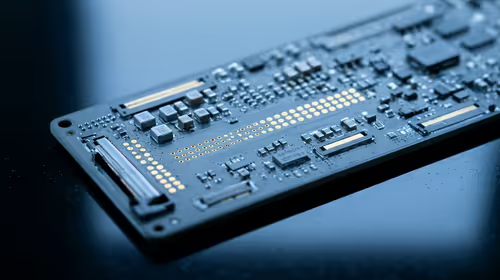
Hot-Swappable PCB Architecture in Modern Keyboards: Guide
Learn hot-swappable PCB architecture in modern keyboards—what it is, how sockets and traces work, and how to pick the right board. Speed up swaps, reduce risk, and upgrade faster 🔧⚡
Read moreOur guide to OLED ClearType tuning is here to solve blurry text and color fringing on your new display. Learn why OLED subpixel layouts cause issues with Windows ClearType and follow our step-by-step instructions to achieve crisp, clear text. Your eyes will thank you! 👀💻

So, you’ve just unboxed your glorious new OLED monitor. The colours are breathtaking, the blacks are deeper than a mineshaft, and games look absolutely incredible. But when you open a browser or a document… wait, is the text supposed to look that… fuzzy? 😵💫
Don't panic! You haven't bought a dud. This is a common quirk with many OLED panels on Windows, but the fix is surprisingly simple. This guide will walk you through the steps for perfect OLED ClearType tuning.
The secret behind fuzzy text on many OLEDs comes down to tiny, microscopic things called subpixels—the individual red, green, and blue elements that make up a single pixel.
For years, LCD monitors have used a standard horizontal Red-Green-Blue (RGB) stripe layout. Windows' ClearType technology was built specifically to make text sharper on this exact layout. However, many modern OLED panels, especially QD-OLEDs, use a different subpixel arrangement (like a triangular pattern) to maximise brightness and colour.
Windows sometimes gets confused by this new layout, resulting in text that has slight colour fringing or looks less sharp than it should. It’s not a fault of the monitor, but a software-to-hardware mismatch. Luckily, you can retrain Windows to understand your screen perfectly. This process is essential for getting the most out of the wide variety of PC monitors available today.
Running the built-in Windows ClearType Text Tuner is the most important step to getting crisp, clean text. It’s a simple wizard that adjusts text rendering to your specific monitor and your eyes.
Here’s how to do it:
You should immediately notice a significant improvement in text clarity across Windows and all your applications. This simple OLED ClearType tuning process makes a world of difference.
If you've run the tuner and still feel things could be better, a few extra settings can help you achieve text perfection.
High-resolution displays, like the incredible 5K and 4K monitors that deliver amazing detail, rely on scaling to keep text and icons from being too small.
In Windows, right-click your desktop, go to "Display settings," and find the "Scale" option. While options like 125% or 175% are available, text often renders sharpest at whole numbers like 100% or 200%. If text looks a little off, try a different scaling percentage to see if it helps.
The quest for perfect visuals doesn't end with software. Whether you're optimising a massive curved monitor for total immersion or a handy portable monitor for productivity on the go, your physical connection matters. A poor-quality cable can introduce signal noise that affects clarity. Using a certified, high-bandwidth DisplayPort or HDMI cable is a simple way to rule out any connection issues. You can find high-quality cables and other essential monitor accessories to complete your setup.
Ultimately, taking a few minutes to configure your display unlocks the full potential of today's incredible gaming monitors. After all, you invested in amazing hardware—these small tweaks ensure the software lives up to it.
Ready for Pixel-Perfect Clarity? Getting your settings right makes a huge difference, but starting with the right panel is key. From lightning-fast OLEDs to high-res 4K screens, we've got the perfect display for your rig. Explore our best PC monitor deals and find the upgrade you deserve.
Text can look poor on OLED monitors due to their unique subpixel layouts, which conflict with how Windows ClearType is designed to render fonts, causing fringing.
OLED ClearType tuning is the process of adjusting Windows' font-smoothing settings to correctly match your monitor's specific subpixel structure for sharper text.
Yes. Using the built-in Windows ClearType Tuner or third-party tools, you can significantly reduce or eliminate color fringing on text for a much cleaner look.
QD-OLED monitors often have a triangular subpixel layout that can present more challenges for text clarity than some WRGB panels, making proper tuning essential.
Disabling ClearType completely can make text look blocky. It is better to perform OLED ClearType tuning first to find the best balance between sharpness and smoothness.
The best way to improve text sharpness on an OLED screen is by running the ClearType Text Tuner and carefully selecting the text samples that look clearest on your display.
Learn hot-swappable PCB architecture in modern keyboards—what it is, how sockets and traces work, and how to pick the right board. Speed up swaps, reduce risk, and upgrade faster 🔧⚡
Read more
Mechanical switch lifespan explained—what the 50 million keystroke rating really means, plus tips to extend switch life and reduce double-press issues 🔧⌨️
Read more
60-percent vs full-size mechanical keyboard layouts—learn what each layout includes, who it suits, and how to choose the right fit 🧩⌨️ for typing, gaming, and productivity.
Read more
Double injection keycaps last far longer than standard printed keycaps in most setups. Learn typical lifespan ranges, what shortens them, and how to maximize durability for smoother daily typing and gaming 😊⌨️
Read more
Full-key anti-ghosting: does it stop missed inputs during fast-paced gaming? We break down latency, polling, and key matrix limits so you can buy smarter 🎮⚡
Read more
Protect mechanical keyboard switches from South African dust and summer humidity with practical cleaning and storage habits. Keep your switches smooth, reduce failures, and extend lifespan. 🌬️💧
Read more
Wondering if a TKL wireless mechanical keyboard is worth it for everyday productivity? We break down latency, battery life, comfort, and workflow gains for real work. ⚡⌨️

Maximise battery life on a fanless 15-inch laptop using efficiency core architecture. Cut idle drain, tune power profiles, and improve thermals for longer runtime. 🔋⚙️

Learn how to reduce desk clutter with a TKL wireless keyboard using fewer cables, smart placement, and tidy essentials. Get a faster, calmer workspace with better ergonomics. ✅🧼

RGB keyboard lighting too distracting? Learn how to manage backlight modes, set brightness, and reduce distraction for focus and productivity 😌🖱️

Are themed gaming keyboards worth the extra cost? Compare build quality, switch options, features, and resale value to find the best fit for your setup 🎮⌨️

Full-Size vs Tenkeyless mechanical keyboards for gaming: find out if a smaller layout truly improves aim, speed, and comfort. We break down layout, desk space, latency-feel, and keybinds 🎮⌨️

Dedicated media rollers vs function key shortcuts: learn which setup gives you better workflow control, faster media access, and fewer mistakes. 🖱️🎧

Best Mechanical Switch Type for Gaming: Clicky vs Linear vs Tactile. Find your feel, speed, and noise balance with practical guidance for FPS, MOBA, and productivity 😄🎮

Direct mouse answer: Mouse not keeping up with your work? Everything that matters about dual-mode 2.4GHz + BT 5.0: DPI behaviour, channel switching, battery curves and per-app button mapping. Covers when 2.4GHz USB wins (low-latency desk) and when BT 5.0 wins (laptop, d

Plain wireless mouse guide: Mouse not keeping up with your work? Everything that matters about wireless productivity mouse: DPI behaviour, channel switching, battery curves and per-app button mapping. Includes DPI tuning tips, channel switch shortcuts, and ZAR-aware fea

Real productivity numbers: Set up your wireless mouse in this order: everything that matters about wireless productivity mouse: DPI behaviour, channel switching, battery curves and per-app button mapping. Includes DPI tuning tips, channel switch shortcuts, and ZAR-aware

Pen not feeling like paper? Stylus lag and skipping usually trace to old drivers, dirty nibs, or display refresh mismatches, not the pen itself. Covers pressure curve tuning, tilt thresholds, nib swap timing, and SA pricing brackets.