



How to Use a Nano SIM 4G Router for Reliable Home Internet
Master using a Nano SIM 4G router as your primary internet solution. Get stable speeds and seamless connectivity for gaming and streaming at home! 🌐🚀
Read moreOptimize gaming laptop performance effortlessly to crush lag and boost FPS 💪 Learn expert maintenance secrets for peak gameplay! 💥
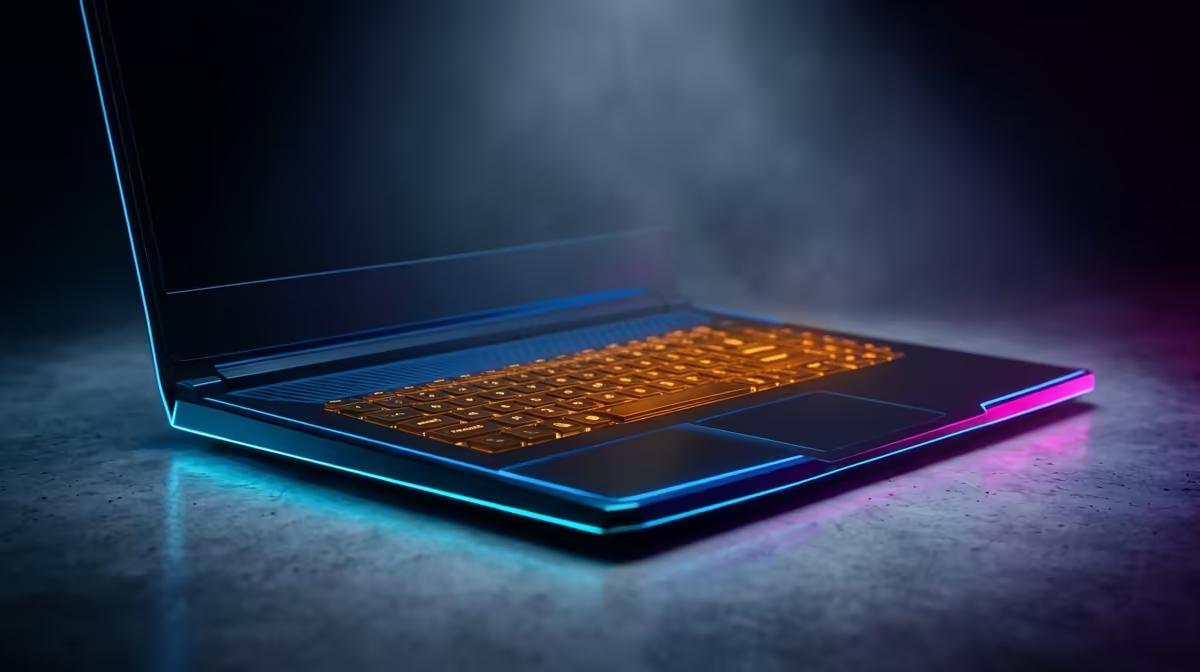
Is your trusty gaming laptop struggling with the latest titles, turning epic showdowns into a stuttering slideshow? You're not alone. Many South African gamers face the frustration of dropped frames or overheating rigs. But what if a few smart tweaks could revive your gaming laptop performance without needing a new machine? Get ready to transform your gameplay experience and get the most out of your rig. Let's dive into some top gaming laptop performance optimisation tips.
The easiest, often overlooked, way to boost your gaming laptop's performance lies in its software. Think of it as spring cleaning for your digital playground.
Firstly, ensure your graphics drivers are always up to date. NVIDIA GeForce Experience or AMD Adrenalin Software are your best friends here, offering one-click updates that can unlock significant performance gains or fix pesky bugs. It’s like giving your GPU a fresh set of tyres for the racetrack.
Next, dive into your operating system settings. Windows Game Mode, for instance, prioritises gaming processes, redirecting resources for smoother gameplay. You might also want to disable unnecessary background applications that hog CPU and RAM. Those Discord overlays or Chrome tabs can really stack up.
Close those resource-hungry applications like Discord overlays, browser tabs, or even cloud sync services when gaming. Every bit of RAM and CPU freed up contributes to smoother frame rates.
Finally, within your games themselves, experiment with settings. Lowering shadow quality, anti-aliasing, or texture detail can often yield massive FPS increases with minimal visual impact. It’s about finding that sweet spot for optimal gaming laptop performance.
Overheating is the silent killer of gaming laptop performance. When your CPU or GPU gets too hot, it "throttles" – meaning it intentionally slows down to prevent damage. This translates directly to lower frame rates.
Regular cleaning is paramount. Dust accumulation inside your laptop's cooling vents and fans acts like a blanket, trapping heat. Carefully use compressed air to clear out those vents. For the more daring, opening the laptop (if comfortable and within warranty guidelines) to clean fan blades can make a noticeable difference.
Consider investing in a good quality cooling pad. These aren't just gadgets; they actively help dissipate heat, particularly for laptops that often sit on soft surfaces like beds or laps. Keeping your machine on a hard, elevated surface also helps airflow. These simple gaming laptop performance optimisation tips can significantly extend your hardware’s lifespan and maintain consistent framerates.
Your laptop's power settings play a crucial role in its performance. When gaming, always ensure your laptop is plugged into its power adapter. Running on battery will almost universally limit your CPU and GPU power, drastically reducing frame rates.
Within Windows Power Options, select a "High Performance" or "Ultimate Performance" plan. Some gaming laptops also come with proprietary software (like ASUS Armoury Crate or Alienware Command Center) that offers performance profiles. Utilise these! They often have "Turbo" or "Boost" modes designed to push your hardware to its limits, perfect for those intense gaming sessions. Just remember to switch back to a more balanced mode for everyday tasks to save power and reduce fan noise. Getting these settings right is a core part of effective gaming laptop performance optimisation.
For those who want to squeeze every last drop of performance, consider a few advanced steps. If you’re comfortable, checking your laptop's BIOS/UEFI settings for options like XMP (for RAM overclocking, if supported) or tweaking CPU core parking can sometimes offer marginal gains. However, proceed with caution and only if you know what you’re doing.
Another powerful tip: managing startup programs. Many applications launch automatically when Windows starts, silently consuming resources. Use the Task Manager (Ctrl+Shift+Esc, then "Startup" tab) to disable anything non-essential. This frees up RAM and CPU cycles, making your system feel snappier even before you launch a game. Remember, every little bit of optimisation contributes to a smoother, more enjoyable gaming experience.
Unleash Your Laptop's Full Potential Ready to experience gaming without compromise? Don't let anything hold you back. Shop now at Evetech for performance that leaves lag in the dust.
Clean vents every 3-6 months using compressed air to prevent overheating and maintain airflow efficiency 🔧
Replace thermal paste annually to ensure efficient CPU/GPU cooling and sustained performance 🌡️
Use SpeedFan or Notebook Hardware Control for precise cooling adjustments and noise reduction 🛠️
Discharge to 5% then fully charge without interruption to optimize battery life 🔋
Yes! Reduces heat while maintaining stable frame rates for longer hardware longevity 📉⚡
Lower shadows/textures first. Prioritize resolution scaling over ultra settings 🎮✨
SSD upgrades deliver faster load times. Extra RAM helps with multitasking 🚀💾
High-efficiency pads reduce overheating risks by 40%+ during marathon gaming sessions 💨🏆
Master using a Nano SIM 4G router as your primary internet solution. Get stable speeds and seamless connectivity for gaming and streaming at home! 🌐🚀
Read more
Confused by Cat4 vs Cat6 LTE routers? 🌐 We break down the technical differences to help you choose the right router for faster gaming and streaming. Get the speed you deserve today! 🚀
Read more
Learn how to setup a VPN server on your 4G LTE router to secure your remote access. Protect your data and browse safely from anywhere with our easy guide! 🌐🔐
Read more
Choosing the best 4G LTE router for South Africa ensures reliable internet when fibre is unavailable. Discover top connectivity tips for rural and urban areas. 🌐📶
Read more
Discover what is passive PoE and how it streamlines outdoor router installations. Eliminate messy cabling and simplify your network setup with this efficient power delivery method. ⚡🌐
Read more
Need to extend internet coverage to outbuildings or farms? 📡 An outdoor 4G router is the ultimate solution for stable, high-speed connectivity in remote locations. Discover how to boost your range and stay connected anywhere on your property. 🌐
Read more
Wondering if a TKL wireless mechanical keyboard is worth it for everyday productivity? We break down latency, battery life, comfort, and workflow gains for real work. ⚡⌨️

Maximise battery life on a fanless 15-inch laptop using efficiency core architecture. Cut idle drain, tune power profiles, and improve thermals for longer runtime. 🔋⚙️

Learn how to reduce desk clutter with a TKL wireless keyboard using fewer cables, smart placement, and tidy essentials. Get a faster, calmer workspace with better ergonomics. ✅🧼

RGB keyboard lighting too distracting? Learn how to manage backlight modes, set brightness, and reduce distraction for focus and productivity 😌🖱️

Are themed gaming keyboards worth the extra cost? Compare build quality, switch options, features, and resale value to find the best fit for your setup 🎮⌨️

Full-Size vs Tenkeyless mechanical keyboards for gaming: find out if a smaller layout truly improves aim, speed, and comfort. We break down layout, desk space, latency-feel, and keybinds 🎮⌨️

Dedicated media rollers vs function key shortcuts: learn which setup gives you better workflow control, faster media access, and fewer mistakes. 🖱️🎧

Best Mechanical Switch Type for Gaming: Clicky vs Linear vs Tactile. Find your feel, speed, and noise balance with practical guidance for FPS, MOBA, and productivity 😄🎮

Direct mouse answer: Mouse not keeping up with your work? Everything that matters about dual-mode 2.4GHz + BT 5.0: DPI behaviour, channel switching, battery curves and per-app button mapping. Covers when 2.4GHz USB wins (low-latency desk) and when BT 5.0 wins (laptop, d

Plain wireless mouse guide: Mouse not keeping up with your work? Everything that matters about wireless productivity mouse: DPI behaviour, channel switching, battery curves and per-app button mapping. Includes DPI tuning tips, channel switch shortcuts, and ZAR-aware fea

Real productivity numbers: Set up your wireless mouse in this order: everything that matters about wireless productivity mouse: DPI behaviour, channel switching, battery curves and per-app button mapping. Includes DPI tuning tips, channel switch shortcuts, and ZAR-aware

Pen not feeling like paper? Stylus lag and skipping usually trace to old drivers, dirty nibs, or display refresh mismatches, not the pen itself. Covers pressure curve tuning, tilt thresholds, nib swap timing, and SA pricing brackets.