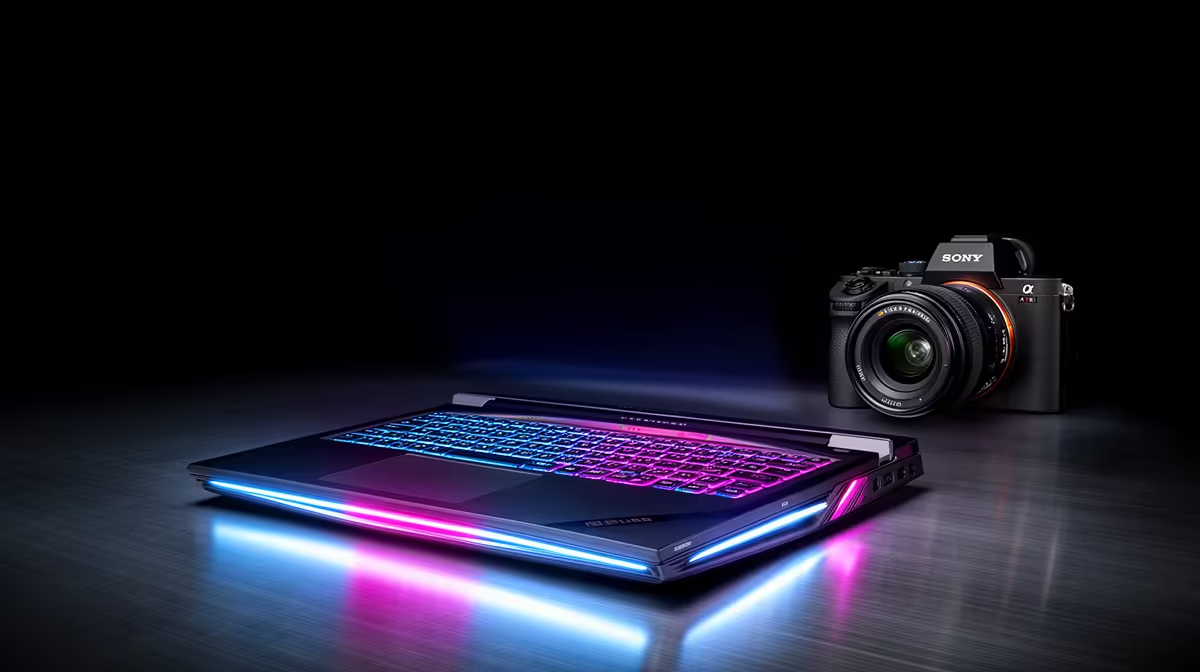
Your new Dell laptop is more than just a device… it's your connection to work, your portal to epic gaming worlds, and your creative canvas. Here in South Africa, keeping that investment safe means thinking beyond just a laptop sleeve. From unpredictable an unexpected outage to dust and security risks, it’s crucial to know how to protect your Dell laptop in South Africa. This guide covers the essential physical and digital shields you need to keep your machine running perfectly.
Physical Protection for Your Dell Laptop 🛡️
Before you even worry about software, securing the physical hardware is your first line of defence. The challenges we face locally demand a bit of extra vigilance.
UPS Sizing for Controlled Shutdown
An unexpected outage isn't just an inconvenience; the power surges that can happen when electricity returns are a direct threat to your laptop's sensitive electronics. Plugging your charger directly into the wall is a massive gamble.
A quality surge protector is a non-negotiable accessory. It acts as a buffer, absorbing voltage spikes that could otherwise fry your motherboard or power adapter. Think of it as a small investment in ZAR that protects a much larger one. This is the most fundamental step in protecting your Dell laptop's hardware.
Smart Security On the Go
Whether you're working from a coffee shop or commuting, physical theft is a real concern. A sturdy, padded laptop bag is a great start, but don't stop there. For professionals who are often out and about with a reliable Dell Vostro laptop, a Kensington lock provides a physical tether to a table, giving you peace of mind. Always be aware of your surroundings and never leave your laptop unattended, even for a moment.
Combatting Heat and Dust
South Africa’s climate can be tough on electronics. Dust can clog cooling fans, causing your Dell to overheat, throttle performance, and shorten its lifespan.
- Keep Vents Clear: Never use your laptop on a soft surface like a bed or couch, which can block airflow.
- Clean Regularly: A gentle blast of compressed air into the vents every few months can work wonders.
- Consider a Cooling Pad: If you're pushing your machine with intense gaming or video editing, an external cooling pad can significantly improve thermal performance.
Securing Your Digital World ⚡
With the hardware safe, it's time to fortify your data. Effective digital protection for your Dell laptop in SA involves a multi-layered approach.
Antivirus and Malware Defence
Windows Defender, built into Windows 11, offers a solid baseline of protection. However, for comprehensive security against the latest threats, a premium antivirus suite is highly recommended. It provides enhanced protection against phishing scams, ransomware, and spyware—all of which are prevalent threats. Keeping your chosen security software updated is just as important as having it installed.
Quick Security Win ✨
In Windows, go to Settings > Update & Security > Find my device. Make sure this is turned ON. If your Dell laptop is ever lost or stolen, this feature allows you to track its location, lock it remotely, or even erase your data to protect your privacy. It’s a simple click that offers huge peace of mind.
Backups are Non-Negotiable
Imagine losing all your work, photos, and game saves in an instant due to hardware failure or a ransomware attack. It’s a nightmare scenario that is entirely preventable. The best strategy is the 3-2-1 rule:
- 3 copies of your data.
- 2 different types of media (e.g., your laptop's internal drive + an external drive).
- 1 copy stored off-site (e.g., in the cloud via OneDrive, Google Drive, or Dropbox).
This is especially critical if you use your powerful mobile workstation for business-critical projects. For those with high-value data on machines like the high-end Dell Precision workstation laptops, automated cloud backups are an absolute must.
Maximising Longevity and Performance 🔧
Proper care isn't just about preventing disaster; it's about making sure your Dell performs at its best for years to come.
Battery Health and Care
Modern Dell laptops have smart charging features, but good habits still help. Avoid letting your battery drain completely to 0% regularly. If you're going to be plugged in for a long session, Dell's Power Manager app often has settings to limit the charge to 80%, which can significantly extend the battery's overall lifespan.
Keep It Clean and Updated
A simple microfibre cloth for the screen and a soft brush for the keyboard can prevent grime buildup. On the software side, regularly check for Windows updates and use Dell's SupportAssist tool to download the latest drivers. These updates often contain critical security patches and performance optimisations, a maintenance routine you should apply to all your hardware, much like with Dell's All-in-One desktop PCs. Taking these small steps is a key part of the complete guide to protecting your Dell.
Ready to Find Your Perfect Dell?
Protecting your gear is smart, but it all starts with the right machine. From powerful gaming rigs to reliable workhorses, we've got a Dell for every need and budget. Explore our massive range of laptop specials and find the perfect machine to conquer your world.