Nothing kills a session faster than a teammate who can't hear your callouts. Whether you are defending a site or coordinating a raid, having a PS5 mic too quiet is a massive disadvantage. It often feels like you are whispering into a void while your game audio blares at full volume. Thankfully, fixing your volume, chat mix, and settings is a straightforward process that takes minutes. 🔧
Adjusting the PS5 Mic Level Settings
The most common reason for low voice input is a poorly calibrated gain level. Your PlayStation 5 allows you to manually override the default sensitivity. Press the PS button on your DualSense controller to open the Quick Menu. Navigate to the Microphone icon and select 'Adjust Mic Level'.
As you speak, you will see a bar indicating your input volume. You want your voice to consistently hit the "Good" zone. If the bar barely moves, slide the gain to the right. If you find that even high-quality gaming headsets are still struggling, ensure the microphone is positioned closer to your mouth... just a few centimetres can make a massive difference in decibel output.
Balancing the Chat Mix for Better Clarity
Sometimes the issue isn't that your mic is quiet... it is that the game world is too loud. This is where the Chat Mix settings become vital. If explosions and engine noises are drowning out your party chat, go to Settings > Sound > Audio Output.
From here, you can adjust the "Voice Chat Balance" slider. Moving this toward the "Chat" side lowers game volume while prioritising your friends' voices. This ensures you can hear them, and they can hear you without competing with a heavy orchestral soundtrack. Many players find that Razer’s premium audio range offers on-ear controls to do this on the fly... saving you from diving into menus mid-match. ⚡
Crystal Clear Comms ⚡
Sometimes the simplest fix is the most effective. If you use the DualSense controller mic, ensure your hands aren't covering the tiny pinhole near the PS button. Also, check for dust buildup in the microphone hole... a quick blast of compressed air can restore your voice clarity in seconds.
Hardware Fixes for Quiet Microphones
If software tweaks don't cut it, your hardware might be the bottleneck. The built-in controller mic is convenient but lacks the isolation needed for noisy South African households. Upgrading to a dedicated boom microphone provides much better passive noise cancellation.
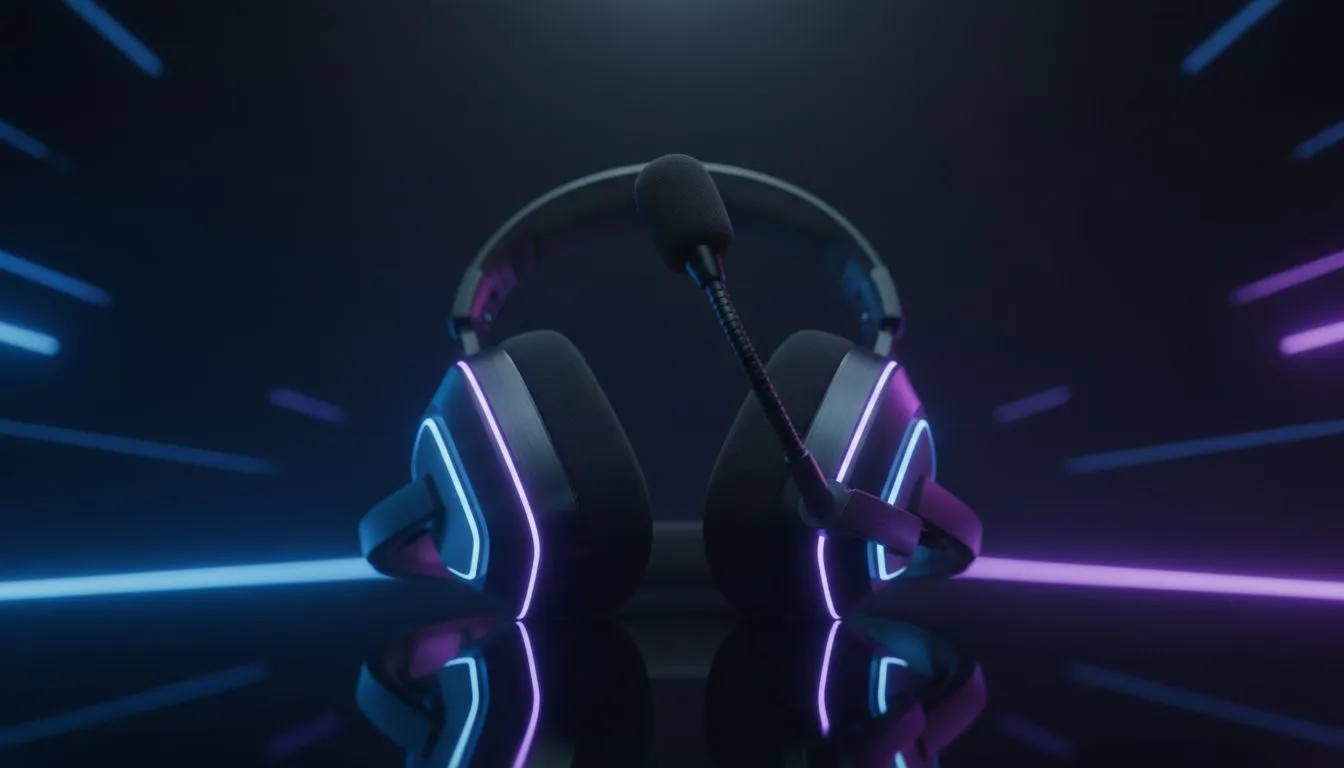
For those looking for a professional edge, the Razer Barracuda X Chroma Wireless Headset is an excellent choice. It features a detachable cardioid mic that focuses specifically on your voice while ignoring background hums like fans or air conditioning. Investing in a proper setup usually costs less than a new AAA game release in ZAR... yet it significantly improves every multiplayer interaction you have. 🚀
Check Your Mute Status
It sounds obvious, but always check the physical mute button on your controller or headset cable. The DualSense light glows orange when muted. If that light is on, no amount of settings adjustment will make you audible. Ensure your system software is fully updated too... Sony frequently releases patches that optimise audio drivers and controller firmware. ✨
Ready to Elevate Your Audio?
Don't let poor mic quality hold your squad back from victory. For the best sound, comfort, and voice clarity in South Africa, upgrading your gear is the ultimate solution. Explore our massive range of gaming headset specials and find the perfect pair to dominate the lobby.