


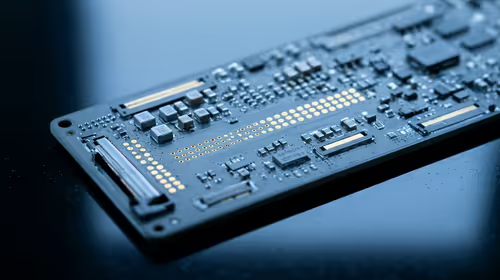
Hot-Swappable PCB Architecture in Modern Keyboards: Guide
Learn hot-swappable PCB architecture in modern keyboards—what it is, how sockets and traces work, and how to pick the right board. Speed up swaps, reduce risk, and upgrade faster 🔧⚡
Read more🚀 Docker setup made easy with our quick guide. Learn how to configure containers in seconds like pros do. Skyrocket your development workflow! 🚀
Tired of your desk looking like a pot of spaghetti that just exploded? We get it. A clean, powerful setup is the dream for any South African gamer or developer. It’s about more than just aesthetics; it’s about focus and efficiency. This guide will walk you through a quick Docker setup for a streamlined software environment and show you how to pair it with the right hardware for the ultimate one-cable battlestation. 🚀
So, what exactly is Docker? In simple terms, it's a tool that lets you run applications in isolated environments called "containers." Think of it as a super-lightweight virtual machine. For gamers, this could mean running a dedicated server for a game like Valheim or Minecraft without messing up your main system. For developers, it's essential for creating consistent, portable project environments.
Here's a straightforward guide to getting it running:
And that's it! You've completed your initial Docker setup. You can now use the docker run hello-world command in your terminal to test that everything is working correctly.
A clean software workflow is one thing, but what about the physical clutter? A powerful laptop is fantastic for portability, but constantly plugging and unplugging chargers, displays, and peripherals is a real drag. This is where a docking station becomes your setup's best friend, turning multiple connections into a single, clean cable.
For anyone building a modern, flexible workspace, a dock isn't a luxury... it's a necessity. It simplifies your life by providing extra USB ports, display outputs, and even Ethernet, all through one USB-C or Thunderbolt connection. You can find a massive selection of powerful docking stations that form the central hub of your gaming and work life.
When choosing a dock, check its Power Delivery (PD) wattage. Make sure it meets or exceeds your laptop's charger wattage. This allows the dock to charge your laptop at full speed, meaning you can leave your original charger in your travel bag permanently!
Imagine this: you come home, place your laptop on your desk, and plug in a single USB-C cable. Instantly, your dual monitors light up, your mechanical keyboard and gaming mouse are ready, and you're connected to high-speed internet. That’s the power of a well-planned setup.
You don't have to spend a fortune to achieve this level of convenience. There are excellent, budget-friendly options that provide all the essential connectivity you need, with many great choices available for under R1000. For reliability and a great mix of features, brands like Promate consistently deliver quality that you can trust for your daily grind or weekend gaming marathon.
By combining a clean software environment using this Docker guide with a clutter-free hardware hub, you create a space that’s not just powerful but also a pleasure to use.
Complete Your Ultimate Setup Ready to banish cable chaos and unlock single-cable convenience? Explore our curated range of high-performance docking stations, with premium models available for well under R2000, and build the battlestation you deserve.
The fastest way is using Docker Compose to automate container builds.
Use pre-configured templates and Docker Compose for rapid deployment.
Docker Compose helps orchestrate multi-container apps effortlessly.
Optimize by using slim images and automated build scripts.
Compose simplifies multi-container setups versus manual Dockerfile builds.
Adopt CI/CD pipelines and container orchestration for rapid deployments.
Yes, with automation tools, you can dockerize applications rapidly.
Learn hot-swappable PCB architecture in modern keyboards—what it is, how sockets and traces work, and how to pick the right board. Speed up swaps, reduce risk, and upgrade faster 🔧⚡
Read more
Mechanical switch lifespan explained—what the 50 million keystroke rating really means, plus tips to extend switch life and reduce double-press issues 🔧⌨️
Read more
60-percent vs full-size mechanical keyboard layouts—learn what each layout includes, who it suits, and how to choose the right fit 🧩⌨️ for typing, gaming, and productivity.
Read more
Double injection keycaps last far longer than standard printed keycaps in most setups. Learn typical lifespan ranges, what shortens them, and how to maximize durability for smoother daily typing and gaming 😊⌨️
Read more
Full-key anti-ghosting: does it stop missed inputs during fast-paced gaming? We break down latency, polling, and key matrix limits so you can buy smarter 🎮⚡
Read more
Protect mechanical keyboard switches from South African dust and summer humidity with practical cleaning and storage habits. Keep your switches smooth, reduce failures, and extend lifespan. 🌬️💧
Read more
Wondering if a TKL wireless mechanical keyboard is worth it for everyday productivity? We break down latency, battery life, comfort, and workflow gains for real work. ⚡⌨️

Maximise battery life on a fanless 15-inch laptop using efficiency core architecture. Cut idle drain, tune power profiles, and improve thermals for longer runtime. 🔋⚙️

Learn how to reduce desk clutter with a TKL wireless keyboard using fewer cables, smart placement, and tidy essentials. Get a faster, calmer workspace with better ergonomics. ✅🧼

RGB keyboard lighting too distracting? Learn how to manage backlight modes, set brightness, and reduce distraction for focus and productivity 😌🖱️

Are themed gaming keyboards worth the extra cost? Compare build quality, switch options, features, and resale value to find the best fit for your setup 🎮⌨️

Full-Size vs Tenkeyless mechanical keyboards for gaming: find out if a smaller layout truly improves aim, speed, and comfort. We break down layout, desk space, latency-feel, and keybinds 🎮⌨️

Dedicated media rollers vs function key shortcuts: learn which setup gives you better workflow control, faster media access, and fewer mistakes. 🖱️🎧

Best Mechanical Switch Type for Gaming: Clicky vs Linear vs Tactile. Find your feel, speed, and noise balance with practical guidance for FPS, MOBA, and productivity 😄🎮

Direct mouse answer: Mouse not keeping up with your work? Everything that matters about dual-mode 2.4GHz + BT 5.0: DPI behaviour, channel switching, battery curves and per-app button mapping. Covers when 2.4GHz USB wins (low-latency desk) and when BT 5.0 wins (laptop, d

Plain wireless mouse guide: Mouse not keeping up with your work? Everything that matters about wireless productivity mouse: DPI behaviour, channel switching, battery curves and per-app button mapping. Includes DPI tuning tips, channel switch shortcuts, and ZAR-aware fea

Real productivity numbers: Set up your wireless mouse in this order: everything that matters about wireless productivity mouse: DPI behaviour, channel switching, battery curves and per-app button mapping. Includes DPI tuning tips, channel switch shortcuts, and ZAR-aware

Pen not feeling like paper? Stylus lag and skipping usually trace to old drivers, dirty nibs, or display refresh mismatches, not the pen itself. Covers pressure curve tuning, tilt thresholds, nib swap timing, and SA pricing brackets.