



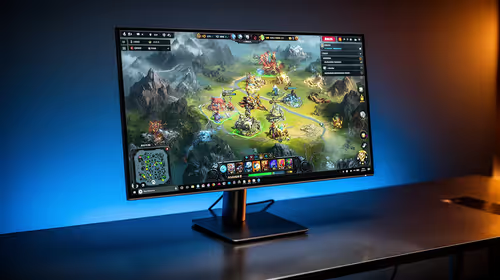
IPS vs VA for Strategy and Sim Games in SA
IPS vs VA for strategy and sim games should be judged by fit, not a single winner. Compare compatibility, latency, capacity, upgrade path, cost planning, and South African setup needs.
Read moreUnlock the full potential of your **Razer Huntsman V3 Pro actuation settings** with our step-by-step guide. 🎮 Learn to fine-tune Rapid Trigger sensitivity and analog optical switches to dominate FPS and MOBA games. Customize your keystrokes for pure speed today!

Ever missed a crucial headshot because your keypress felt slow? Or accidentally popped your ult in a panic because your finger just grazed the key? We've all been there. The Razer Huntsman V3 Pro's adjustable actuation is the solution, but dialling it in can feel like a final boss battle. This guide is your cheat code to unlocking pixel-perfect control with the best Razer Huntsman V3 Pro actuation settings for your playstyle.
Before we dive into the settings, let's quickly break down the jargon. "Actuation point" is simply how far down you need to press a key for it to register. A shorter actuation means a faster response; a longer one means a more deliberate, typo-proof press.
Most standard mechanical keyboards have a fixed actuation point, usually around 2.0mm. While reliable, this one-size-fits-all approach is a compromise. The Huntsman V3 Pro, with its 2nd Gen Analog Optical Switches, blows this out of the water by letting you customise the actuation point from a hair-trigger 0.1mm all the way to a firm 4.0mm. This level of control, once reserved for the pro scene, is now a key feature in many top-tier modern gaming keyboards. It's a massive leap from the tech found in most entry-level mechanical keyboards.
Mastering your Razer Huntsman V3 Pro actuation settings means you can have a keyboard that's lightning-fast for gaming and comfortably precise for typing... all at the same time.
Getting started is easy. All adjustments are made directly on the keyboard using the digital dial and dedicated keys, or through Razer's Synapse software. Here’s how to find your perfect setup.
The massive adjustment range is the Huntsman's superpower. Think of it as a spectrum from speed to precision.
This is where the magic happens. Rapid Trigger dynamically changes the reset point of the key. Instead of having to let the key travel all the way back up to reset, it resets the instant it starts travelling upwards.
What does this mean for you? Insanely fast repeated keystrokes. In games like CS2 or Valorant, this allows for perfect "counter-strafing," where you can stop on a dime for a precise shot by tapping the opposite movement key. It feels like a hardware-level cheat code for movement.
For tactical shooters, try this profile. Set WASD keys to a low actuation of 0.8mm and enable Rapid Trigger with the most sensitive setting. This maximises movement responsiveness. Then, set your ability keys (E, Q, X) to a higher 2.0mm to prevent accidental use during an intense firefight. This custom Razer Huntsman V3 Pro actuation settings profile gives you the best of both worlds.
Perfecting your actuation is a huge step, but it's part of a bigger picture. To truly elevate your experience, consider the physical components. The feel of your keyboard is just as important as its digital performance.
Exploring different keyboard switches can change the entire personality of a board, while adding a set of high-quality, textured custom keycaps can improve your grip and accuracy. And for those long gaming sessions in front of the PC, ergonomics are key; pairing your board with a comfortable wrist rest can prevent fatigue and keep you playing at your peak. Often, thinking about upgrading your keyboard and mouse together ensures a consistent feel and aesthetic across your desk.
Ultimately, the goal is to create a setup that feels like an extension of your own hands. The journey to find the perfect Razer Huntsman V3 Pro actuation settings is personal. So, experiment, play your favourite games, and tweak until every keypress feels just right. ✨
Ready to Tune Your Huntsman Setup? Test the actuation changes, then compare gaming keyboards if you need a different switch feel or layout.
Open Razer Synapse, select the keyboard, go to the Actuation tab, and use the slider to set the distance between 0.1mm and 4.0mm for individual keys.
Rapid Trigger allows keys to reset the instant you lift your finger, rather than at a fixed point, enabling faster repeated keystrokes for competitive gaming.
Yes, Razer Synapse allows you to customize **Razer Huntsman V3 Pro actuation settings** per key, so WASD can be ultra-sensitive while other keys remain standard.
The Gen-2 Analog Optical Switches allow for an actuation point as shallow as 0.1mm, providing near-instant response times for high-speed inputs.
You can make quick adjustments via onboard shortcuts (FN + Tab), but Razer Synapse is required for precise per-key customization and profile saving.
Generally, yes. Setting a deeper actuation point (e.g., 2.0mm - 3.0mm) helps prevent accidental keystrokes during typing compared to sensitive gaming settings.
IPS vs VA for strategy and sim games should be judged by fit, not a single winner. Compare compatibility, latency, capacity, upgrade path, cost planning, and South African setup needs.
Read more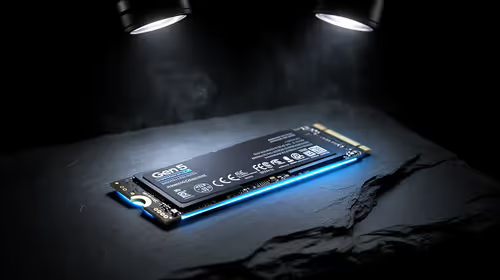
Gen 5 NVMe SSD guide for Bloemfontein gamers should be shortlisted around the job it must do. South African buyers should compare capacity, speed, thermals, and motherboard support, warranty path, and upgrade room before treating any pick as best.
Read more
Skip the RTX 5070 if your first-time builder budget needs better balance. Better SA picks can free room for the right CPU, PSU, case, monitor, storage, and cooling while still giving a strong first gaming PC experience this year in South Africa.
Read more
RTX 5080: weighing the pros and cons for SA should be shortlisted around the job it must do. South African buyers should compare GPU tier, VRAM, cooling, and PSU headroom, warranty path, and upgrade room before treating any pick as best.
Read more
Core i5-13400F gives South African PC builders a capable mid-range CPU choice with clear limits. Check its gaming fit, discrete GPU requirement, LGA1700 platform costs, and upgrade path before locking in your parts list.
Read more
Pros and cons of the Wi-Fi 7 routers for SA should be shortlisted around the job it must do. South African buyers should compare WiFi standard, coverage, latency, and device support, warranty path, and upgrade room before treating any pick as best.
Read more
Steam content servers unreachable needs a download-path check, not an immediate reinstall of every game. Restart the client, inspect download settings and compare another connection when practical. Clearing the download cache is separate from deleting installed games.

Keychron G6 HE has built-in and swappable battery versions with different weights. The product brief lists 42g and 46g respectively, each with a 3g tolerance. Choose by grip and battery preference before treating one headline weight as universal.

Corsair HS80 v2 MAX supports 2.4GHz wireless and Bluetooth. Its maximum battery figures use RGB-off conditions and differ by connection. Check microphone routing, comfort and the exact device support before assuming every wireless mode behaves alike.

Windows taskbar notification badges can be shown or hidden in Taskbar behaviours. This changes the small app indicators, not the underlying messages. Choose a calmer desktop while keeping a deliberate routine for checking important conversations and app updates.
Windows taskbar notification badges can be shown or hidden in Taskbar behaviours. This changes the small app indicators, not the underlying messages. Choose a calmer desktop while keeping a deliberate routine for checking important conversations and app updates.

Windows USB device in use can mean a program still has the drive open. Finish transfers and close files before retrying ejection. Better performance caching requires safe removal; a replacement drive is not the first fix for an open-file warning.

Windows Nearby Sharing not working starts with feature, Bluetooth and visibility checks on both PCs. My devices only depends on matching Microsoft accounts. Test a small harmless file before buying networking hardware or changing your home router.

Windows hardware reserved RAM is different from memory used by applications. Compare installed memory with firmware detection and the usable amount before buying modules. Reservations and reporting limits vary by system; no universal setting restores every byte.

Windows title bar window shake can minimise other open windows when you shake the active window by its title bar. Inspect the Multitasking setting and switch it off if that gesture interrupts your work. The preference costs R0 and does not require new hardware.

Windows Print Screen opens Snipping Tool when its keyboard preference is enabled. Change the option under Accessibility, Keyboard to choose another workflow. Test whether you need a clipboard image or a saved file.

Windows desktop icons missing may be a visibility setting. Right-click the desktop, choose View and inspect Show desktop icons. If only system icons are absent, use Desktop icon settings. Check the Desktop folder before assuming files were deleted.

Windows set time zone automatically greyed out calls for a location and device-policy check. Automatic time-zone selection relies on location services. A manual time-zone choice is separate from synchronising the clock; check both before replacing hardware.