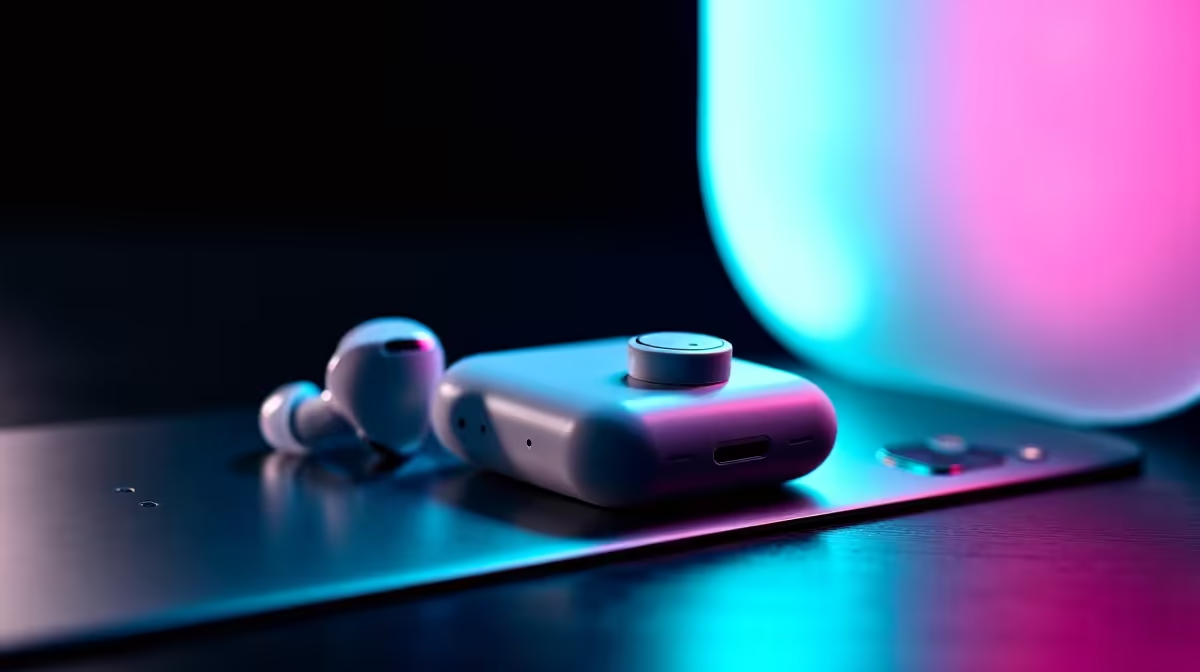
You’re deep into a ranked match on your laptop, callouts flying. Your phone buzzes… it’s that important call you’ve been waiting for. The frantic dance begins: pause the game, fumble with Bluetooth settings, disconnect, reconnect… Argh! 😫 What if you could switch your TWS earbuds from your phone to your laptop instantly?
This isn’t science fiction. True seamless TWS pairing is here, and this guide will show you exactly how to achieve it.
Why Switching TWS Audio is Often a Hassle
For years, the standard Bluetooth experience has been a one-to-one relationship. Your earbuds could only talk to one device at a time. To switch from your phone to your laptop, you had to manually sever the first connection before you could establish the second. It’s a clunky process that feels outdated in our multi-device world.
This limitation is the primary reason why that "instant switch" feels so elusive. Thankfully, many modern Bluetooth headsets are now built with the technology to solve this exact problem.
The Tech Behind Instant TWS Device Switching ⚡
The magic ingredient is a technology called Bluetooth Multipoint. Think of it as giving your earbuds the ability to listen to two devices at once. They maintain an active connection to both your laptop and your phone simultaneously.
So, when you’re listening to music on your laptop and a call comes in on your phone, your earbuds automatically pause the music and switch the audio source to the call. No button-mashing required. This is the core principle that enables a truly seamless TWS pairing experience, making it perfect for gamers, students, and professionals in South Africa who constantly juggle devices. This feature is becoming a standard in many of the latest wireless headsets.
Your Step-by-Step Guide to Seamless TWS Pairing
Ready to set it up? While the exact steps can vary slightly between brands, the general process for enabling multipoint on your TWS earbuds is straightforward.
- Pair with Device #1: Connect your earbuds to your primary device (e.g., your laptop) through its Bluetooth settings as you normally would.
- Enable Pairing Mode Again: Put your earbuds back into pairing mode. Usually, this involves pressing and holding a button on the case or on the earbuds themselves. Crucially, this won't disconnect them from your first device.
- Pair with Device #2: On your second device (e.g., your smartphone), open Bluetooth settings and connect to the earbuds.
- Confirm Connection: That’s it! Your earbuds should now be connected to both devices. Audio will intelligently switch based on which device is playing media or receiving a call.
Check The App 🔧
Many brands like Sony, Jabra, and Anker have companion apps for their audio gear. These apps often provide a simple toggle to turn multipoint functionality on or off, and can make managing your connections even easier.
Not all earbuds support this feature, so it's always best to check the product specifications before you buy. You can explore our full range of TWS earbuds to find a pair with the features you need.
Expanding Your Seamless Audio Ecosystem ✨
This philosophy of effortless switching doesn't have to end with your headphones. Creating a unified audio setup means having the right tool for every job. While TWS earbuds are perfect for on-the-go focus, nothing beats a set of powerful desktop speakers for immersive gaming or filling your room with your favourite playlist when you’re done with calls for the day. The goal is an audio experience that just… works.