Quick Answer
A single Mini DisplayPort to DisplayPort cable can deliver full 4K at 60Hz monitoring without any additional hardware, provided both the source port and the cable are rated for HBR2 (21.6Gbps) and the monitor's DisplayPort input supports DisplayPort 1.2 or higher.
What Single-Cable 4K Actually Requires 🔧
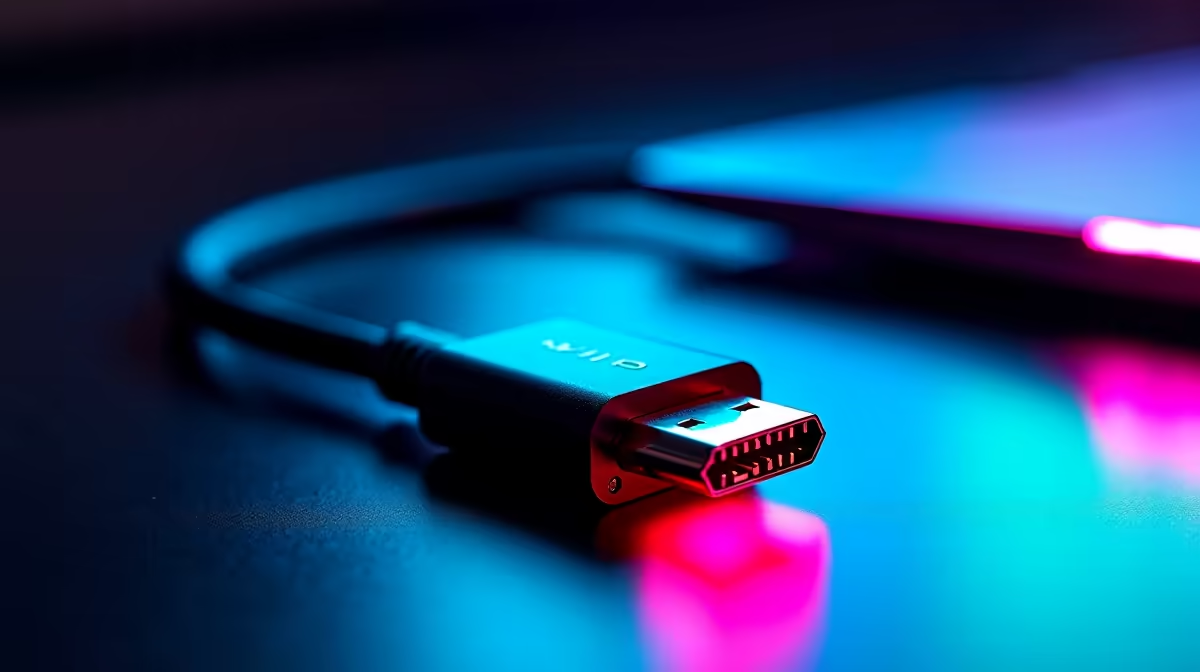
Single-cable 4K monitoring through Mini DP to DisplayPort works because DisplayPort carries video, audio, and monitor control signals on one cable simultaneously. Unlike HDMI setups that sometimes need separate audio cables for desktop monitors, a Mini DP to DP connection delivers the complete signal set in one run. The physical setup is straightforward: Mini DP connector into the source port (GPU output, laptop port, or Mac Thunderbolt 2 port), full-size DP connector into the monitor input. No power adapters, no drivers, no software configuration required beyond setting the resolution. For SA buyers building a clean cable-managed desk without a rats nest of wires behind the monitor, this single-cable approach is the practical ideal.
Step-by-Step Setup Process 🖥️
Connect the Mini DP end to the GPU or laptop output and the full-size DP end to the monitor's DisplayPort input. Power on both devices. Windows will detect the monitor and assign a default resolution, which may not be 4K. Right-click the desktop, open Display Settings, and set the resolution to 3840 x 2160. Then open Advanced Display Settings, select the monitor from the dropdown, and confirm the refresh rate shows 60Hz. If only 30Hz appears, the cable is not HBR2-rated or the monitor's DP port is set to a lower mode in its OSD menu. Check the monitor's OSD under Display or Signal settings and ensure DisplayPort version is set to 1.2 or higher rather than 1.1. Some monitors default to DP 1.1 mode which limits bandwidth.
Monitor OSD Settings That Block 4K at 60Hz 📡
This is the most overlooked step: many monitors, including popular 4K panels stocked locally at R4,500 to R12,000, ship with the DisplayPort version set to 1.1 in the OSD to maintain backward compatibility with older sources. At DisplayPort 1.1, the bandwidth cap is 10.8Gbps (HBR1), which cannot sustain 4K at 60Hz. Navigating to the OSD and switching to DisplayPort 1.2 or "DP 1.4" unlocks the full HBR2 or HBR3 bandwidth and immediately makes 60Hz available in Windows display settings. This change takes under 60 seconds and resolves the vast majority of "4K stuck at 30Hz" complaints from SA users who have already bought the correct cable.
Check Monitor DP Version in OSD Before Buying a New Cable ⚡
Before spending money on a replacement cable, enter the monitor's OSD menu (usually via the button under the bezel) and find the DisplayPort Version setting. If it shows 1.1, change it to 1.2 or 1.4. This single change frequently resolves 4K at 30Hz issues without any hardware changes at all.
FAQ
Can I use a Mini DP to DP cable to connect a MacBook to a 4K monitor at 60Hz?
Yes, if the MacBook's Mini DP port supports DisplayPort 1.2 and the cable is HBR2-rated. MacBook Pros from 2012 to 2015 with Thunderbolt 2 ports can drive 4K at 60Hz in display-only mode through a quality Mini DP to DP cable.
Does Mini DP to DP support G-Sync or FreeSync?
Yes. Adaptive sync (FreeSync and G-Sync Compatible) works over Mini DP to full DP connections the same as native DisplayPort, since the cable carries the standard DisplayPort protocol without modification.
What is the maximum cable length for single-cable 4K at 60Hz?
Passive Mini DP to DP cables perform reliably up to 1.8 metres at HBR2. For 2 to 3 metre runs targeting 4K at 60Hz, buy a cable explicitly rated for that length at HBR2, as conductor quality becomes the deciding factor beyond 2 metres.
Ready for a clean single-cable 4K desk setup?
Evetech stocks Mini DisplayPort to DisplayPort cables in HBR2 ratings for 4K at 60Hz, so you can build a tidy, high-resolution workstation without complexity.