



How to Use a Nano SIM 4G Router for Reliable Home Internet
Master using a Nano SIM 4G router as your primary internet solution. Get stable speeds and seamless connectivity for gaming and streaming at home! 🌐🚀
Read moreSoundbar not connecting to PC? Learn step-by-step fixes for Bluetooth, USB, HDMI and driver issues to restore audio fast. 🎧🔧

You’ve just unboxed your shiny new soundbar, ready for earth-shaking explosions in Helldivers 2 or hearing every footstep in Warzone. You plug it in, and… nothing. Just pure, frustrating silence. When your soundbar is not connecting to your PC, it can seriously kill the vibe. But don't start packing it up for a return just yet. Most connection issues are surprisingly easy to fix, and this guide will walk you through the solutions.
Before diving into complex settings, let's cover the basics. It sounds simple, but you'd be surprised how often these small things are the culprit when a soundbar is not connecting to a PC.
A physical cable should be the most reliable way to connect, but things can still go wrong. If your PC is not detecting the soundbar via a cable, let’s check the usual suspects. For many, a simple wired connection offers a straightforward, plug-and-play experience.
These digital connections offer the best quality but require correct setup in Windows.
Even a basic 2.0 speaker system can deliver crisp audio, but ensuring the right output is selected is key for any setup.
Bluetooth offers incredible convenience, but it can sometimes be a bit fussy. If your soundbar's Bluetooth is not connecting to your PC, these steps usually clear things up. A good wireless soundbar can declutter your desk, but only when it works!
If it was previously connected but now won't work, try removing the device from your PC's known Bluetooth list and re-pairing it from scratch.
If your Bluetooth audio is choppy or keeps disconnecting, an outdated driver is often the problem. Go to the Device Manager in Windows, find your Bluetooth adapter, right-click it, and select "Update driver." A quick update can solve a world of audio headaches.
Sometimes the hardware is fine, but Windows is getting its signals crossed. Getting the software side right is crucial, especially if you're running a powerful 2.1 sound system and want to feel that lekker bass.
This is the most common software-side fix for a soundbar not connecting to a PC.
Outdated or corrupt audio drivers can cause endless problems. Brands like Promate offer reliable hardware, but they still depend on your PC's drivers to function correctly. Visit your motherboard or laptop manufacturer's website to download and install the latest audio drivers for your specific model.
If you've worked through this entire troubleshooting guide and your soundbar still refuses to connect, it might be a sign of a hardware fault... or that it's simply time for an upgrade. Modern audio gear offers better connectivity, higher fidelity, and easier setup. Investing in a quality new setup can save you future headaches and dramatically improve your gaming and media experience. Take a look at the massive variety of modern speakers and soundbars available today.
Ready for Crystal-Clear, Hassle-Free Audio? Troubleshooting is one thing, but you deserve an immersive sound experience without the frustration. If your old soundbar is giving you grief, it might be the perfect time for an upgrade. Explore our massive range of speakers and soundbars and find the perfect audio solution to conquer your world.
Check Bluetooth pairing, USB/HDMI cables, default playback device, and update audio drivers. Try rebooting both devices and re-pairing the soundbar.
Enable Bluetooth, remove old pairings, update Bluetooth and audio drivers, and run the Windows audio troubleshooter to resolve pc soundbar bluetooth not working.
Set the soundbar as default output, check volume and mute, test different cables, and verify the audio format in Windows when soundbar shows no sound on pc.
Yes. Verify HDMI ARC/eARC settings on both devices, use the correct HDMI port, and ensure Windows uses the HDMI device for audio to fix soundbar hdmi arc pc audio problems.
Try another USB port, update USB and audio drivers, check Device Manager for errors, and reinstall the soundbar driver for soundbar usb connection pc troubleshooting.
Yes. Update soundbar firmware and your PC's audio/Bluetooth drivers to improve compatibility and fix issues—this helps fix soundbar drivers windows problems.
Reboot, enable discovery or USB permissions, try wired connection, check Device Manager, and use the manufacturer's app if the soundbar not recognized by pc.
Master using a Nano SIM 4G router as your primary internet solution. Get stable speeds and seamless connectivity for gaming and streaming at home! 🌐🚀
Read more
Confused by Cat4 vs Cat6 LTE routers? 🌐 We break down the technical differences to help you choose the right router for faster gaming and streaming. Get the speed you deserve today! 🚀
Read more
Learn how to setup a VPN server on your 4G LTE router to secure your remote access. Protect your data and browse safely from anywhere with our easy guide! 🌐🔐
Read more
Choosing the best 4G LTE router for South Africa ensures reliable internet when fibre is unavailable. Discover top connectivity tips for rural and urban areas. 🌐📶
Read more
Discover what is passive PoE and how it streamlines outdoor router installations. Eliminate messy cabling and simplify your network setup with this efficient power delivery method. ⚡🌐
Read more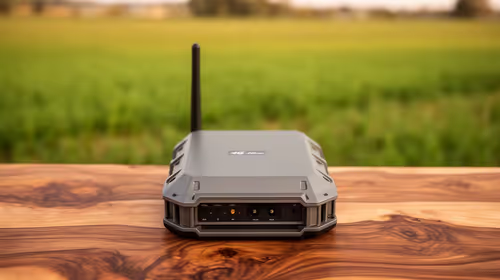
Need to extend internet coverage to outbuildings or farms? 📡 An outdoor 4G router is the ultimate solution for stable, high-speed connectivity in remote locations. Discover how to boost your range and stay connected anywhere on your property. 🌐
Read more
Wondering if a TKL wireless mechanical keyboard is worth it for everyday productivity? We break down latency, battery life, comfort, and workflow gains for real work. ⚡⌨️

Maximise battery life on a fanless 15-inch laptop using efficiency core architecture. Cut idle drain, tune power profiles, and improve thermals for longer runtime. 🔋⚙️

Learn how to reduce desk clutter with a TKL wireless keyboard using fewer cables, smart placement, and tidy essentials. Get a faster, calmer workspace with better ergonomics. ✅🧼

RGB keyboard lighting too distracting? Learn how to manage backlight modes, set brightness, and reduce distraction for focus and productivity 😌🖱️

Are themed gaming keyboards worth the extra cost? Compare build quality, switch options, features, and resale value to find the best fit for your setup 🎮⌨️

Full-Size vs Tenkeyless mechanical keyboards for gaming: find out if a smaller layout truly improves aim, speed, and comfort. We break down layout, desk space, latency-feel, and keybinds 🎮⌨️

Dedicated media rollers vs function key shortcuts: learn which setup gives you better workflow control, faster media access, and fewer mistakes. 🖱️🎧

Best Mechanical Switch Type for Gaming: Clicky vs Linear vs Tactile. Find your feel, speed, and noise balance with practical guidance for FPS, MOBA, and productivity 😄🎮

Direct mouse answer: Mouse not keeping up with your work? Everything that matters about dual-mode 2.4GHz + BT 5.0: DPI behaviour, channel switching, battery curves and per-app button mapping. Covers when 2.4GHz USB wins (low-latency desk) and when BT 5.0 wins (laptop, d

Plain wireless mouse guide: Mouse not keeping up with your work? Everything that matters about wireless productivity mouse: DPI behaviour, channel switching, battery curves and per-app button mapping. Includes DPI tuning tips, channel switch shortcuts, and ZAR-aware fea

Real productivity numbers: Set up your wireless mouse in this order: everything that matters about wireless productivity mouse: DPI behaviour, channel switching, battery curves and per-app button mapping. Includes DPI tuning tips, channel switch shortcuts, and ZAR-aware

Pen not feeling like paper? Stylus lag and skipping usually trace to old drivers, dirty nibs, or display refresh mismatches, not the pen itself. Covers pressure curve tuning, tilt thresholds, nib swap timing, and SA pricing brackets.