



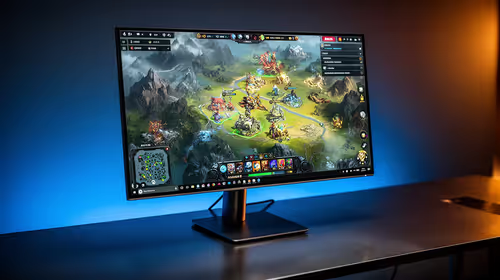
IPS vs VA for Strategy and Sim Games in SA
IPS vs VA for strategy and sim games should be judged by fit, not a single winner. Compare compatibility, latency, capacity, upgrade path, cost planning, and South African setup needs.
Read moreThunderbolt 4 and plain USB-C share the same oval plug but not the same abilities. HDMI sits apart as a video-only socket, and knowing which is which decides whether your dock, drive or monitor works first time. R21,699 puts all three on one small box.
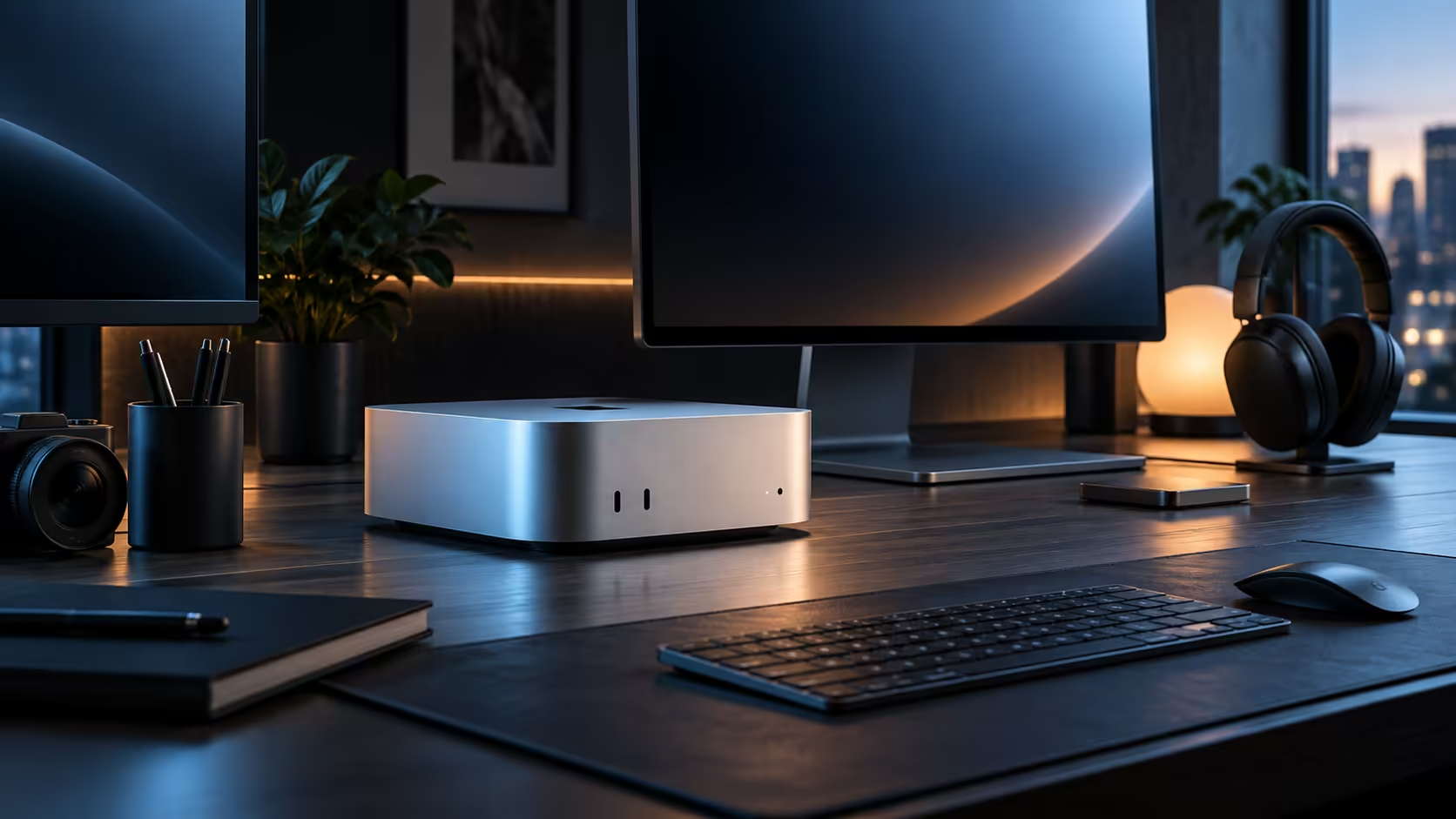
A first-time Apple buyer switching from a Windows tower usually assumes every USB-C socket on a Mac Mini M6 behaves the same way, because that has generally been true on PC motherboards for years. On this machine it genuinely is not, and knowing the difference before plugging anything in saves buying hardware you never needed.
Three of the five USB-C style sockets carry Thunderbolt 4, built for monitors, fast drives and docks; the remaining two are plain USB-C for everyday gear. HDMI sits separately for a straightforward screen, and a 2.5Gb Ethernet port rounds out the back panel. None of this costs extra above the R21,699 sticker price.
On most Windows desktops, every USB-C port on the motherboard delivers roughly the same speed, so plugging a monitor into "whichever port is free" rarely causes a problem. A Mac Mini deliberately mixes Thunderbolt 4 and plain USB-C on the same case, and picking the wrong one for a demanding device is the single most common connectivity complaint from someone building their first Apple desk.
If a device needs to move a lot of data quickly, a monitor, an external SSD, or a dock, give it a Thunderbolt port. If it just needs power and a trickle of data, a keyboard, a mouse, a phone cable, plain USB-C is completely fine and frees the Thunderbolt ports for what actually benefits from them.
Despite carrying three Thunderbolt ports, the machine keeps a dedicated HDMI output specifically because plenty of screens, older monitors, projectors, decoders, still have no USB-C input at all. It draws from the same display engine as the Thunderbolt ports, so the number of screens the chip can drive is a separate question from how many video sockets exist on the case.
A 2.5Gb Ethernet socket sits quietly next to the USB-C ports, and it is easy to overlook entirely on a machine most people set up over Wi-Fi. It is worth using for anything that regularly moves large files to another device on your own network, since it comfortably outpaces most home wireless setups for that specific job.
A switcher used to plugging two or three monitors into whatever free USB-C ports a Windows motherboard offers will hit a wall trying that same habit here, since only the three Thunderbolt 4 ports carry a video signal at all; the two plain USB-C sockets do not. Plan a multi-screen desk around those three ports specifically, and treat the plain pair as reserved purely for a keyboard, a mouse, or anything else that never needs to display a picture.
Running out of Thunderbolt ports before running out of devices is common once a monitor, an external drive and a dock's own upstream cable are all accounted for. A basic USB hub attached to one of the plain USB-C ports is the right fix for extra low-bandwidth accessories, a card reader, a second keyboard, a USB microphone, since it keeps the Thunderbolt ports free for whatever actually needs their speed.
Bringing over an older monitor from a previous Windows build works fine as long as it has either a USB-C input capable of carrying video or, more commonly on an older screen, an HDMI input, since the dedicated HDMI port on this machine exists for exactly that case. Check the monitor's own input list before assuming a cable adapter will bridge the gap; a passive HDMI-to-USB-C adapter generally does not carry a video signal in that direction.
Before settling on anything, glance through the other tiers on Mac Mini and see what turns up in the mini PC category too.
A small strip of coloured tape or a printed label stuck near each of the five USB-C ports, noting which three are Thunderbolt, takes two minutes and permanently removes the guesswork for anyone else who ever plugs something into the machine, a housemate, a colleague, a future buyer of a second-hand unit. It sounds trivial next to the R21,699 price of the machine itself, but it is the cheapest fix available for the single most common mistake switchers make on this case.
Because Windows towers typically treat every USB-C port the same, while this case deliberately splits Thunderbolt 4 from plain USB-C, and picking the wrong one for a demanding device can bottleneck it.
No, both use an identical connector shape; check the machine's own documentation to see which three of the five are Thunderbolt.
Often, yes, for any screen, TV or projector that has no USB-C video input, which remains common even on fairly recent budget monitors.
No, the connector shape is identical across all five; check the machine's own documentation or Apple's published port diagram rather than guessing from appearance.
No, Thunderbolt 4 is fully backward compatible with standard USB-C charging, so a phone charges normally without any risk from the extra bandwidth sitting unused.
Generally yes, provided the cable is a genuine USB-C cable rather than a proprietary charging lead; check its own rated speed if it will be carrying anything more demanding than a phone charge on a daily basis at the desk, since not every cable sold today is genuinely built to the exact same actual standard as the next one on the shelf.
Ready to wire up your Mac Mini the right way from day one? Match demanding devices to Thunderbolt 4 and everyday gear to plain USB-C.
Because Windows towers typically treat every USB-C port the same, while this case deliberately splits Thunderbolt 4 from plain USB-C, and picking the wrong one for a demanding device can bottleneck it.
No, both use an identical connector shape; check the machine's own documentation to see which three of the five are Thunderbolt.
Often, yes, for any screen, TV or projector that has no USB-C video input, which remains common even on fairly recent budget monitors.
No, the connector shape is identical across all five; check the machine's own documentation or Apple's published port diagram rather than guessing from appearance.
No, Thunderbolt 4 is fully backward compatible with standard USB-C charging, so a phone charges normally without any risk from the extra bandwidth sitting unused.
Generally yes, provided the cable is a genuine USB-C cable rather than a proprietary charging lead; check its own rated speed if it will be carrying anything more demanding than a phone charge on a daily basis at the desk, since not every cable sold today is genuinely built to the exact same actual standard as the next one on the shelf.
IPS vs VA for strategy and sim games should be judged by fit, not a single winner. Compare compatibility, latency, capacity, upgrade path, cost planning, and South African setup needs.
Read more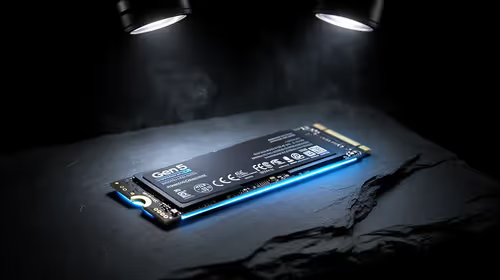
Gen 5 NVMe SSD guide for Bloemfontein gamers should be shortlisted around the job it must do. South African buyers should compare capacity, speed, thermals, and motherboard support, warranty path, and upgrade room before treating any pick as best.
Read more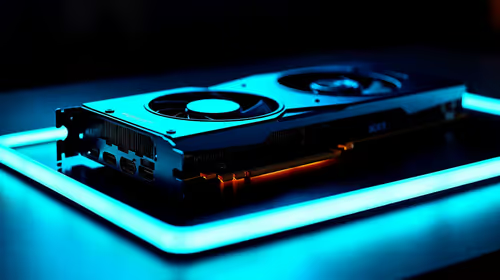
Skip the RTX 5070 if your first-time builder budget needs better balance. Better SA picks can free room for the right CPU, PSU, case, monitor, storage, and cooling while still giving a strong first gaming PC experience this year in South Africa.
Read more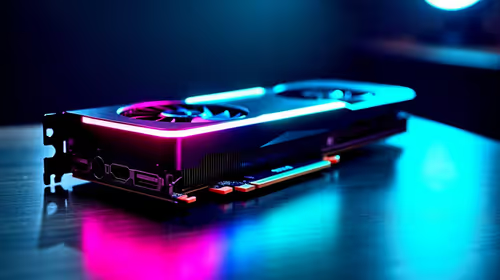
RTX 5080: weighing the pros and cons for SA should be shortlisted around the job it must do. South African buyers should compare GPU tier, VRAM, cooling, and PSU headroom, warranty path, and upgrade room before treating any pick as best.
Read more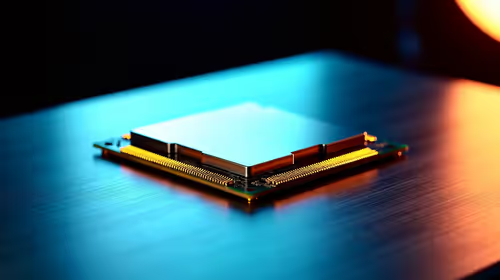
Core i5-13400F gives South African PC builders a capable mid-range CPU choice with clear limits. Check its gaming fit, discrete GPU requirement, LGA1700 platform costs, and upgrade path before locking in your parts list.
Read more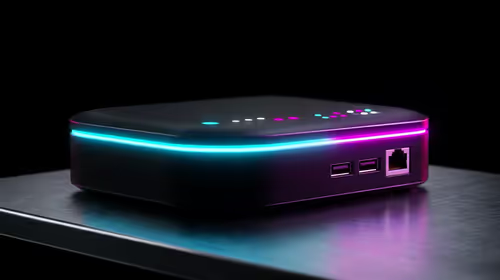
Pros and cons of the Wi-Fi 7 routers for SA should be shortlisted around the job it must do. South African buyers should compare WiFi standard, coverage, latency, and device support, warranty path, and upgrade room before treating any pick as best.
Read more
Steam content servers unreachable needs a download-path check, not an immediate reinstall of every game. Restart the client, inspect download settings and compare another connection when practical. Clearing the download cache is separate from deleting installed games.

Keychron G6 HE has built-in and swappable battery versions with different weights. The product brief lists 42g and 46g respectively, each with a 3g tolerance. Choose by grip and battery preference before treating one headline weight as universal.

Corsair HS80 v2 MAX supports 2.4GHz wireless and Bluetooth. Its maximum battery figures use RGB-off conditions and differ by connection. Check microphone routing, comfort and the exact device support before assuming every wireless mode behaves alike.

Windows taskbar notification badges can be shown or hidden in Taskbar behaviours. This changes the small app indicators, not the underlying messages. Choose a calmer desktop while keeping a deliberate routine for checking important conversations and app updates.
Windows taskbar notification badges can be shown or hidden in Taskbar behaviours. This changes the small app indicators, not the underlying messages. Choose a calmer desktop while keeping a deliberate routine for checking important conversations and app updates.

Windows USB device in use can mean a program still has the drive open. Finish transfers and close files before retrying ejection. Better performance caching requires safe removal; a replacement drive is not the first fix for an open-file warning.

Windows Nearby Sharing not working starts with feature, Bluetooth and visibility checks on both PCs. My devices only depends on matching Microsoft accounts. Test a small harmless file before buying networking hardware or changing your home router.

Windows hardware reserved RAM is different from memory used by applications. Compare installed memory with firmware detection and the usable amount before buying modules. Reservations and reporting limits vary by system; no universal setting restores every byte.

Windows title bar window shake can minimise other open windows when you shake the active window by its title bar. Inspect the Multitasking setting and switch it off if that gesture interrupts your work. The preference costs R0 and does not require new hardware.

Windows Print Screen opens Snipping Tool when its keyboard preference is enabled. Change the option under Accessibility, Keyboard to choose another workflow. Test whether you need a clipboard image or a saved file.

Windows desktop icons missing may be a visibility setting. Right-click the desktop, choose View and inspect Show desktop icons. If only system icons are absent, use Desktop icon settings. Check the Desktop folder before assuming files were deleted.

Windows set time zone automatically greyed out calls for a location and device-policy check. Automatic time-zone selection relies on location services. A manual time-zone choice is separate from synchronising the clock; check both before replacing hardware.