Quick Answer
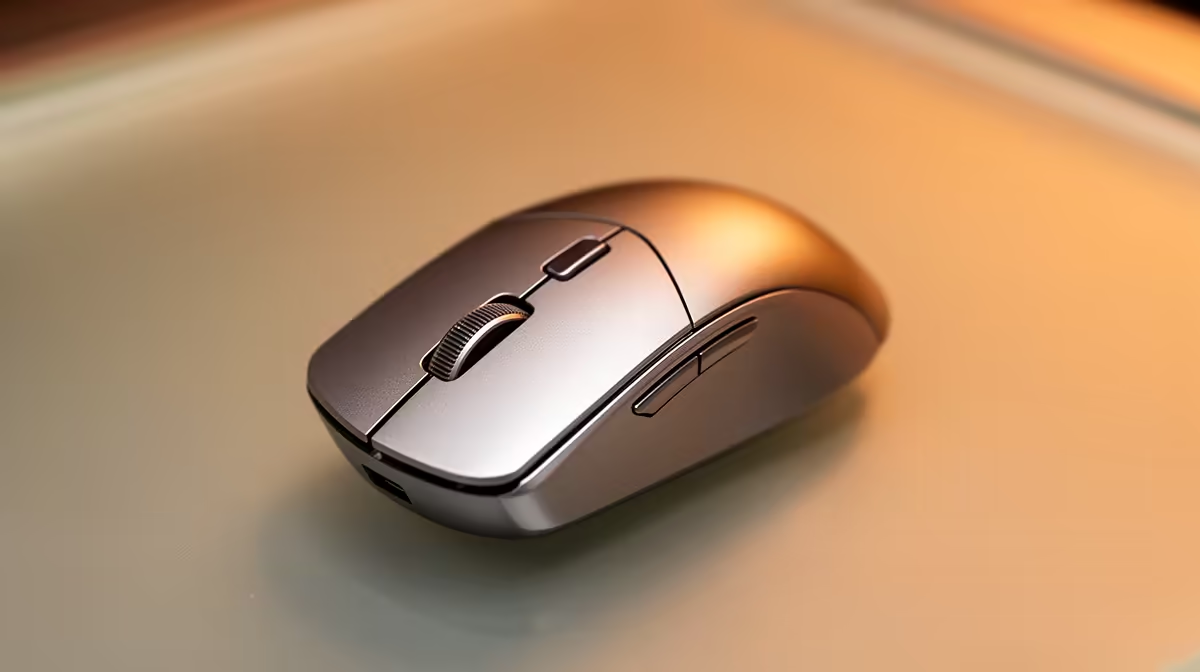
For most work and study tasks on a 1080p display, 800 to 1,600 DPI is the practical range. On a 1440p or 4K screen, 1,600 to 3,200 DPI is more comfortable. Gaming on the same display typically sits between 400 and 1,600 DPI depending on genre. Start lower than you think you need and increase from there.
What DPI Means and Why Marketing Numbers Mislead 📏
DPI, or dots per inch, is the number of pixels the mouse cursor moves for every physical inch the mouse travels on the desk. At 800 DPI on a 1080p monitor, moving the mouse 1 inch shifts the cursor 800 pixels, roughly two-thirds of the screen width. At 3,200 DPI the same motion covers almost three full screen widths. Manufacturers use peak DPI figures, sometimes exceeding 25,000, as marketing numbers. These extremes are not used in practice. What matters for everyday use is sensor consistency across the practical range of 400 to 3,200 DPI, specifically zero acceleration, accurate linear tracking, and minimal angle snapping within that range.
DPI Settings by Task and Display Type 🖥️
For document editing, email, and spreadsheet work on a 1080p screen, 800 to 1,200 DPI gives precise cursor placement without demanding wrist movements. For web research and multi-window navigation on a 1080p screen, 1,200 to 1,600 DPI reduces the effort of crossing a full display. On a 1440p external monitor, which many South African students connect to at home for extended study sessions, 1,600 to 2,400 DPI prevents excessive physical mouse travel. On a 4K screen in a multi-monitor array used by design or data professionals, 2,400 to 3,200 DPI is a natural starting point. For casual gaming on a 1080p screen, 400 to 1,600 DPI is the common range depending on genre and personal preference.
Configuring DPI Practically on Your Mouse ⚙️
Most mice with a physical DPI button cycle through three to five preset values. The companion software, such as Logitech Options Plus or Razer Synapse, lets you customise each preset. A useful three-step configuration for mixed work-study use is: 800 DPI for precision tasks, 1,600 DPI for standard navigation, and 2,400 DPI for large-display or multi-monitor use. Avoid setting your system mouse sensitivity above the midpoint when using mid-to-high DPI, as the combination creates pixel-skipping where the cursor appears to jump rather than slide smoothly.
Lower DPI Reduces Wrist Fatigue ⚡
A common mistake is setting DPI too high and compensating for overshoot with grip tension. Try dropping your DPI by 400 and notice whether your hand relaxes during precise cursor work. Most people find the sweet spot is lower than their initial setting, and reduced grip tension significantly lowers forearm fatigue across a full workday.
FAQ
Does changing DPI affect scroll wheel speed?
No. DPI only affects cursor movement speed, not scroll wheel behaviour. Scroll speed is a separate setting in your operating system's mouse preferences or in the companion software.
What is the difference between DPI and mouse sensitivity in Windows settings?
DPI is a hardware-level setting on the mouse itself. Windows sensitivity applies a software multiplier on top of the hardware reading. Running high Windows sensitivity on a low-DPI mouse introduces interpolation artefacts. For the cleanest tracking, set Windows sensitivity to the midpoint and adjust DPI hardware settings to your preferred cursor speed.
Can I use different DPI profiles for different applications automatically?
Yes, if the mouse software supports application profiles. Logitech Options Plus and Razer Synapse both allow you to assign a specific DPI preset to each application profile, so your mouse automatically switches to 800 DPI when you open Excel and 1,600 DPI when you switch to a browser.
Want a mouse with a quality sensor that performs well at every DPI setting?
Evetech carries wireless mice with proven optical sensors across every price point, from compact student picks to premium productivity models with full DPI programmability.