



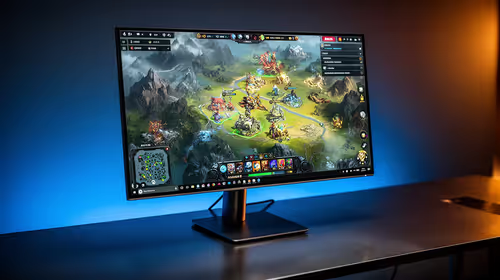
IPS vs VA for Strategy and Sim Games in SA
IPS vs VA for strategy and sim games should be judged by fit, not a single winner. Compare compatibility, latency, capacity, upgrade path, cost planning, and South African setup needs.
Read moreThunderbolt 3 is stronger for fast storage, display links and capable docks. USB-C names the connector, not one fixed speed; this iPad Pro supports Thunderbolt 3, DisplayPort and Power Delivery through its single Type-C port.
Thunderbolt 3 is stronger for fast storage, display links and capable docks. USB-C names the connector, not one fixed speed; this iPad Pro supports Thunderbolt 3, DisplayPort and Power Delivery through its single Type-C port.
Two cables can have identical USB-C ends and still support very different features. One may be intended mainly for charging, another may transfer data, and another may carry a display signal or support a more demanding dock. That is why connector shape is a poor basis for deciding whether a setup will work.
USB-C describes the reversible physical connector. It does not, by itself, tell you the transfer speed, display capability, charging support or protocol that the cable and ports can use. Read the specification for every part of the chain: the tablet, cable, adapter, dock, display and drive. A capable tablet connected through an unsuitable cable may behave like a much simpler connection.
The Apple iPad Pro 11 M5 has one USB-C port that supports Thunderbolt 3, DisplayPort and Power Delivery. That means the port can be used for a broad range of creator workflows, but it remains important to select compatible accessories for the specific task.
Browse the iPad range alongside the accessories needed for the actual workstation, not as an isolated device choice.
Thunderbolt 3 is a high-capability connection standard that uses the USB-C connector. For creators, its relevance is the ability to support demanding data and display workflows when every device in the chain is compatible. Fast external storage, display connections and docks are common reasons to look for it.
The key word is compatible. A Thunderbolt 3 port does not make every USB-C accessory a Thunderbolt accessory. A dock or cable must be designed for the features you expect, and the connected display or storage device must have its own suitable interface. Check the documentation before buying around a single headline specification.
Think about the work in motion. A videographer copying large source files, a designer reviewing on an external display, and a writer charging a tablet while using a keyboard have different connection needs. The first two may benefit from a more capable data or display route; the third may only need stable charging and one accessory. "Better" is therefore the connection that removes a real bottleneck, not the most advanced name on the box.
External storage can be useful for source material, project handovers and local archives. The important questions are how much data moves, how often it moves and whether the transfer must happen during a deadline. A cable that is fine for charging may not provide the data behaviour expected for a large project copy.
Plan one test before relying on a new setup. Copy a small non-critical folder, open several files from the destination, and verify that the drive stays connected while the tablet is in its normal working position. If the connection drops, examine the cable, strain on the connector, drive power needs and any hub in the path. Change one variable at a time so the result is meaningful.
Do not confuse transfer speed with file organisation. A fast route still needs named folders, a verified archive and an independent backup. It only makes the chosen process quicker; it does not decide which copy is current or protect the work from accidental deletion.
DisplayPort is a display connection protocol that can be carried through a compatible USB-C route. A monitor may present USB-C, HDMI or DisplayPort inputs, and an adapter or dock may translate between them. Before connecting, check the monitor's documented input requirement and the accessory output.
Start with the display alone. Select the expected monitor input, connect the cable or adapter, and confirm that the tablet recognises it. Then add storage, keyboard, network and other peripherals one by one. This separates a display problem from a congested dock or a weak cable.
A docking-station category is worth considering when one repeatable desk connection must handle a display, wired accessories and charging. Read the dock's outputs and power requirements carefully; a row of USB-C ports does not guarantee that each one has the same function.
Power Delivery refers to compatible charging negotiation through USB-C. A creator's desk may need the tablet to receive power while a dock also serves storage and a display. That arrangement depends on the dock, charger and cable being suitable for the combined job.
Connect the main data and display path first, then add power after it is confirmed. This makes troubleshooting clearer. If a device starts disconnecting after charging is attached, the problem may be the hub's power arrangement or the charger rather than the drive or monitor.
Avoid forcing connectors or using a cable that is bent tightly at the tablet. Leave enough slack to move the device without pulling on the port. For a portable kit, keep the smallest proven adapter and cable together in a labelled pouch, separate from the larger desk dock.
Cables often look interchangeable once they are in a drawer. Prevent repeat mistakes by labelling tested cables according to the job they actually completed: charging, display, storage transfer or dock connection. Keep the description modest; only label a cable with a capability you verified through its documentation and a successful test.
Review comprehensive cable options with the complete route written down. Match cable length to the workspace, avoid unnecessary adapters, and retain the packaging details until the setup has been tested. A shorter, direct route is usually easier to diagnose than a chain of converters.
When a setup fails, do not replace everything at once. Test the tablet with one known-good accessory, then test the cable, then add the dock or display. Record the combination that works. This creates a reliable creator kit rather than a collection of similar-looking leads.
Thunderbolt 3 is valuable when the work needs capable docks, fast external storage or display links and the accessories support the same route. Standard USB-C can be completely adequate for simpler charging and accessory jobs. The iPad Pro port supports Thunderbolt 3, DisplayPort and Power Delivery, but the final experience depends on every part connected to it.
List the job, identify the required data, display and power paths, and verify the chain before an important session. That is a better creative investment than selecting a cable by connector shape alone.
No. USB-C identifies the connector, not a guaranteed display capability. Check the cable, adapter and display requirements before relying on the connection.
No. The dock, cable, display, storage and charger each have their own specifications. The full chain determines what the workstation can do.
A small test can expose a loose cable, disconnect or compatibility issue before an important transfer. Open files from the copied version to confirm the result.
Build a creator connection kit around proven cables, compatible accessories and the data, display and charging tasks you actually repeat.
No. USB-C identifies the connector, not a guaranteed display capability. Check the cable, adapter and display requirements before relying on the connection.
No. The dock, cable, display, storage and charger each have their own specifications. The full chain determines what the workstation can do.
A small test can expose a loose cable, disconnect or compatibility issue before an important transfer. Open files from the copied version to confirm the result.
IPS vs VA for strategy and sim games should be judged by fit, not a single winner. Compare compatibility, latency, capacity, upgrade path, cost planning, and South African setup needs.
Read more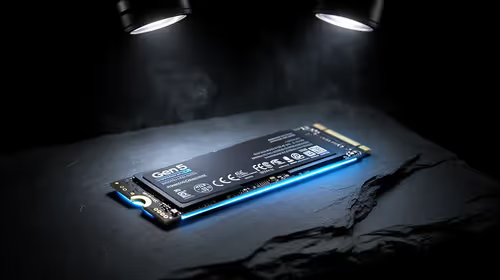
Gen 5 NVMe SSD guide for Bloemfontein gamers should be shortlisted around the job it must do. South African buyers should compare capacity, speed, thermals, and motherboard support, warranty path, and upgrade room before treating any pick as best.
Read more
Skip the RTX 5070 if your first-time builder budget needs better balance. Better SA picks can free room for the right CPU, PSU, case, monitor, storage, and cooling while still giving a strong first gaming PC experience this year in South Africa.
Read more
RTX 5080: weighing the pros and cons for SA should be shortlisted around the job it must do. South African buyers should compare GPU tier, VRAM, cooling, and PSU headroom, warranty path, and upgrade room before treating any pick as best.
Read more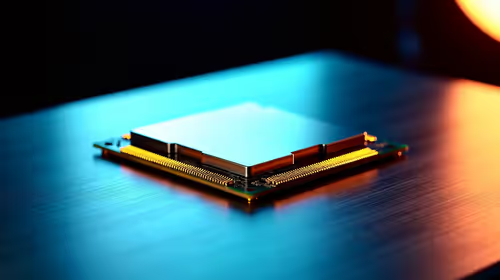
Core i5-13400F gives South African PC builders a capable mid-range CPU choice with clear limits. Check its gaming fit, discrete GPU requirement, LGA1700 platform costs, and upgrade path before locking in your parts list.
Read more
Pros and cons of the Wi-Fi 7 routers for SA should be shortlisted around the job it must do. South African buyers should compare WiFi standard, coverage, latency, and device support, warranty path, and upgrade room before treating any pick as best.
Read more
Steam content servers unreachable needs a download-path check, not an immediate reinstall of every game. Restart the client, inspect download settings and compare another connection when practical. Clearing the download cache is separate from deleting installed games.

Keychron G6 HE has built-in and swappable battery versions with different weights. The product brief lists 42g and 46g respectively, each with a 3g tolerance. Choose by grip and battery preference before treating one headline weight as universal.

Corsair HS80 v2 MAX supports 2.4GHz wireless and Bluetooth. Its maximum battery figures use RGB-off conditions and differ by connection. Check microphone routing, comfort and the exact device support before assuming every wireless mode behaves alike.

Windows taskbar notification badges can be shown or hidden in Taskbar behaviours. This changes the small app indicators, not the underlying messages. Choose a calmer desktop while keeping a deliberate routine for checking important conversations and app updates.
Windows taskbar notification badges can be shown or hidden in Taskbar behaviours. This changes the small app indicators, not the underlying messages. Choose a calmer desktop while keeping a deliberate routine for checking important conversations and app updates.

Windows USB device in use can mean a program still has the drive open. Finish transfers and close files before retrying ejection. Better performance caching requires safe removal; a replacement drive is not the first fix for an open-file warning.

Windows Nearby Sharing not working starts with feature, Bluetooth and visibility checks on both PCs. My devices only depends on matching Microsoft accounts. Test a small harmless file before buying networking hardware or changing your home router.

Windows hardware reserved RAM is different from memory used by applications. Compare installed memory with firmware detection and the usable amount before buying modules. Reservations and reporting limits vary by system; no universal setting restores every byte.

Windows title bar window shake can minimise other open windows when you shake the active window by its title bar. Inspect the Multitasking setting and switch it off if that gesture interrupts your work. The preference costs R0 and does not require new hardware.

Windows Print Screen opens Snipping Tool when its keyboard preference is enabled. Change the option under Accessibility, Keyboard to choose another workflow. Test whether you need a clipboard image or a saved file.

Windows desktop icons missing may be a visibility setting. Right-click the desktop, choose View and inspect Show desktop icons. If only system icons are absent, use Desktop icon settings. Check the Desktop folder before assuming files were deleted.

Windows set time zone automatically greyed out calls for a location and device-policy check. Automatic time-zone selection relies on location services. A manual time-zone choice is separate from synchronising the clock; check both before replacing hardware.