


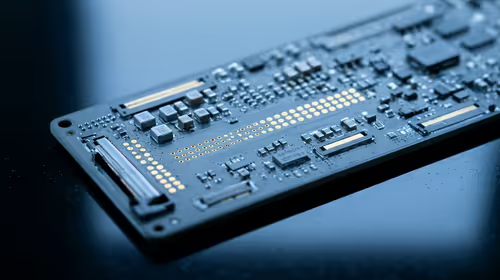
Hot-Swappable PCB Architecture in Modern Keyboards: Guide
Learn hot-swappable PCB architecture in modern keyboards—what it is, how sockets and traces work, and how to pick the right board. Speed up swaps, reduce risk, and upgrade faster 🔧⚡
Read moreThunderbolt 4 vs USB-C on MacBook Air: learn what each port supports, including display, storage, and charging limits. Avoid slow adapters and get the right cable for your setup. ⚡🔌

If you’re buying a MacBook Air in South Africa and you’re also the person in your friend group who “knows cables”, this one’s for you. Thunderbolt and USB‑C look the same on the outside… but the limits inside can change everything. Will your external SSD saturate its speed? Can you run a fast dock and a monitor without headaches? Let’s break down the real-world limits of Thunderbolt 4 vs USB-C on MacBook Air Ports and what they mean for gaming, streaming, editing, and everyday work. 🔧
Both Thunderbolt 4 and USB‑C use the same connector shape. The confusion is that “USB‑C” is a plug, not a performance promise. Thunderbolt 4 is a stricter standard built on top of that same plug.
Here’s the key idea:
For buyers, the practical question isn’t “Does it have USB‑C?”. It’s “Does it have the right USB‑C behaviour for your workflow?”
Most of us don’t move terabytes every day… but we do notice lag when we’re live streaming, editing clips, or importing footage for a patch-day montage. If you’re using:
…then Thunderbolt 4 vs USB‑C differences can show up quickly. ⚡
Apple markets MacBook Air as portable and efficient. That’s great… but port capabilities can vary by model and year, and that affects what accessories “just work”.
Before you buy (or before you commit to a dock), check two things:
If you want to shortlist quickly, start with Evetech’s MacBook lineup so you can match models to your needs:
Then narrow down by screen size and generation:
Choosing the right port type is also about protecting your spend. A faster dock and SSD combo only pays off if the laptop ports can actually feed them.
On your next Mac setup, list every external device you’ll use for the next 12 months (SSD, monitor, dock, capture card). Then match your MacBook’s port capability to that exact list before paying for an expensive Thunderbolt-style dock. It’s the easiest way to avoid ‘works on some setups, not mine’ cable frustration.
Let’s make this practical with a few “SA gaming lifestyle” scenarios:
If you capture gameplay or stream VODs and you edit locally, you want stable high-speed transfers. Thunderbolt-class ports are usually the safer bet for consistent throughput with modern high-performance SSDs and docks. USB‑C can be fine too… but you need to confirm the specific capability of your MacBook model.
If you’re running one cable from laptop to:
…then docking support is where Thunderbolt standards tend to reduce weirdness. With plain USB‑C, you may find some docks are slower, limited to fewer displays, or more sensitive to cable quality.
If your goal is simple: charge + one monitor, USB‑C can often be enough. Still, the moment you add a fast SSD or a multi-device dock, you should think “limits” not just “connectivity”.
Here’s a short checklist you can use in under five minutes:
If you’re unsure, compare models on Evetech’s MacBook categories and pick the one that fits your actual setup, not just the spec sheet hype. The right choice keeps your cables tidy and your workflow fast.
Thunderbolt 4 vs USB‑C on MacBook Air ports is less about the connector and more about what the laptop port is willing to do. Thunderbolt 4 generally brings more dependable high-performance behaviour for docks and fast peripherals. USB‑C can still be great… but only if your use case stays within its practical limits.
Ready to avoid cable regret and build a desk setup that performs? Jump into Evetech’s range and match your port needs to the correct MacBook model.
Ready to Find Your Perfect Match? The Mac vs Windows debate is complex, but for maximum power, choice, and value in South Africa, Windows is hard to beat. Explore our massive range of laptop specials and find the perfect machine to conquer your world.
No. USB-C is a connector shape. Thunderbolt 4 is a capability that uses the USB-C port for faster data and advanced display support.
Thunderbolt 4 typically supports high-resolution external displays and flexible docking. Actual limits depend on your MacBook Air model.
Often yes, but performance depends on whether your port supports DisplayPort Alt Mode and the resolution/refresh you need.
The main differences are data throughput, docking features, and display capability. USB-C can be slower or more limited depending on the port.
Usually yes. Charging depends on wattage support and cable quality, not just the port name. Check your MacBook Air specs.
For maximum speed with Thunderbolt 4, use a Thunderbolt 4-certified cable. A basic USB-C cable may cap transfer performance.
Check the model specs from Apple and look for Thunderbolt branding in System Information. Port labeling helps, but specs are the final check.
They can, but not always at full function. Some docks rely on Thunderbolt 4 features, which may be limited on non-Thunderbolt USB-C ports.
Learn hot-swappable PCB architecture in modern keyboards—what it is, how sockets and traces work, and how to pick the right board. Speed up swaps, reduce risk, and upgrade faster 🔧⚡
Read more
Mechanical switch lifespan explained—what the 50 million keystroke rating really means, plus tips to extend switch life and reduce double-press issues 🔧⌨️
Read more
60-percent vs full-size mechanical keyboard layouts—learn what each layout includes, who it suits, and how to choose the right fit 🧩⌨️ for typing, gaming, and productivity.
Read more
Double injection keycaps last far longer than standard printed keycaps in most setups. Learn typical lifespan ranges, what shortens them, and how to maximize durability for smoother daily typing and gaming 😊⌨️
Read more
Full-key anti-ghosting: does it stop missed inputs during fast-paced gaming? We break down latency, polling, and key matrix limits so you can buy smarter 🎮⚡
Read more
Protect mechanical keyboard switches from South African dust and summer humidity with practical cleaning and storage habits. Keep your switches smooth, reduce failures, and extend lifespan. 🌬️💧
Read more
Wondering if a TKL wireless mechanical keyboard is worth it for everyday productivity? We break down latency, battery life, comfort, and workflow gains for real work. ⚡⌨️

Maximise battery life on a fanless 15-inch laptop using efficiency core architecture. Cut idle drain, tune power profiles, and improve thermals for longer runtime. 🔋⚙️

Learn how to reduce desk clutter with a TKL wireless keyboard using fewer cables, smart placement, and tidy essentials. Get a faster, calmer workspace with better ergonomics. ✅🧼

RGB keyboard lighting too distracting? Learn how to manage backlight modes, set brightness, and reduce distraction for focus and productivity 😌🖱️

Are themed gaming keyboards worth the extra cost? Compare build quality, switch options, features, and resale value to find the best fit for your setup 🎮⌨️

Full-Size vs Tenkeyless mechanical keyboards for gaming: find out if a smaller layout truly improves aim, speed, and comfort. We break down layout, desk space, latency-feel, and keybinds 🎮⌨️

Dedicated media rollers vs function key shortcuts: learn which setup gives you better workflow control, faster media access, and fewer mistakes. 🖱️🎧

Best Mechanical Switch Type for Gaming: Clicky vs Linear vs Tactile. Find your feel, speed, and noise balance with practical guidance for FPS, MOBA, and productivity 😄🎮

Direct mouse answer: Mouse not keeping up with your work? Everything that matters about dual-mode 2.4GHz + BT 5.0: DPI behaviour, channel switching, battery curves and per-app button mapping. Covers when 2.4GHz USB wins (low-latency desk) and when BT 5.0 wins (laptop, d

Plain wireless mouse guide: Mouse not keeping up with your work? Everything that matters about wireless productivity mouse: DPI behaviour, channel switching, battery curves and per-app button mapping. Includes DPI tuning tips, channel switch shortcuts, and ZAR-aware fea

Real productivity numbers: Set up your wireless mouse in this order: everything that matters about wireless productivity mouse: DPI behaviour, channel switching, battery curves and per-app button mapping. Includes DPI tuning tips, channel switch shortcuts, and ZAR-aware

Pen not feeling like paper? Stylus lag and skipping usually trace to old drivers, dirty nibs, or display refresh mismatches, not the pen itself. Covers pressure curve tuning, tilt thresholds, nib swap timing, and SA pricing brackets.