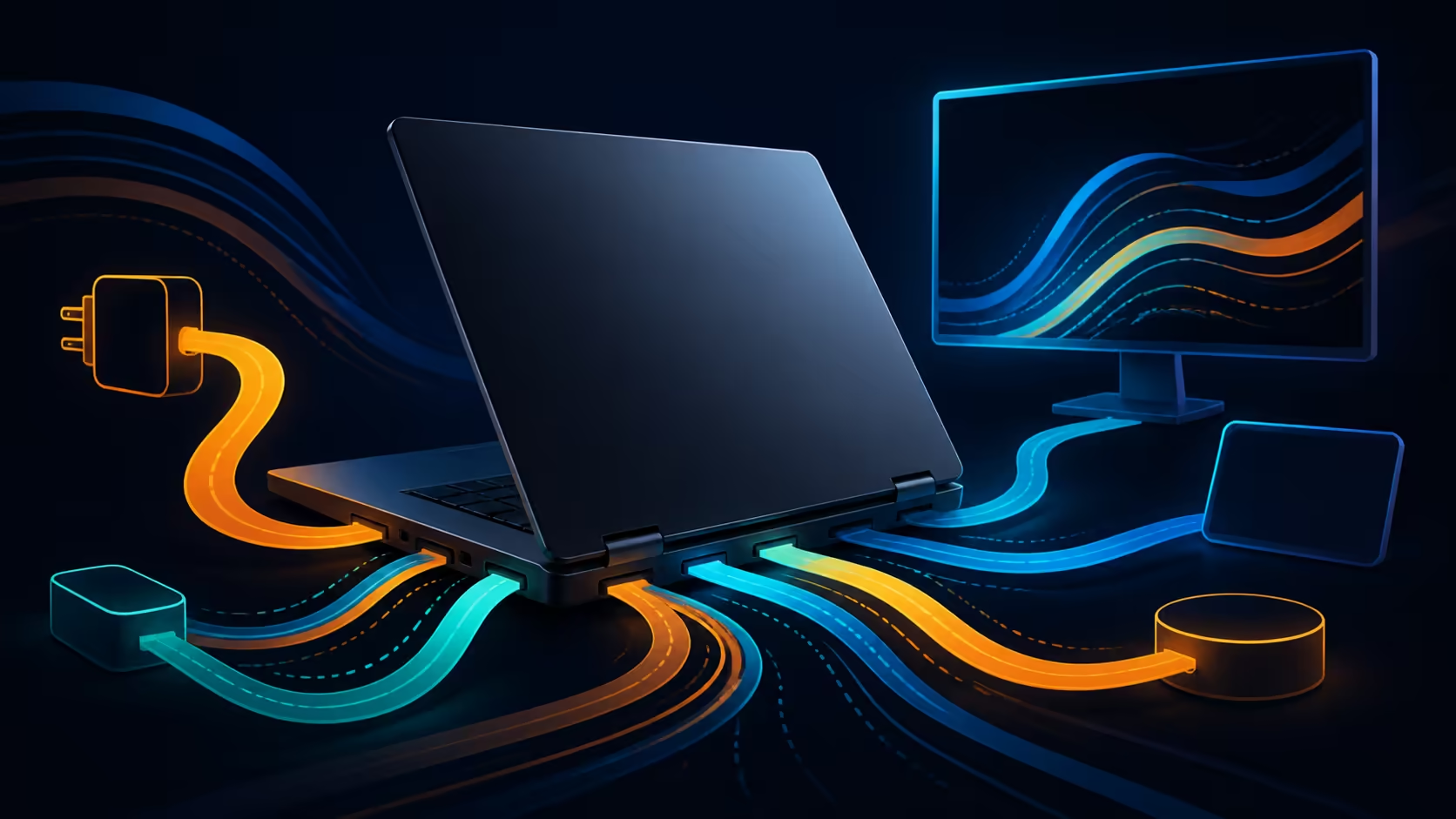
A small oval socket can carry very different jobs. Understanding USB-C DisplayPort, Power Delivery and HDMI requires mapping the laptop source, cable or dock and destination as one path. Connector shape alone cannot describe video, charging or data capability. The R27,999 Lenovo Yoga 7 14AGP11 combines Ryzen AI 7, 32GB of connection-planning memory, a 1TB SSD for connection maps and a 14-inch convertible form.
Quick Answer
USB-C is a connector. Depending on the hardware, it can carry data, DisplayPort video and negotiated Power Delivery, sometimes at once. HDMI is a separate display interface. Build a stable setup by matching every component to the required resolution, refresh, data rate and charging load.
🔌 Separate the connector from its functions
Two USB-C sockets can look identical while supporting different features. One may handle basic data, another video, and another charging in one or both directions. Icons can help, but the desk should be planned from explicit capability requirements rather than appearance.
Write four headings before buying an adapter: video output, charger input, peripheral data and cable length. Add the target resolution and refresh rate under video, then list the devices that need continuous data. This turns a vague request for a USB-C dock into a testable topology.
Evetech's Ryzen AI 7 laptop range supports comparisons that keep processor and capacity separate from connection design.
Draw the complete signal path
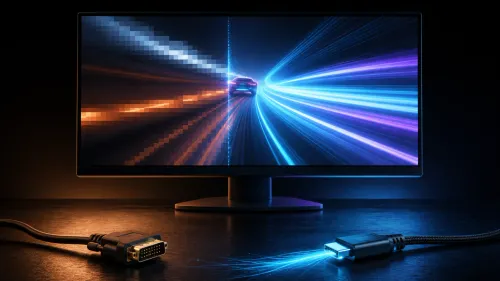
For a monitor, the route might be laptop USB-C, cable, dock, HDMI lead and display input. Each stage can limit the final mode. Record model names and cable roles. A working low-resolution image does not guarantee enough bandwidth for the intended high-resolution desktop.
⚡ Understand Power Delivery negotiation
USB Power Delivery lets a compatible source and device agree on a voltage and current profile. The charger advertises what it can supply; the laptop requests a suitable profile; the cable must safely support the load. Charging speed can fall when any part of this chain has a lower rating.
A dock may reserve some power for its own electronics and attached peripherals, leaving less for the laptop than the charger's headline output. Under heavy processing, an undersized source may charge slowly, hold the battery level or allow it to fall.
Size power for the real session
Test after the battery reaches a normal mid-range state. Connect the planned screen and peripherals, then run the demanding application for 30 minutes. Record whether the battery rises, stays level or drops. A charger that works during idle may still be unsuitable for sustained load.
Treat cables as rated components
A cable can support charging without carrying high-speed data or video. Another can carry fast data but only a modest power level. Label proven cables by job and keep charge-only spares separate. Very long passive cables can make high-bandwidth links more difficult.
🖥️ Follow DisplayPort through USB-C
DisplayPort Alternate Mode can route display signals over suitable USB-C hardware. A direct USB-C monitor may accept that signal, while another screen may need an adapter to DisplayPort or HDMI. Source, adapter and display must share a mode that supports the chosen resolution and refresh.
Video can share the connection with USB data, but available lanes and link design determine the balance. A dock driving a demanding monitor and fast storage simultaneously may face limits that a direct display cable avoids.
The AI laptop finder helps relate a laptop choice to the intended desk and software workload.
Start direct before adding a dock
Connect the monitor directly with one suitable cable and choose a modest supported mode. Once that is stable, raise resolution or refresh. Add the dock, storage and other devices one at a time. This sequence reveals which addition changes the result.
📺 Know when HDMI is simpler
HDMI offers a familiar point-to-point route for monitors, televisions and projectors. If the laptop and destination have compatible HDMI connections and no one-cable charging requirement, a direct HDMI lead can reduce adapters and negotiation steps.
HDMI version, cable quality and the display input still limit the final mode. The connector does not promise every resolution, refresh, colour depth or audio format. Select the destination input deliberately and disable unused conversions.
The Ryzen 7 laptop selection provides broader mobile-computing context. The Yoga's Ryzen AI 7, 32GB of connection-planning memory, 1TB for connection maps and R27,999 price describe the computer reference; connection requirements should be built around the actual desk.
Choose the route with fewer dependencies
For a fixed desk, direct HDMI may be reliable and inexpensive. For frequent docking, a suitable USB-C route can combine power, display and peripherals in one motion. The better option is the one that delivers the required mode consistently with manageable cables.
🧪 Troubleshoot one capability at a time
Begin with power: remove the dock and test a suitable charger and cable directly. Then test video with a direct connection. Finally test data with one storage device. Success in each isolated path gives useful components for rebuilding the combined setup.
If video fails, return to a modest resolution and refresh, select the destination input and restart the graphics route. If power fails, remove peripherals and compare the direct charger. If data drops, shorten the chain and test one device.
Keep a desk connection record
Write the port used, cable role, adapter or dock, display input, mode and charger output. Photograph labels before cables disappear behind furniture. A short record prevents a proven cable from being replaced accidentally during a tidy-up.
Retest the same route after a major graphics, dock or operating-system update, changing no hardware during the comparison.
Plan arrival and departure
At arrival, connect power and the primary display before storage devices. Allow the desktop to settle, then attach remaining peripherals. Before leaving, eject removable storage and disconnect cables by the plug rather than pulling the lead.
Frequently Asked Questions
Why is USB-C capability confusing?
The connector shape is shared by several possible functions, so two similar-looking ports or cables can carry different combinations of power, video and data.
What does Power Delivery negotiate?
Compatible devices agree on a power profile covering voltage and current. Charger, cable and laptop all participate in the result.
How does DisplayPort travel through USB-C?
Suitable hardware can route a DisplayPort signal over USB-C lanes to a direct monitor or an adapter.
When is HDMI the simpler display option?
It is often simpler for a fixed point-to-point display when both ends have compatible HDMI connections and charging does not need to share the cable.
Why can a cheap cable cause intermittent faults?
Construction, shielding, length and rated bandwidth affect signal stability. A cable suited to charging may not suit demanding video or data.
How should ports feature in a Yoga 7 buying plan?
List the exact charging, display and peripheral routes the desk requires. The R27,999 Yoga reference has Ryzen AI 7, 32GB of connection-planning memory, 1TB for connection maps and a 14-inch convertible design.
Can video and data share one USB-C connection?
Yes, on a suitable route. Available bandwidth and lane allocation still shape the display mode and peripheral performance.
Ready to turn a tangle of USB-C labels into one clean signal map?
Explore Evetech's Ryzen AI laptops and design power, video and data routes from the required desk outcome back to every cable.