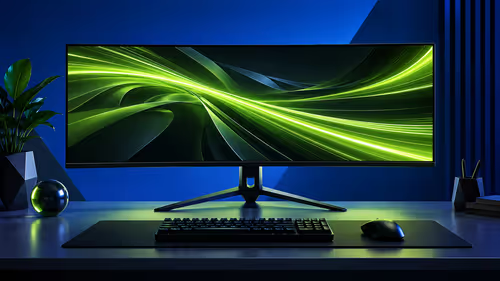
A 240Hz label does not guarantee that the connected computer can send QHD at that rate. The full 240Hz gaming monitor requirements chain includes graphics performance, source output, monitor input, cable capability and software selection. The R10,999 ASUS XG27AQDMG provides the 2560x1440 WOLED endpoint; the rest of the path must support it.
Quick Answer
Use a graphics output, monitor input and cable combination capable of 2560x1440 at 240Hz, then select that mode in both the operating system and game. The R10,999 XG27AQDMG supplies QHD 240Hz, 0.03ms response and adaptive sync, but the GPU must render the frames and the connection must carry the signal.
🎮 Set a realistic GPU performance target
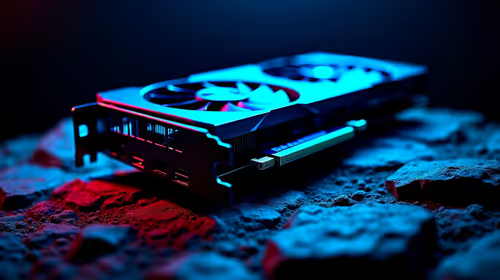
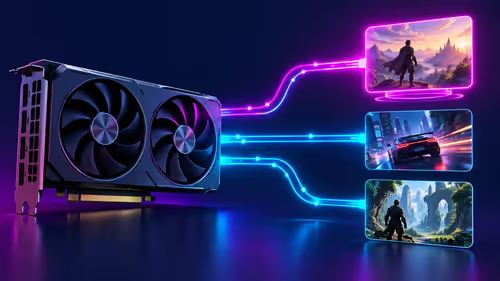
The graphics card renders each 2560x1440 frame. Reaching the upper refresh region therefore depends on the game, processor, graphics settings and the GPU itself. One card can deliver very different results across a light esports title and a demanding cinematic release.
Define separate targets. Competitive play may favour reduced effects and a high stable rate, while a detailed single-player game can keep richer settings and use adaptive sync at a lower output. The screen does not require every title to hold 240fps.
Review measured QHD performance for the games used. Average fps is helpful, but frame-time consistency reveals interruptions that an average hides. A lower steady target can produce a cleaner experience than frequent peaks followed by severe drops.
Evetech's gaming monitor range helps compare display demands before pairing them with a computer.
🔌 Build a compatible signal path
Check the exact graphics output and monitor input rather than relying on the connector shape alone. The standard version, supported mode and cable all matter. A cable should be chosen for the resolution and refresh combination exposed by both endpoints.
Use a direct route while diagnosing. Adapters, docks and switching devices add capabilities that must also support the full QHD 240Hz mode. If the desired rate disappears, remove intermediate equipment, reconnect and inspect the available display modes again.
Cable length and condition can affect reliability. Avoid sharp bends and strain at the connector. A stable signal is more useful than a theoretically capable path that produces blanking or intermittent fallback.
🛠️ Select 240Hz in software
After connection, choose 2560x1440 for the XG27AQDMG in system display settings and open the advanced refresh menu. Select 240Hz explicitly because a new screen can default to a lower safe value.
Launch the game and inspect its display options. Exclusive full-screen, borderless and windowed modes can inherit refresh differently. Restart the title after a major change and confirm that it is opening on the intended monitor in a multi-screen system.
Software updates can reset the mode. Keep a note of the known-good resolution, refresh and colour settings so a driver change can be compared quickly. The OLED monitor catalogue provides panel-focused alternatives once the connection requirement is understood.
🔄 Configure adaptive refresh and test
The ASUS supports FreeSync Premium for compatible AMD graphics and G-Sync Compatible for appropriate NVIDIA systems. Enable the monitor's adaptive option, then the matching graphics-control route. Do not try to use both paths at once.
Run a repeatable scene that crosses several performance levels. Look for tearing, blanking and uneven pacing. Adaptive sync aligns refresh timing with completed frames within its supported behaviour, but it cannot fix a system that stalls during asset loading.
If presentation becomes unstable near the ceiling, test a deliberate frame cap and keep one timing method active. Change one setting before each repeat so the successful adjustment is clear.
Physical screen format has no bearing on cable bandwidth, but it can change the purchase. Evetech's curved monitor selection is useful if a wider or wrapped view belongs in the same shortlist.
Recheck after hardware changes
Adding another monitor, replacing the graphics card or moving through a dock can alter available modes. Return to the signal-path checklist instead of assuming the old settings survived. Confirm each endpoint, the connecting device and the active software mode.
A successful setup should survive a cold restart and a long game session without blanking. That practical stability is the final requirement, beyond simply seeing 240Hz listed once.
Define the graphics workload before selecting hardware
QHD means the GPU must render 2560x1440, while 240Hz describes the monitor's maximum update rate. The graphics system does not need to produce 240fps in every game for the screen to function, but higher output lets competitive titles use more of its temporal headroom. List games individually because a lightweight esports release and a graphically demanding adventure can differ sharply on the same card.
Build three settings targets: competitive, balanced and picture-led. The first reduces expensive effects for frame output, the second preserves a broad visual mix, and the third spends performance on detail in slower titles. Measure frame pacing as well as averages; uneven delivery can feel rough despite a strong headline number. Supported adaptive sync helps align variable output with refresh, but it does not make the GPU render faster.
Trace the complete cable and software route
Match the GPU output, cable specification and monitor input to the intended QHD 240Hz mode. Do not select a lead by connector shape alone. After connection, choose native resolution and the refresh rate in operating-system settings, then inspect the graphics control panel and game. Full-screen, borderless and desktop modes can retain different selections.
Save the stable arrangement before changing software. Record the port, cable, QHD selection, refresh, adaptive-sync path and game preset. After a driver update, verify those same items rather than assuming the monitor retained every choice. If 240Hz disappears, test the direct link and endpoint capabilities before changing picture settings.
The R10,999 XG27AQDMG supplies the display side with 240Hz WOLED, 0.03ms response and support for FreeSync Premium or G-Sync Compatible operation on the matching platform. The computer performance, cable and settings remain separate requirements. A complete setup is proven when the system exposes the desired mode, the game delivers suitable frames and motion remains stable through a repeatable test.
Frequently Asked Questions
What must the graphics system do for QHD 240Hz gaming?
It must output the 2560x1440 240Hz signal and render the game at frame rates suited to the desired experience.
Can any cable automatically carry the required signal?
No. Match the cable and connector standard to the modes supported by both the graphics output and monitor input.
Why should software settings be checked after connecting?
Operating systems and games can default to a lower refresh even when the hardware path supports more.
How should buyers choose a cable for QHD 240Hz?
Identify the exact source and display connection, then select a properly specified cable for the target mode and practical length.
Where can adaptive sync assist the setup?
It coordinates refresh timing with variable frame completion, reducing tearing when output moves below the 240Hz ceiling.
Does a R10,999 monitor include the computer performance it needs?
No. R10,999 buys the XG27AQDMG display. Graphics hardware and its QHD rendering performance remain separate.
What should be rechecked after changing display software?
Confirm native resolution, 240Hz, the intended colour mode and the correct AMD or NVIDIA adaptive-sync route.
Ready to prove every link can carry QHD 240Hz before chasing a software fix?
Compare Evetech's monitors and graphics options, map the output-to-input path and keep a written baseline for the stable mode.