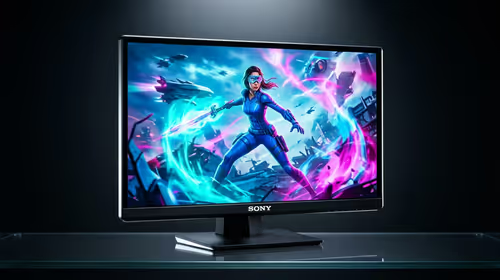
Is your high-end monitor acting a bit… off? Maybe the colours look washed out after a driver update, or a feature you paid a premium for just isn't working as advertised. Before you start wrestling with the box to return it, the fix might be a simple download away. A quick USB monitor firmware update can unlock performance, fix annoying bugs, and even add new features, ensuring you get every bit of value from your display.
Why Bother with a Monitor Firmware Update?
Think of firmware as the monitor's mini-operating system. Just like Windows or your graphics card drivers, it needs updates to run smoothly. Manufacturers release these updates to fix bugs discovered after launch, improve compatibility with new graphics cards, or even enhance performance. For gamers, a USB monitor firmware update can be crucial, sometimes fixing input lag issues or improving HDR colour accuracy on the latest gaming monitors. 🚀
Ignoring these updates means you could be missing out on a better, more stable experience you've already paid for. It’s like owning a race car but never taking it in for a tune-up.
Your Complete Auto-Update Guide
While the term "firmware update" might sound intimidating, manufacturers have made the process much easier. Here’s how to tackle it, whether your display has an auto-update feature or needs a little manual help.
The "Easy Mode": Software-Based Updates
Many modern PC monitors from brands like Dell (using their Display Manager) or LG (with their OnScreen Control app) simplify the process.
- Connect Your Monitor: Ensure your monitor is connected to your PC via a USB cable (often USB-B to USB-A or USB-C) in addition to the display cable (HDMI/DisplayPort). This USB connection is what allows your PC to talk to the monitor's internal hardware.
- Install the Official Software: Visit your monitor manufacturer's support page and download their specific management utility.
- Check for Updates: Within the software, there's usually a settings or support section with an option to "Check for Firmware Update." If one is available, the app will guide you through the automatic download and installation. Easy peasy.
The Manual Method: A Universal Guide 🔧
If your monitor doesn't have a fancy software suite, the manual USB monitor firmware update is still straightforward. This is common for many high-performance 5K and 4K monitors that prioritise raw performance over software extras.
- Identify Your Model & Firmware Version: Find the exact model number on the back of your monitor. Then, navigate through your monitor's On-Screen Display (OSD) menu—usually under "Information" or "Support"—to find the current firmware version.
- Download the Firmware: Go to the manufacturer’s support website, find your model's page, and download the latest firmware file. It will usually be a
.bin or .img file inside a ZIP folder. - Prepare a USB Drive: Get a blank USB flash drive (usually 8GB or smaller is fine) and format it to FAT32. This is the most common format monitors can read. Extract and copy the firmware file onto the root of this USB drive.
- Update Your Monitor: Turn off your monitor. Insert the USB drive into the designated "Service" USB port on the monitor (check your manual to find the right one!). Turn the monitor back on. It should either automatically detect the firmware or you may need to navigate to the OSD's update option to begin the process.
Crucial Tip: Don't Lose Power! ⚡
Never, ever turn off your monitor or unplug it during a firmware update. A power interruption can corrupt the firmware and potentially "brick" your display, turning it into a very expensive paperweight. Make sure it's plugged into a reliable power source, and if you're in an area with an unexpected outage, wait for a stable period before starting.
Common Issues and When to Upgrade
Sometimes, an update process can hit a snag. A common issue with curved monitors is using the wrong USB port—always use the one labelled for service. Similarly, the growing popularity of portable monitors means ensuring you have the right USB-C cable that supports both power and data is vital. The right monitor accessories can make all the difference.
If your monitor is several years old and no longer receiving firmware updates, but you're experiencing compatibility issues with new games or hardware, it might be a sign. Instead of fighting with old tech, it could be the perfect time to upgrade. Newer models not only offer better specs but also a much smoother user experience, including a more reliable USB monitor firmware update process. ✨
Ready for a Flawless View?
Keeping your gear updated is smart, but nothing beats the crisp, smooth performance of a brand-new display. From lightning-fast refresh rates to stunning 4K clarity, your perfect screen is waiting. Explore our incredible PC monitor deals and find the upgrade your setup deserves.