



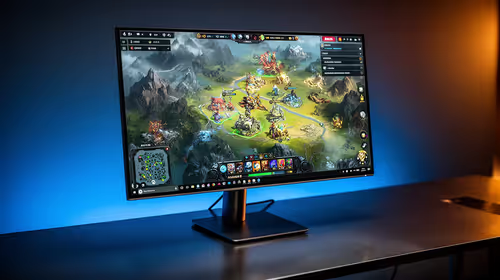
IPS vs VA for Strategy and Sim Games in SA
IPS vs VA for strategy and sim games should be judged by fit, not a single winner. Compare compatibility, latency, capacity, upgrade path, cost planning, and South African setup needs.
Read moreOne Thunderbolt 5 link carries 80Gbps, and every device on it takes a share. Plan which drive, screen and dock sit where and this R33,599 Mac Mini M5 Pro keeps an NVMe enclosure running at full pace while a monitor stays connected.

Three separate Thunderbolt 5 ports sitting on a Mac Mini M5 Pro each individually carry up to 80Gbps, and planning which device sits on which port matters more than most first-time buyers expect once a monitor, a fast drive and a dock are all competing for the same three available sockets on the case.
Give a high-resolution monitor its own dedicated Thunderbolt 5 port, put the single fastest external SSD you currently own on an entirely separate second port, and reserve the remaining third port for a dock or whatever accessory you only reach for occasionally. Splitting devices across separate ports rather than daisy-chaining several of them through one single hub avoids the bandwidth contention that shows up quickly and reliably on this R33,599 machine the moment everything is forced to share one lone socket, a false economy that ends up costing real, measurable speed on every single device involved in the chain.
A Thunderbolt 5 external SSD can sustain transfer speeds well beyond what a Thunderbolt 4 or plain USB enclosure manages, but only if the drive itself, the cable and the port at both ends all genuinely support the higher standard together. Editing video directly off an external drive, rather than copying it to internal storage first, is the workflow that benefits most from this, since it removes the internal 512GB drive as the bottleneck for active projects.
A single Thunderbolt 5 port carries enough bandwidth for a demanding, high-resolution monitor on its own. Problems start when a display and a fast drive share the same port through a basic hub, because both now compete for the same allocation. For a serious multi-monitor and storage setup, spreading devices across the three separate ports rather than concentrating them behind one hub keeps each device closer to its full potential.
A dock plugged into one Thunderbolt port can fan out into several lower-speed connections, which is the right place for a wired network cable, USB-A peripherals and an audio interface that does not individually need the full 80Gbps. Reserving a dedicated port for this kind of hub, rather than the port carrying your primary monitor, keeps a temperamental accessory from affecting your main screen if it misbehaves, and it makes tracing a fault far quicker when something unexpectedly stops responding on an otherwise busy desk.
An audio interface used for recording is latency-sensitive in a way a monitor or a backup drive is not, so sharing its port with heavy background transfers can introduce audible glitches during a session. Where audio work happens regularly, give the interface a dedicated Thunderbolt port of its own rather than routing it through a busy dock, even though its raw bandwidth needs are modest.
List every device that might touch a Thunderbolt port on a typical day: a monitor, a drive, a dock, an interface, a card reader. Total ports available is five USB-C style sockets, three of them Thunderbolt 5, plus one HDMI output for a display that does not need the extra bandwidth. Assign the busiest, most latency-sensitive devices to dedicated Thunderbolt ports first, then let a dock absorb whatever is left over.
Labelling each cable at both ends saves real time later when troubleshooting or moving the desk, especially once three or more Thunderbolt devices are in the mix.
With three Thunderbolt 5 ports and one HDMI output available, a sensible split is: primary monitor on Thunderbolt, a fast external SSD on a second Thunderbolt port for active project files, and a dock on the third for everything else. A secondary monitor without USB-C video moves to HDMI, freeing all three Thunderbolt ports for genuinely demanding devices.
A setup built specifically around Thunderbolt bandwidth is worth cross-checking against the Mac Mini lineup's other memory tiers before you commit, and the mini PC category holds non-Apple alternatives if the port standard alone is not the deciding factor.
Yes, it will run at its own maximum speed rather than the port's higher ceiling; the port is backward compatible.
For lightweight peripherals it is fine; for a fast drive and a demanding monitor together, it usually causes bandwidth contention that a dedicated port per device avoids.
Use a certified Thunderbolt cable for anything demanding; an uncertified USB-C cable will charge and transfer basic data but will not reach the full bandwidth.
Yes, but they will share that port's bandwidth allocation, so both will run slower than if each had its own dedicated port.
Yes, moving a secondary display to HDMI is a straightforward way to free a Thunderbolt port specifically for a fast drive or a dock.
Yes, for anything demanding; a shared, uncertified cable moved between devices is a common source of intermittent bandwidth problems that are hard to diagnose.
Watch for a fast drive reading noticeably below its rated speed, or a monitor dropping to a lower refresh rate than expected, both of which point toward contention on a shared port.
Only if you expect to add faster devices later; for a current set of moderate-speed peripherals, a hub matched to what you actually own is the more cost-effective choice today.
No, the port and dock manage power and bandwidth allocation safely; the worst outcome of overloading a hub is reduced speed, not damage to the hardware.
Ready to plan which device goes on which Thunderbolt port? Give your monitor and your fastest drive their own dedicated ports before adding a hub.
Yes, it will run at its own maximum speed rather than the port's higher ceiling; the port is backward compatible.
For lightweight peripherals it is fine; for a fast drive and a demanding monitor together, it usually causes bandwidth contention that a dedicated port per device avoids.
Use a certified Thunderbolt cable for anything demanding; an uncertified USB-C cable will charge and transfer basic data but will not reach the full bandwidth.
Yes, but they will share that port's bandwidth allocation, so both will run slower than if each had its own dedicated port.
Yes, moving a secondary display to HDMI is a straightforward way to free a Thunderbolt port specifically for a fast drive or a dock.
Yes, for anything demanding; a shared, uncertified cable moved between devices is a common source of intermittent bandwidth problems that are hard to diagnose.
Watch for a fast drive reading noticeably below its rated speed, or a monitor dropping to a lower refresh rate than expected, both of which point toward contention on a shared port.
Only if you expect to add faster devices later; for a current set of moderate-speed peripherals, a hub matched to what you actually own is the more cost-effective choice today.
No, the port and dock manage power and bandwidth allocation safely; the worst outcome of overloading a hub is reduced speed, not damage to the hardware.
IPS vs VA for strategy and sim games should be judged by fit, not a single winner. Compare compatibility, latency, capacity, upgrade path, cost planning, and South African setup needs.
Read more
Gen 5 NVMe SSD guide for Bloemfontein gamers should be shortlisted around the job it must do. South African buyers should compare capacity, speed, thermals, and motherboard support, warranty path, and upgrade room before treating any pick as best.
Read more
Skip the RTX 5070 if your first-time builder budget needs better balance. Better SA picks can free room for the right CPU, PSU, case, monitor, storage, and cooling while still giving a strong first gaming PC experience this year in South Africa.
Read more
RTX 5080: weighing the pros and cons for SA should be shortlisted around the job it must do. South African buyers should compare GPU tier, VRAM, cooling, and PSU headroom, warranty path, and upgrade room before treating any pick as best.
Read more
Core i5-13400F gives South African PC builders a capable mid-range CPU choice with clear limits. Check its gaming fit, discrete GPU requirement, LGA1700 platform costs, and upgrade path before locking in your parts list.
Read more
Pros and cons of the Wi-Fi 7 routers for SA should be shortlisted around the job it must do. South African buyers should compare WiFi standard, coverage, latency, and device support, warranty path, and upgrade room before treating any pick as best.
Read more
Steam content servers unreachable needs a download-path check, not an immediate reinstall of every game. Restart the client, inspect download settings and compare another connection when practical. Clearing the download cache is separate from deleting installed games.

Keychron G6 HE has built-in and swappable battery versions with different weights. The product brief lists 42g and 46g respectively, each with a 3g tolerance. Choose by grip and battery preference before treating one headline weight as universal.

Corsair HS80 v2 MAX supports 2.4GHz wireless and Bluetooth. Its maximum battery figures use RGB-off conditions and differ by connection. Check microphone routing, comfort and the exact device support before assuming every wireless mode behaves alike.

Windows taskbar notification badges can be shown or hidden in Taskbar behaviours. This changes the small app indicators, not the underlying messages. Choose a calmer desktop while keeping a deliberate routine for checking important conversations and app updates.
Windows taskbar notification badges can be shown or hidden in Taskbar behaviours. This changes the small app indicators, not the underlying messages. Choose a calmer desktop while keeping a deliberate routine for checking important conversations and app updates.

Windows USB device in use can mean a program still has the drive open. Finish transfers and close files before retrying ejection. Better performance caching requires safe removal; a replacement drive is not the first fix for an open-file warning.

Windows Nearby Sharing not working starts with feature, Bluetooth and visibility checks on both PCs. My devices only depends on matching Microsoft accounts. Test a small harmless file before buying networking hardware or changing your home router.

Windows hardware reserved RAM is different from memory used by applications. Compare installed memory with firmware detection and the usable amount before buying modules. Reservations and reporting limits vary by system; no universal setting restores every byte.

Windows title bar window shake can minimise other open windows when you shake the active window by its title bar. Inspect the Multitasking setting and switch it off if that gesture interrupts your work. The preference costs R0 and does not require new hardware.

Windows Print Screen opens Snipping Tool when its keyboard preference is enabled. Change the option under Accessibility, Keyboard to choose another workflow. Test whether you need a clipboard image or a saved file.

Windows desktop icons missing may be a visibility setting. Right-click the desktop, choose View and inspect Show desktop icons. If only system icons are absent, use Desktop icon settings. Check the Desktop folder before assuming files were deleted.

Windows set time zone automatically greyed out calls for a location and device-policy check. Automatic time-zone selection relies on location services. A manual time-zone choice is separate from synchronising the clock; check both before replacing hardware.