Quick Answer
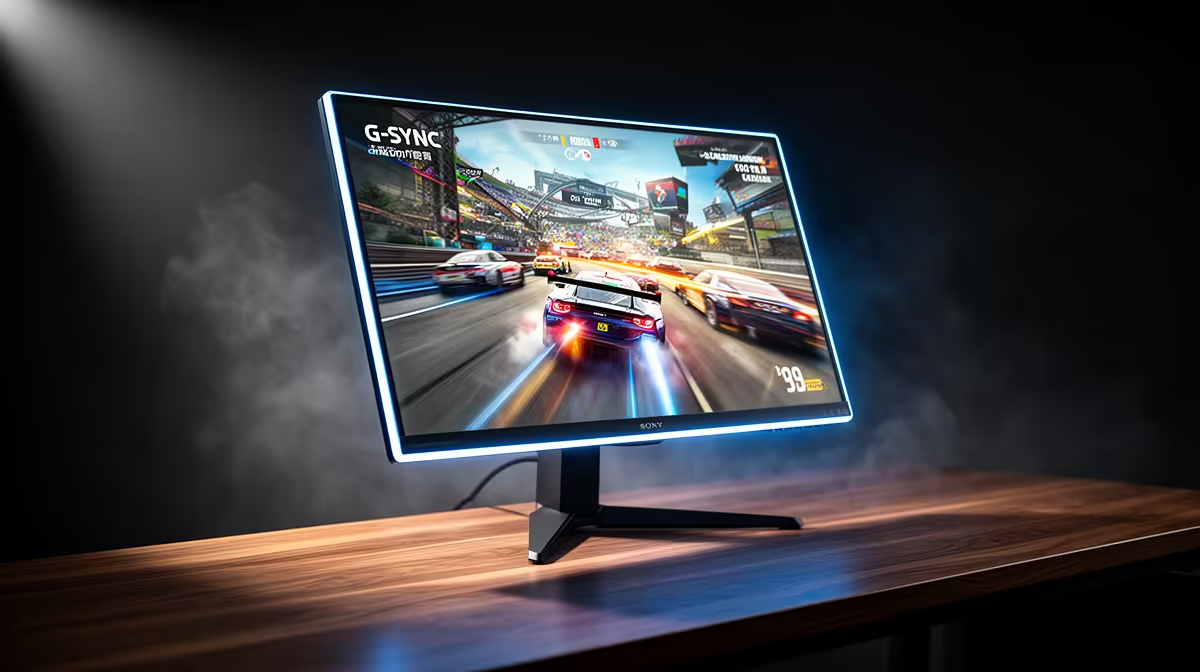
Screen tearing occurs when the GPU sends a new frame to the monitor mid-refresh, causing the display to show the bottom portion of the previous frame and the top of the new one simultaneously. The visible result is a horizontal split across the image. FreeSync Premium prevents this by synchronising the monitor's refresh cycle to the GPU's output, ensuring a new frame only appears when the display is ready to show it completely.
Why Tearing Happens on Fixed-Rate Monitors 🔧
Every LCD monitor has a fixed refresh rate at which it scans from top to bottom and updates the displayed image. At 60Hz this scan takes 16.7ms. A GPU rendering at 90fps completes a new frame every 11ms, sending frames faster than the monitor can display them. When the GPU pushes a new frame during the monitor's active scan, the top of the new frame overwrites the image while the bottom still shows the previous frame. This misalignment is the visible tear line. The faster your GPU relative to your monitor's refresh ceiling, the more frequently tearing occurs, because the GPU more often delivers frames during the monitor's active refresh period. On a 60Hz display paired with a GPU pushing 150fps, tearing is constant and severe.
How FreeSync Premium Eliminates Tearing 🖥️
FreeSync Premium uses the Adaptive-Sync standard from VESA to give the GPU control over when the monitor takes its next frame. Rather than scanning at a fixed 144Hz regardless of GPU output, the monitor waits for the GPU to signal that a frame is ready, then executes the refresh. FreeSync Premium extends basic FreeSync by requiring a minimum 120Hz support at native resolution and Low Framerate Compensation (LFC). LFC activates when GPU output falls below the adaptive sync range minimum: instead of dropping out of sync and reverting to a fixed rate (which reintroduces tearing), LFC doubles or triples each frame's display frequency to keep the refresh rate within the sync window. This is particularly relevant for SA gamers running mid-range GPUs through graphically demanding scenes where fps can dip unexpectedly.
In-Game Frame Capping: The Complement to FreeSync 🎮
Adaptive sync works best alongside an in-game frame cap set 5 to 10fps below the monitor's maximum refresh rate. At 144Hz, cap at 137fps; at 250Hz, cap at 240fps. This prevents the GPU from briefly overshooting the monitor's adaptive sync ceiling, which would temporarily disable sync and allow torn frames to appear. CS2 and Valorant include built-in frame limiters. NVIDIA GPU users can also enable the in-driver frame rate limiter in NVIDIA Control Panel for a low-latency cap that works globally across all titles.
Cap Frames 5 to 10 Below Monitor Max ⚡
Set your in-game frame rate cap 5 to 10fps below your monitor's maximum refresh rate when using adaptive sync. At 250Hz, cap at 240fps. This keeps your GPU output within the FreeSync range ceiling and prevents the brief sync dropout that occurs when the GPU briefly exceeds the panel's maximum sync frequency, eliminating the most common source of residual tearing on FreeSync setups.
FAQ
Does screen tearing cause any input lag or performance penalty?
Tearing itself does not cause input lag, but it disrupts visual information delivery, which can impair reaction time in competitive scenarios. The misaligned frame makes target tracking briefly incoherent during the tear.
Can screen tearing happen even at very high frame rates on a 250Hz monitor?
Yes, if the GPU produces frames faster than the monitor's 250Hz ceiling.
Does FreeSync Premium work on all GPU brands in South Africa?
FreeSync Premium is native to AMD Radeon GPUs. NVIDIA owners use FreeSync Premium monitors through G-Sync Compatible mode, enabled in NVIDIA Control Panel. Most FreeSync Premium monitors are validated as G-Sync Compatible.
Tired of screen tearing ruining your gaming sessions?
Evetech stocks FreeSync Premium and G-Sync Compatible gaming monitors that eliminate tearing across all GPU brands.