


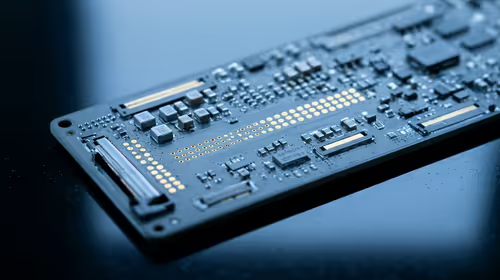
Hot-Swappable PCB Architecture in Modern Keyboards: Guide
Learn hot-swappable PCB architecture in modern keyboards—what it is, how sockets and traces work, and how to pick the right board. Speed up swaps, reduce risk, and upgrade faster 🔧⚡
Read moreWireless keyboard keeps disconnecting in SA homes? Diagnose Bluetooth vs 2.4GHz drops, fix interference, batteries, drivers and router settings to stop dropouts fast. 🇿🇦🔧
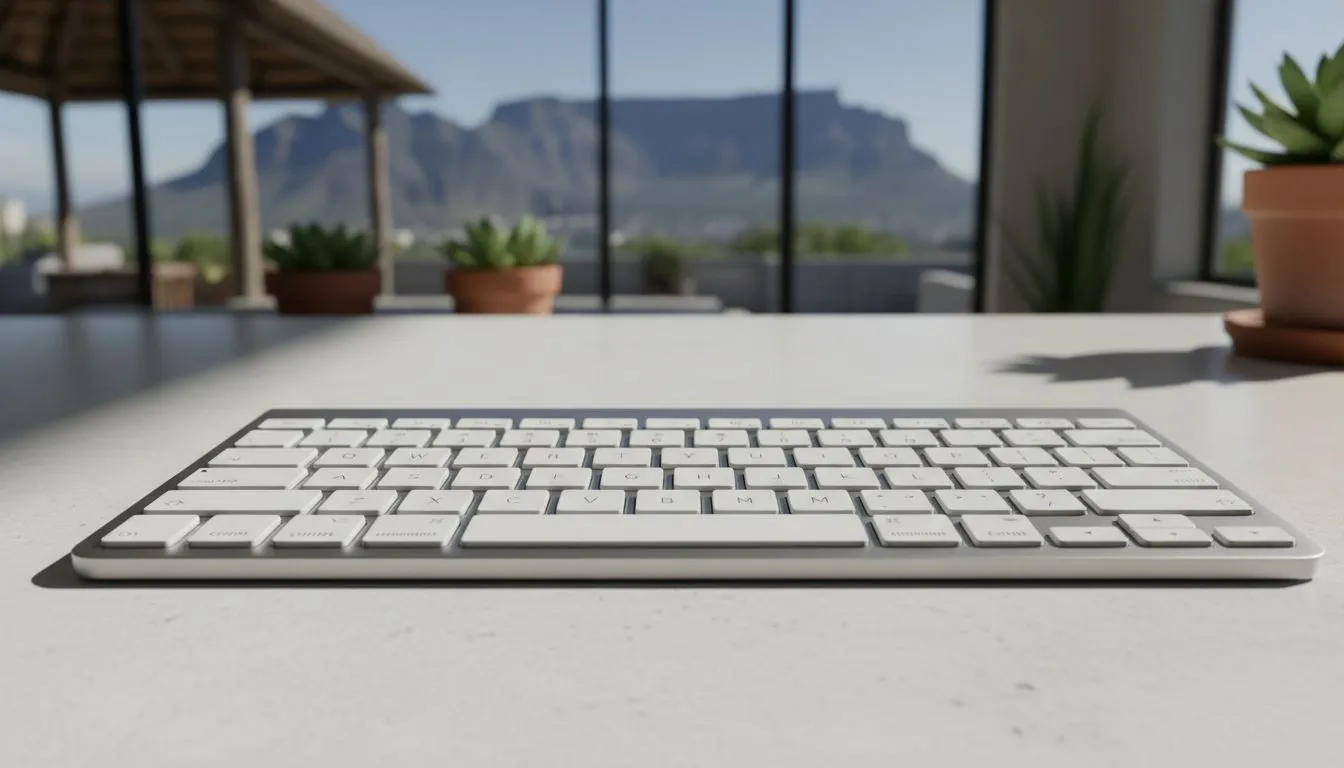
Nothing kills a clutch moment in a 1v1 like your peripherals failing. If your wireless keyboard keeps disconnecting during a heated match, you know the frustration. Whether you are using a budget setup or a premium rig, signal drops are a nightmare. We will help you fix Bluetooth and 2.4GHz issues so you can get back to winning without the lag. 🔧
Most gaming peripherals use a 2.4GHz USB dongle for low latency. However, this frequency is incredibly crowded in South African homes. Your Wi-Fi router, microwave, and even certain light fittings can cause dropouts. If your signal is weak, consider upgrading to high-performance wireless keyboards that feature improved shielding.
USB 3.0 ports are also notorious for emitting radio frequency noise. Try moving your receiver to a USB 2.0 port or using a USB extension cable. This simple change moves the receiver away from the motherboard's electrical noise... often solving the "wireless keyboard keeps disconnecting" headache instantly.
Bluetooth is convenient but prone to power-saving glitches. Windows often tries to save battery by turning off your Bluetooth radio. To fix this, head to Device Manager and find your Bluetooth adapter. Right-click it, select properties, and untick "Allow the computer to turn off this device to save power".
If you are using a high-end Razer Gaming Keyboard, ensure your Synapse software is fully updated. Firmware updates often contain patches for stability issues that standard Windows drivers might miss. ⚡
check your Windows Power Plan settings. Set your USB settings to 'USB selective suspend: Disabled'. This prevents the OS from cutting power to your dongle during idle moments, which is a common cause for wireless keyboards disconnecting unexpectedly when you start typing again.
Sometimes the problem is physical. Dust in the USB port or a dying battery can cause intermittent signals. If your battery level is below 20%, the voltage might drop enough to weaken the transmitter. For those who love customisation, Glorious Keyboards often provide dedicated firmware tools on their site to recalibrate the wireless polling rate.
If you find that your local environment has too much interference, it might be time to look for the cheapest gaming keyboard in South Africa that offers a dual-mode connection. Having the option to plug in during a competitive tournament ensures zero latency when it matters most.
While wireless tech has come a long way, some environments are just too noisy for a stable signal. If you have tried every fix and your wireless keyboard keeps disconnecting, switching to wired gaming keyboards is the only way to guarantee 100% uptime. You can find excellent mechanical options starting from under R1,000 that offer incredible tactile feedback without the battery anxiety. 🚀
Ready to Upgrade Your Setup? Don't let a dodgy connection ruin your K/D ratio. Whether you want the freedom of wireless or the rock-solid reliability of a cable, we have the best deals in ZAR. Explore our massive range of gaming keyboards and find your perfect match at Evetech today.
Sudden drops often stem from low battery, interference on Bluetooth or 2.4GHz, or driver issues. Check power, distance and drivers first.
Test by switching connection mode or using the USB dongle. Bluetooth issues appear on paired devices; 2.4GHz drops often correlate with router or RF interference.
Yes. Weak cells cause frequent disconnects. Swap in fresh batteries or recharge to see if connection stability improves.
Absolutely. Routers, microwaves and cordless phones on 2.4GHz can create interference that makes wireless keyboard drops more likely.
Update keyboard and Bluetooth drivers, run OS troubleshooting, and disable power-saving for USB/Bluetooth adapters to reduce drops.
Laptop power settings, faulty USB ports or driver conflicts often cause laptop-specific drops. Try different ports and update drivers.
Move closer, remove obstacles, reposition the dongle, reduce 2.4GHz traffic, and use fresh batteries to improve range and stability.
Learn hot-swappable PCB architecture in modern keyboards—what it is, how sockets and traces work, and how to pick the right board. Speed up swaps, reduce risk, and upgrade faster 🔧⚡
Read more
Mechanical switch lifespan explained—what the 50 million keystroke rating really means, plus tips to extend switch life and reduce double-press issues 🔧⌨️
Read more
60-percent vs full-size mechanical keyboard layouts—learn what each layout includes, who it suits, and how to choose the right fit 🧩⌨️ for typing, gaming, and productivity.
Read more
Double injection keycaps last far longer than standard printed keycaps in most setups. Learn typical lifespan ranges, what shortens them, and how to maximize durability for smoother daily typing and gaming 😊⌨️
Read more
Full-key anti-ghosting: does it stop missed inputs during fast-paced gaming? We break down latency, polling, and key matrix limits so you can buy smarter 🎮⚡
Read more
Protect mechanical keyboard switches from South African dust and summer humidity with practical cleaning and storage habits. Keep your switches smooth, reduce failures, and extend lifespan. 🌬️💧
Read more
Wondering if a TKL wireless mechanical keyboard is worth it for everyday productivity? We break down latency, battery life, comfort, and workflow gains for real work. ⚡⌨️

Maximise battery life on a fanless 15-inch laptop using efficiency core architecture. Cut idle drain, tune power profiles, and improve thermals for longer runtime. 🔋⚙️

Learn how to reduce desk clutter with a TKL wireless keyboard using fewer cables, smart placement, and tidy essentials. Get a faster, calmer workspace with better ergonomics. ✅🧼

RGB keyboard lighting too distracting? Learn how to manage backlight modes, set brightness, and reduce distraction for focus and productivity 😌🖱️

Are themed gaming keyboards worth the extra cost? Compare build quality, switch options, features, and resale value to find the best fit for your setup 🎮⌨️

Full-Size vs Tenkeyless mechanical keyboards for gaming: find out if a smaller layout truly improves aim, speed, and comfort. We break down layout, desk space, latency-feel, and keybinds 🎮⌨️

Dedicated media rollers vs function key shortcuts: learn which setup gives you better workflow control, faster media access, and fewer mistakes. 🖱️🎧

Best Mechanical Switch Type for Gaming: Clicky vs Linear vs Tactile. Find your feel, speed, and noise balance with practical guidance for FPS, MOBA, and productivity 😄🎮

Direct mouse answer: Mouse not keeping up with your work? Everything that matters about dual-mode 2.4GHz + BT 5.0: DPI behaviour, channel switching, battery curves and per-app button mapping. Covers when 2.4GHz USB wins (low-latency desk) and when BT 5.0 wins (laptop, d

Plain wireless mouse guide: Mouse not keeping up with your work? Everything that matters about wireless productivity mouse: DPI behaviour, channel switching, battery curves and per-app button mapping. Includes DPI tuning tips, channel switch shortcuts, and ZAR-aware fea

Real productivity numbers: Set up your wireless mouse in this order: everything that matters about wireless productivity mouse: DPI behaviour, channel switching, battery curves and per-app button mapping. Includes DPI tuning tips, channel switch shortcuts, and ZAR-aware

Pen not feeling like paper? Stylus lag and skipping usually trace to old drivers, dirty nibs, or display refresh mismatches, not the pen itself. Covers pressure curve tuning, tilt thresholds, nib swap timing, and SA pricing brackets.