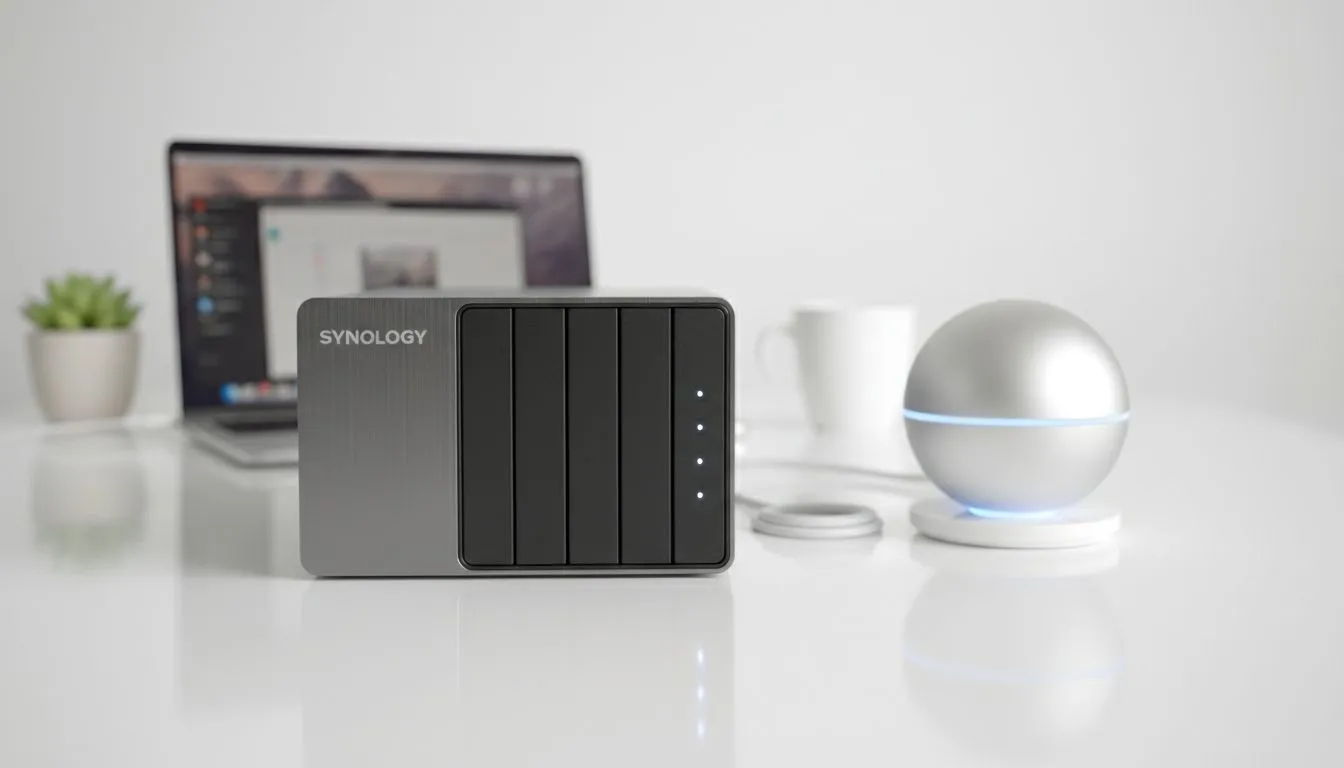
Ever felt that cold shiver when your MacBook makes a weird clicking sound? In South Africa, where power surges are part of life, losing data is a real risk. A Wireless Time Machine Backup NAS offers the ultimate safety net. It lets you back up your entire macOS system over Wi-Fi without ever plugging in a cable... keeping your digital life safe while you focus on the grind.
Why You Need a Wireless Time Machine Backup NAS: macOS Setup Guide
Cloud storage is great for small files. However, restoring a 500GB video project over a local connection is much faster. This is especially true when dealing with data caps or slow upload speeds. By using a dedicated network drive, you create a private vault that lives in your home or office.
The first step is choosing the right hardware. You can find a wide variety of diskless NAS storage options at Evetech to get started. These units allow you to pick your own hard drives... ensuring you have enough TBs for years of backups.
Choosing the Right NAS Hardware for macOS
Compatibility is key when setting up your backup routine. Many South African users prefer Orico NAS enclosures because they offer a great balance of price and performance. They are sturdy and easy to configure for macOS environments.
If you need something more compact or specialized, Minis Forum storage solutions provide excellent alternatives for modern workspaces. Regardless of the brand, ensure the NAS supports the SMB (Server Message Block) protocol. This is what macOS uses to communicate with network drives for Time Machine.
Network Stability Tip ⚡
assign a static IP address to your NAS in your router settings. This prevents your Mac from losing the connection if the router reboots after load shedding. It ensures your Wireless Time Machine Backup NAS: macOS Setup Guide remains functional without manual re-linking.
Step-by-Step macOS Configuration
Once your hardware is ready, follow these steps to link your Mac:
- Enable SMB: Log into your NAS dashboard and turn on SMB service. Ensure "Support for Time Machine via SMB" is checked.
- Create a User: Create a specific "Backup" user with a storage quota. This prevents Time Machine from filling up the entire drive.
- Connect in Finder: Open Finder... press Command + K... and enter your NAS IP address (e.g., smb://192.168.1.10).
- Select Disk: Open System Settings > General > Time Machine. Click the "+" button and select your network folder.
Protecting Your Backups from Load Shedding
In South Africa, power stability is our biggest hurdle. A sudden shut down during a backup can corrupt your sparsebundle file. Always plug your NAS and router into a UPS (Uninterruptible Power Supply). This gives the system enough time to finish writing data before the lights go out.
Investing a few thousand ZAR into a solid backup strategy is much cheaper than professional data recovery. It gives you peace of mind to push your creative or gaming limits.
Ready to Secure Your Data?
Don't wait for a drive failure to take action. Protect your creative projects and gaming setups with a reliable local backup solution. Explore our massive range of NAS storage deals and find the perfect machine to safeguard your digital world.