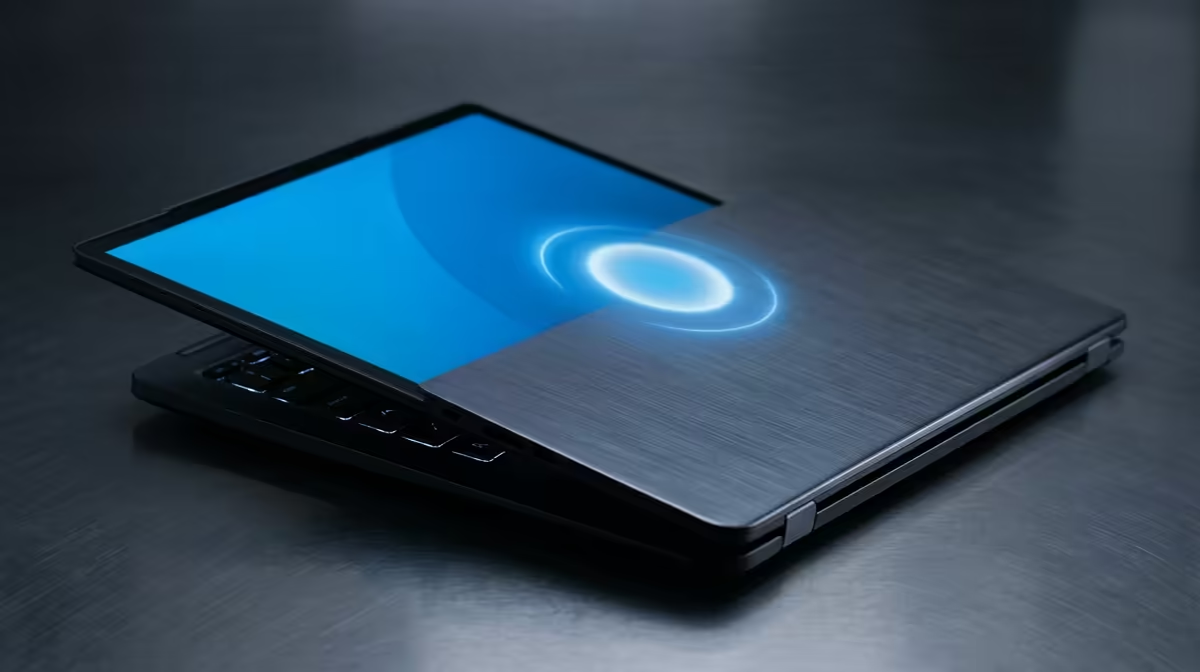
That first sip of coffee in the morning... bliss. But when your corporate laptop takes the entire cup to boot up, it’s just frustrating. In South Africa's fast-paced business world, waiting is losing. If you’re tired of staring at a loading screen, you’re in the right place. We’ve got the pro tips you need to fix slow boot times on your corporate laptop and get your productivity back on track. 🚀
Why Your Work Laptop is Suddenly So Slow
Before we jump into the fixes, let's quickly diagnose the problem. A slow startup isn't just one thing; it's usually a combination of factors that build up over time.
- Bloatware: Unnecessary pre-installed software from the manufacturer.
- Too Many Startup Programs: Apps that launch themselves the moment you log in, hogging resources.
- An Old Hard Drive (HDD): Traditional hard disk drives with moving parts are a massive bottleneck compared to modern solid-state drives (SSDs).
- A Full Drive: A hard drive that's over 85% full can seriously slow down Windows.
Understanding these culprits is the first step to effectively speeding up your machine.
Quick Fixes for Slow Boot Times You Can Try Now 🔧
You don't always need a new machine to get a speed boost. These software tweaks can make a noticeable difference and only take a few minutes. If you've ever envied the blazing-fast boot times of a modern gaming laptop, these steps can get your work machine a little closer to that dream.
Tame Your Startup Programs
This is the single most effective software fix. Many applications set themselves to run on startup, draining power before you've even opened a file.
- Press Ctrl + Shift + Esc to open the Task Manager.
- Click on the "Startup" tab.
- Look for apps with a "High" startup impact that you don't need immediately (e.g., Spotify, Steam, update checkers).
- Right-click on them and select "Disable".
Clean Up Your Drive
Freeing up space can give your system more room to breathe. Windows has a built-in tool that works wonders.
- Search for "Disk Cleanup" in the Start Menu and run it.
- Select your C: drive.
- Check the boxes for Temporary Internet Files, Thumbnails, and the Recycle Bin.
- Click "OK" to clear the files.
Productivity Pro Tip ⚡
Use a tool like WinDirStat to get a visual map of what's eating up your hard drive space. It's a fantastic way to find massive old files or forgotten downloads that you can safely delete to instantly free up gigabytes of space.
The Ultimate Upgrade: SSDs and Modern Hardware
If software tweaks don't cut it, the hardware is likely the bottleneck. The biggest performance jump you can make is upgrading from a mechanical Hard Disk Drive (HDD) to a Solid-State Drive (SSD). The difference is night and day... we're talking boot times dropping from minutes to mere seconds. ✨
Modern laptops, like the latest range of powerful Intel-powered laptops, come standard with super-fast NVMe SSDs. These drives handle data so quickly that your entire workflow feels more responsive. Likewise, the new generation of capable AMD laptops leverage the same technology to deliver instant-on performance that keeps you in the flow, whether you're compiling code or crunching numbers in a spreadsheet.
When to Replace, Not Repair
There comes a point where fixing an old laptop isn't cost-effective. If your machine is over five years old, has a slow processor, minimal RAM (less than 8GB), and a dying battery, even an SSD won't solve all its problems.
Investing in a new corporate laptop is an investment in your own productivity and sanity. The performance gains from a modern CPU, more RAM, and a built-in SSD will pay for themselves in time saved and frustration avoided.
Tired of Waiting? Upgrade Your Speed.
Slow boot times don't have to be your reality. If you're ready to leave the loading screens behind and invest in pure productivity, a new laptop is the ultimate fix. Explore our wide range of laptop specials and find the perfect high-speed machine for your work in South Africa.