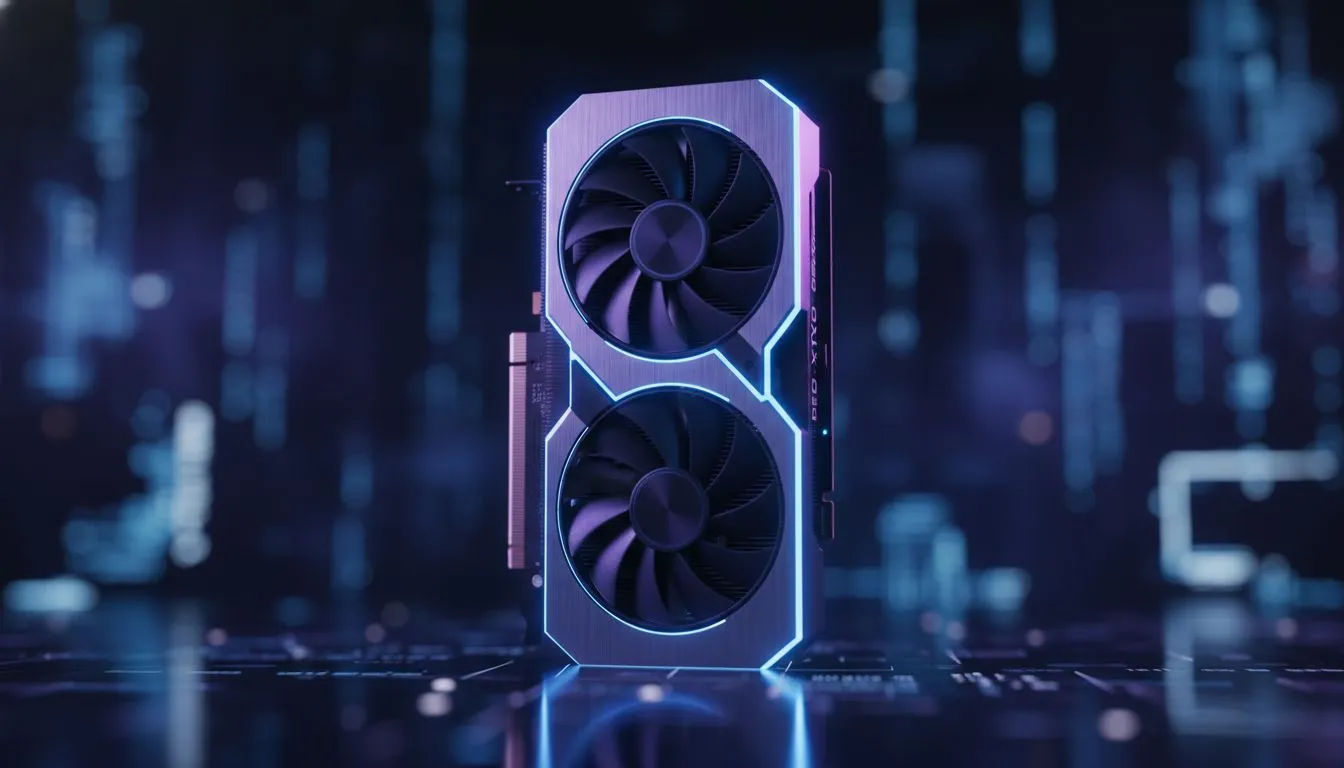
Hitting the Apex: RTX 5070 ACC Settings: Best Epic Preset Guide
Hitting the apex at Kyalami requires more than just skill... it needs frames. If you have just snagged an RTX 5070, you are sitting on a goldmine of performance. But cranking everything to "Epic" without a plan is a recipe for stuttering. Let us dial in the perfect RTX 5070 ACC Settings: Best Epic Preset Guide to keep your lap times purple. 🏎️
Maximising Visual Fidelity with NVIDIA Power
The RTX 5070 is a beast for 1440p and entry-level 4K sim racing. When browsing for the latest NVIDIA graphics cards, users often prioritise raw clock speeds. However, for Assetto Corsa Competizione (ACC), the architecture matters most. This card handles the Unreal Engine 4 heavy lifting with ease. You can expect crisp textures and realistic lighting even when the South African sun sets over the virtual track.
To get the most out of your hardware, especially if you prefer MSI graphics cards for their superior cooling, you need to balance the load. ACC is notoriously heavy on the CPU during race starts with 30+ cars.
The Definitive RTX 5070 ACC Settings: Best Epic Preset Guide
For a smooth experience, start with the Epic preset but make these specific tweaks:
- Resolution Scale: 100% (Keep it native for clarity).
- DLSS: Set to "Quality" with Frame Generation ON.
- View Distance: Epic (Essential for spotting braking markers).
- Shadows: High (Epic shadows are a massive resource hog for little gain).
- Contact Shadows: Enabled.
- Antialiasing: High or Epic (DLSS usually handles this).
Sim Racing Pro Tip ⚡
Always disable 'Motion Blur' in competitive racing. While it looks cinematic, it masks fine details during high-speed cornering. For the best clarity on your RTX 5070, keep your 'Mirror Quality' at Mid or High to save frames for the actual track action.
Comparing Performance Across the Spectrum
While the RTX 5070 sits in the sweet spot, some racers look at AMD Radeon graphics cards for their high VRAM counts. This is useful for ultra-wide setups. However, NVIDIA's DLSS 3.5 remains a kingpin for maintaining high refresh rates in rain-soaked night races at Spa.
Even budget-conscious racers looking at Intel Arc graphics cards can find decent performance at 1080p. But for the "Epic" experience we want, the 5070 is the clear winner. If you are building a professional-grade rig for data analysis alongside racing, you might even consider workstation graphics cards, though they are rarely optimised for the high-frequency gaming needs of ACC. 🔧
Final Optimisation for South African Gamers
Heat is the enemy of performance. In a typical SA summer, your GPU can throttle. Ensure your case has high airflow. With these settings, your RTX 5070 should comfortably stay above 100 FPS at 1440p, even during a chaotic start at Monza. This ensures your inputs are precise and your visuals are buttery smooth. 🚀
Ready to Dominate the Track?
Finding the right balance between "Epic" visuals and competitive performance is easier with the right hardware. For the best prices and expert advice on the latest GPUs in South Africa, we have you covered. Explore our massive range of NVIDIA graphics cards and upgrade your racing rig today.