An iPad USB-C DisplayPort connection can put a tablet image on a compatible monitor, but it is a chain rather than a magic port. The screen input, cable, adapter, tablet, and app all need to agree before a desk setup becomes dependable.
Quick Answer
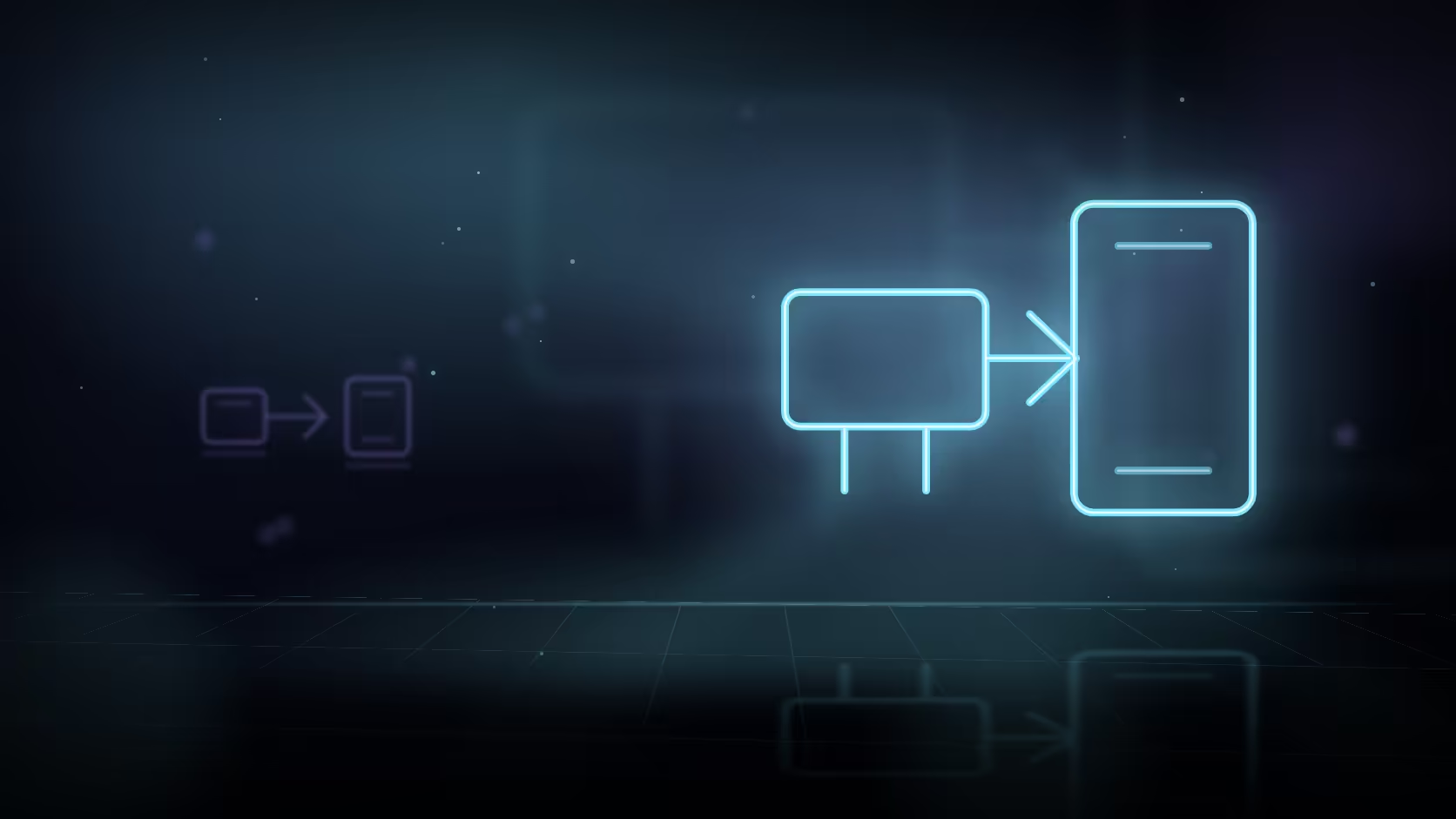
Yes, the USB-C DisplayPort connection can send video to a compatible monitor, while the software decides whether content extends or mirrors. Match the adapter to the display input, select that input and test the exact app before building a desk around it. The iPad A16 has one USB-C port with DisplayPort, but a charge-only cable cannot carry its picture.
🔌 Start with the simplest chain
Connect the tablet directly to one known-working display with a video-capable cable or suitable adapter. Turn on the monitor, select HDMI or DisplayPort as appropriate, unlock the tablet, and wait briefly for the signal. Do not add a hub, storage drive, charger, and several peripherals during the first test.
USB-C is a connector shape, not a guarantee that every cable carries video. A cable can charge the tablet perfectly and still fail to send an image. Read the cable or adapter description for the video function and the connector at the monitor end.
Browse iPads after identifying the role the portable device will play at the desk.
🖥️ Diagnose a blank screen in order
First check that the monitor is on the correct input. Next reseat the cable at both ends. Then try another known-good cable, adapter, or display one item at a time. This sequence matters because changing everything at once replaces evidence with guesswork.
Open a simple document or video after the picture appears. The test should prove reliable output, not merely a single flash of an image. Some software may mirror a view rather than create a distinct work area, so try the application you intend to use before choosing a permanent monitor.
🧰 Add equipment for a specific need
A dock is useful if one desk also needs charging, wired accessories, storage, or Ethernet. It introduces another compatibility point, however, so prove direct video first. Review portable monitors when you need a screen that travels, then choose cable options from comprehensive cable solutions for the exact input and length.
Route the cable so it cannot be pulled from the table and keep the adapter with the tablet if you move between rooms. A small labelled pouch prevents arriving at a shared display with the wrong lead.
⚖️ Know when it is worth using
External video is worthwhile when a larger screen reduces repeated zooming, gives reference material a stable place, or makes a presentation easier to follow. It is not a substitute for a laptop when the work requires desktop-only software or several fixed windows. Test the real job before spending on a complex dock.
Frequently Asked Questions
Does every USB-C cable carry video?
No. Some USB-C cables provide charging or data without the video capability needed for a monitor connection.
What should I try first when the monitor is blank?
Check the monitor input, reseat the connections, then replace one cable, adapter, or display at a time with a known-working option.
Can I use a dock immediately?
You can, but direct tablet-to-monitor testing first makes any later dock problem much easier to identify.
Ready to turn one port into a dependable desk connection?
Prove the direct video path first, then add only the cable or dock that supports the way you work.