Tired of Looking Like a Potato on Video Calls?
You hop onto a Teams call, and—bam!—your webcam makes you look like you're live from a dungeon. Whether you're pitching clients or chatting with gran, blurry or dark webcam video kills your vibe. The good news? It’s fixable. Let’s walk through how to fix blurry or dark webcam video with a few smart tweaks and some affordable gear upgrades. ⚡🧑💻
First: Know What’s Causing the Problem
Before tossing your webcam out the window, figure out what’s going wrong.
1. Is Your Lighting Working Against You?
Your webcam isn’t psychic—it can’t light your face on its own. Most built-in cams struggle in low light, causing that grainy, washed-out look.
Rule of thumb? Your face should be brighter than your background.
Natural light is ideal. If that’s not an option, try a desk lamp behind your monitor, aimed at your face.
2. Are You Using a Budget Webcam That’s Past Its Prime?
Older or entry-level webcams often have fixed focus or low-resolution sensors that make you look blurry no matter what you do.
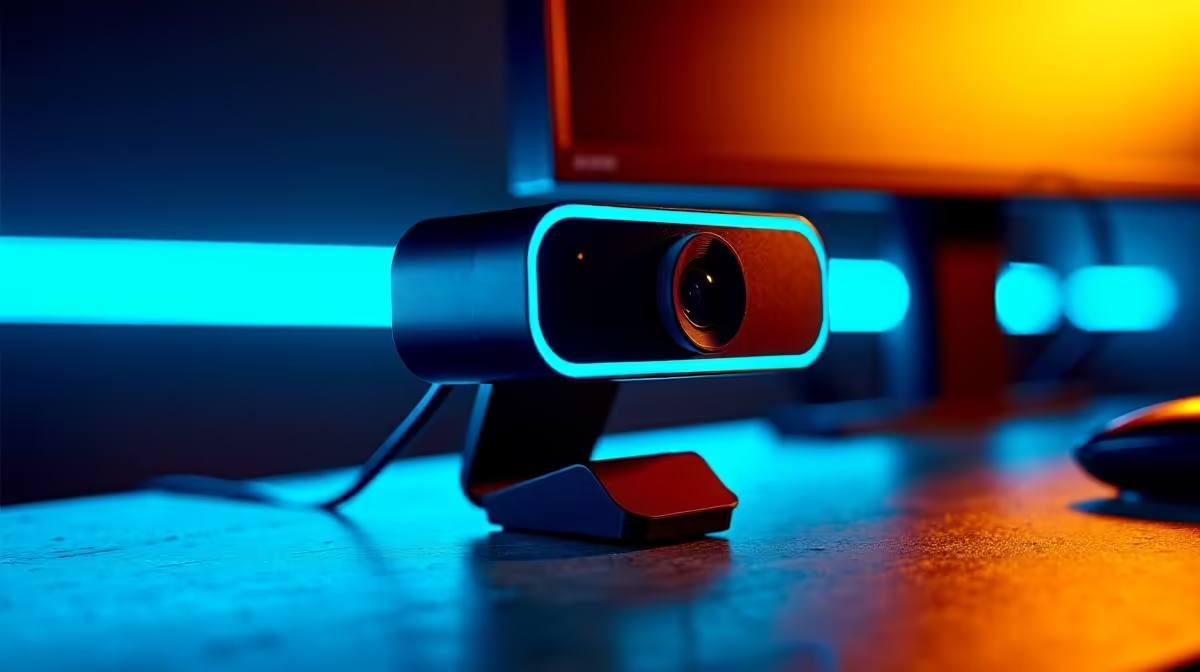
If you're on a tight budget, start with HD webcams under R900. They're lightyears better than laptop cams and cost less than a dinner date.
Cam Placement Trick
Place your webcam slightly above eye level and about an arm’s length away. This angle flatters and avoids distortion.
3. Check Your Webcam Software Settings 🔧
Whether you're on Zoom, Skype, or Google Meet, go into your camera settings. Bump up brightness and contrast manually. Disable “auto exposure” if it’s making you ghostly pale or pitch black.
Also check your webcam software (like Logitech Capture or Windows Camera settings) for firmware updates and focus calibration tools.
Make the Jump to Full HD or Better
Sometimes no amount of tweaking will fix the problem if the cam hardware itself is outdated.
Modern webcams over R900 offer:
- 1080p resolution (no more fuzzy edges)
- Auto-focus to keep you sharp, even if you move
- Light correction to brighten up night calls
These webcams are ideal for anyone serious about looking crisp on camera—whether for YouTube, job interviews, or professional meetings.
Bonus Fixes You Can Do Right Now
- Clean your webcam lens. Sounds silly, but smudges = blur.
- Turn off background apps. High CPU load can mess with video processing.
- Check bandwidth. A laggy stream could be a slow connection, not your cam.
Still not sure which option is right for your space, lighting, and budget? Browse Evetech’s full webcam range for trusted picks across all price points.
Wrap-Up: Clearer Calls Start Today
Looking sharp online doesn’t require pro studio gear. Just a few smart adjustments—and maybe an affordable new webcam—can instantly level up how people see you.
Look Sharp, Sound Smart
Ditch the blur and gloom… Shop now at Evetech for performance that leaves lag in the dust.