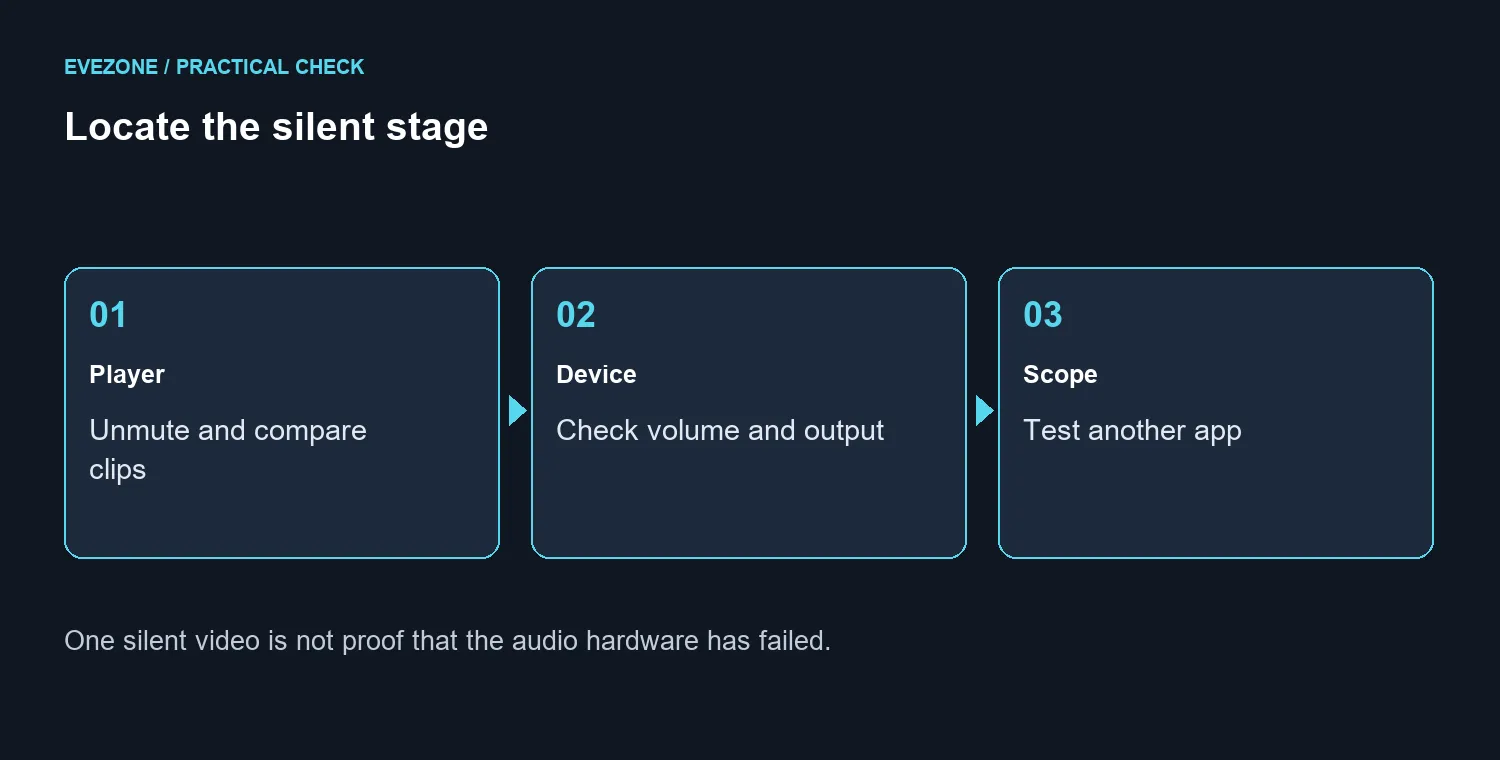
A moving picture with silence can send you shopping for audio hardware far too early. YouTube no sound needs a short comparison between the video player, the device and another app. That tells you whether you are investigating one clip or the whole listening setup.
Quick Answer
Unmute the player, raise its volume, inspect the device's media volume and selected output, then try another video and another app. Restart the browser or device after saving work if the problem persists. These initial checks cost R0; they do not require replacing speakers or assuming a platform-wide outage.
🔊 Check the nearest controls first
Use a second unrelated clip so a quiet or faulty recording does not define the test. Watch the player's mute state and set a moderate listening level. If you are on a phone, adjust media volume while the clip is playing rather than assuming a ringtone control changes playback.
On a computer, inspect whether sound is routed to the intended speakers or headphones. A recently connected screen or Bluetooth device is a reason to check the output choice. Do not raise every control to maximum while wearing headphones; keep the test comfortable.
🎧 Compare the listening path
Play another app through the same output. If it also stays silent, focus on the device and audio path. If it works, keep the investigation closer to the video app or browser. Record which comparison succeeded so you do not repeat an irrelevant hardware test.
Browse headsets only when there is a real listening requirement or a demonstrated device fault. A microphone from the recording range handles input, which is a different direction from hearing a video. Buying an input device will not choose the correct playback output.
🧪 Restart without resetting everything
Save open work before restarting the browser or device. A normal restart is a smaller step than clearing app data or performing a factory reset. Check the same two clips afterwards and note whether the behaviour changed.
If the fault persists, collect the device model, app or browser version, output device and whether other apps have sound. That description helps support isolate the problem. Avoid claiming that every silent clip has the same cause: a muted player, a device setting and a recording with missing audio can produce similar symptoms while needing different responses. Work from the comparison you observed instead of a guessed diagnosis.
Frequently Asked Questions
What should I check first?
Unmute the video player and raise its volume, then check device media volume.
Why can other apps still play sound?
The fault may be limited to that clip, browser or app. Compare another video before changing the whole device.
Can audio go to the wrong device?
Yes. Inspect the selected output, particularly after using Bluetooth headphones or an HDMI display.
Should I buy speakers immediately?
No. The initial volume and output checks cost R0 and can reveal a settings problem.
Does a restart erase my account?
A normal browser or device restart does not mean deleting the account. Save open work first.
What details help support?
Record the device, browser or app version, affected clips and whether other apps produce sound.
Bring the sound back methodically
Follow the audio path before replacing equipment. Keep a short record of the clips, apps and output that you tested.