The app that supplies updates can have its own update, which makes the wording easy to confuse. Play Store update refers to the store application, while the queue of your installed apps is managed elsewhere inside it. Choose the right task before following download instructions from an unfamiliar page.
Quick Answer
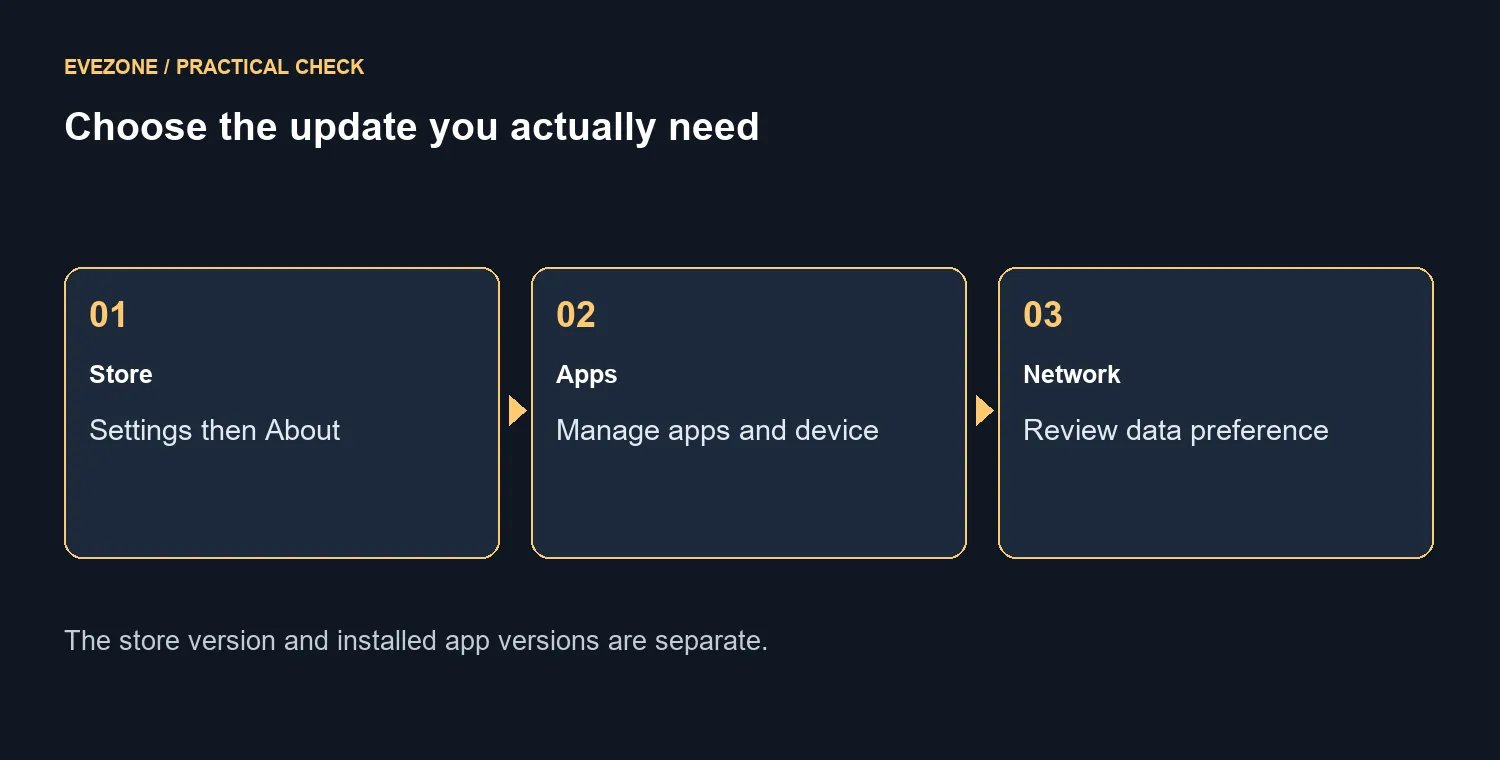
To check the store itself, open Play Store, tap your profile, then Settings, About and Update Play Store. For other apps, use Manage apps and device. The update check costs R0 as a store function, but downloads use your connection's data. Review network preferences before starting a large batch.
📱 Identify what needs changing
If a particular app asks for a newer version, inspect that app's update entry. If the issue concerns the store application, use the About screen's own check. Those two routes answer different questions, even though both begin in Play Store.
Read the status message after checking. An up-to-date result is useful information, not a failed attempt. Do not assume that every phone should show a new store version at the same moment or that a random download offers a more appropriate build.
📶 Choose the data route deliberately
Automatic app updates have network preferences. Review them around the data plan you actually use, especially when several large apps are waiting. A free update is not the same thing as free mobile data. No particular SA data tariff is assumed here.
For home connectivity, inspect wireless routers and fibre routers around the existing connection. A CUDY AC1200 travel router was R699 in stock on 11 October, but new networking hardware is unnecessary simply to perform a store-version check. It also cannot replace an internet service plan.
🛠️ Keep troubleshooting inside the supported path
If an update will not download, check that the device has a working connection and follow the store's normal troubleshooting route. Avoid moving straight to unfamiliar APK downloads. A copied installer from a random page creates a new source question while leaving the original download problem unexplained.
Keep track of whether the store check, one app update or every download is failing. That distinction makes a support request much clearer. A normal restart can be considered after saving work, while clearing app data or resetting the phone is a larger step that should not be treated as the default response to a missing update button.
Frequently Asked Questions
How do I update the store itself?
Open Play Store, tap your profile, then Settings, About and Update Play Store.
How do I update my other apps?
Use Manage apps and device, then inspect available updates. That is separate from the store version.
Is there a fee for the update check?
The check costs R0 as a store function, but your internet connection can use paid data.
Can I choose Wi-Fi for automatic updates?
Yes. Review the auto-update network preference and select an option that fits your data plan.
Should I install a store APK from a random page?
Use the built-in update route first. An unfamiliar download adds avoidable source and compatibility uncertainty.
What if an update is not offered?
Read the status message, check connectivity and try normal troubleshooting rather than assuming every device needs a newer version immediately.
Choose the right update route
Check the correct update screen. Choose a data route deliberately and use the store itself for its version check.