One small wheel movement should not make you lose your place in a long document. Windows mouse wheel scroll speed has its own controls, so a fast pointer does not automatically explain a huge page jump. Check the scroll mode before shopping for a new mouse.
Quick Answer
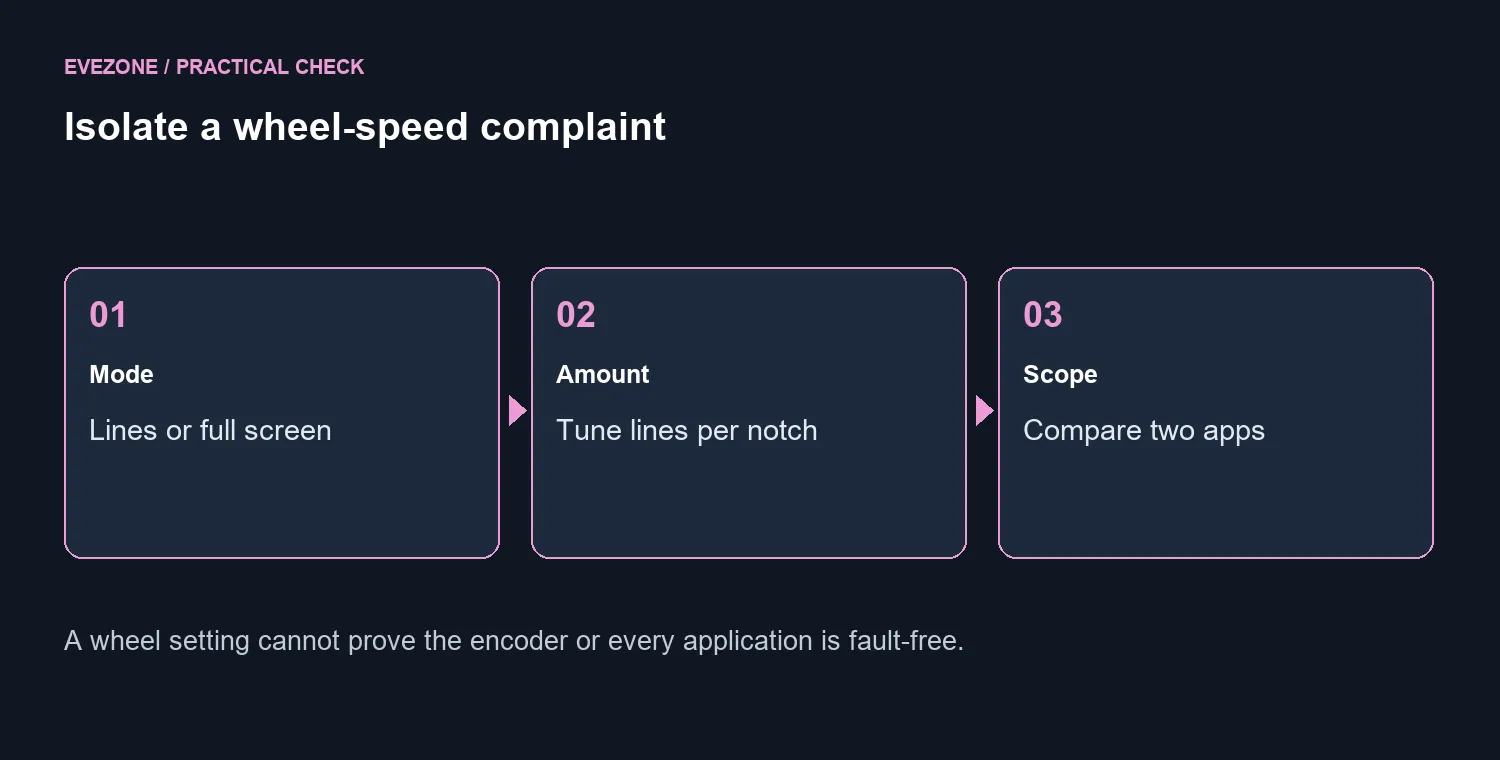
In Settings, Bluetooth and devices, Mouse, choose Multiple lines at a time rather than One screen at a time, then adjust the line count. This costs R0. Test a long page and another app. The R179 MARVO WS005 combo seen in stock on 11 October is a separate hardware reference, not a required fix.
📄 Choose the size of each step
Start with a document long enough to make the difference obvious. Roll one deliberate notch and see whether the page moves a few lines or almost a full screen. Change the mode first, then the amount. Keep the pointer over the same part of the document so another pane is not accidentally receiving the wheel input.
There is no ideal line count for every reader. A comfortable setting lets you follow the content without repeatedly correcting your position. Use a second long page before deciding the result is right for everyday browsing.
🧪 Compare application behaviour
If the problem remains in one program, test another before making another global change. Apps can interpret scrolling differently, and a special smooth-scroll or wheel option may be involved. Avoid changing the Windows setting repeatedly to compensate for one unusual page.
Inspect your mouse-pad setup for ordinary pointer comfort, keeping wheel behaviour a separate question. A surface change cannot alter the chosen number of lines. Likewise, keyboard and mouse combos should be compared for a real hardware need rather than used as a shortcut around an unexplored preference.
🛠️ Describe irregular input accurately
Large but consistent forward steps are different from unpredictable direction reversals or missing wheel movements. The latter can call for device-specific support or a physical check. Note which apps show the symptom and whether another mouse behaves the same way. Keep the original line value recorded, then change only one factor during each test. That evidence makes a support request more useful than simply reporting that scrolling feels wrong.
Frequently Asked Questions
Why does one notch jump a whole page?
Check whether the wheel is set to One screen at a time. Select Multiple lines at a time for smaller steps.
Is pointer speed the scroll control?
No. Moving the pointer and rolling the wheel have separate settings.
What line count should I choose?
Start with a small value that feels comfortable and test a long page. There is no universal best count.
What if only one app scrolls too fast?
Compare another app before changing hardware. The affected application may have its own scrolling behaviour.
Will this repair random reverse scrolling?
Not necessarily. Direction jumps or missed input can need device-specific support or a hardware check.
Do I need to pay for a tuning utility?
The Windows controls cost R0. Try them first and keep a note of the original value.
Keep your place while scrolling
Tune the wheel with a long document. Keep the original value and compare another app before changing hardware.