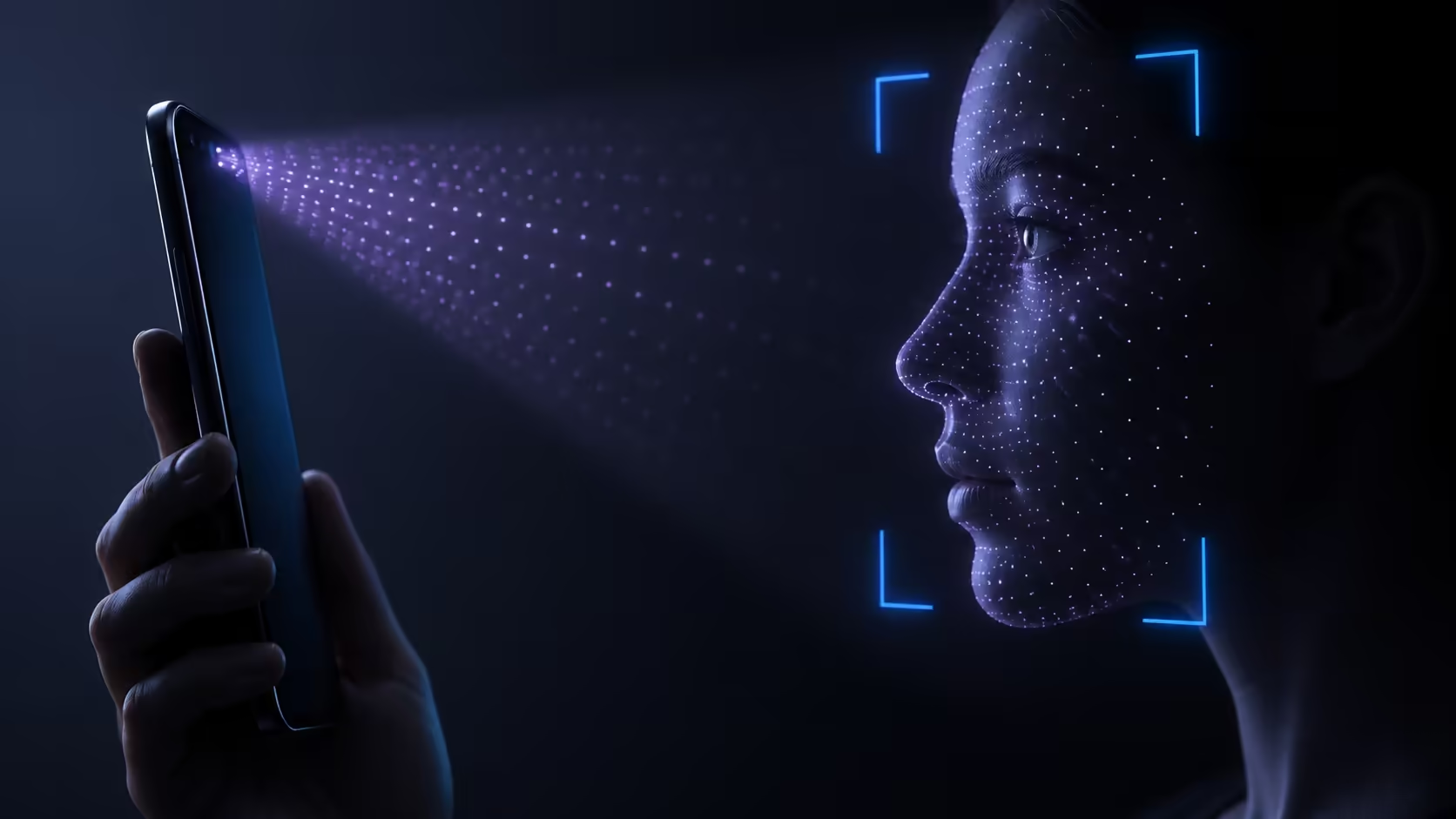
Repeated recognition failures are frustrating, but a successful selfie does not test every part of face authentication. Face ID not working deserves a clear sequence: inspect the camera view, check enabled uses and software, then decide whether setup or service needs attention. Keep the device's security controls intact throughout that process.
Quick Answer
Check for software updates, inspect Face ID settings and clear obstructions around the TrueDepth camera. Restart the device before considering another setup attempt. These basic checks cost R0. If enrolment repeatedly fails or a camera fault is reported, contact support rather than opening the phone or attempting a bypass.
👤 Give the camera a clear view
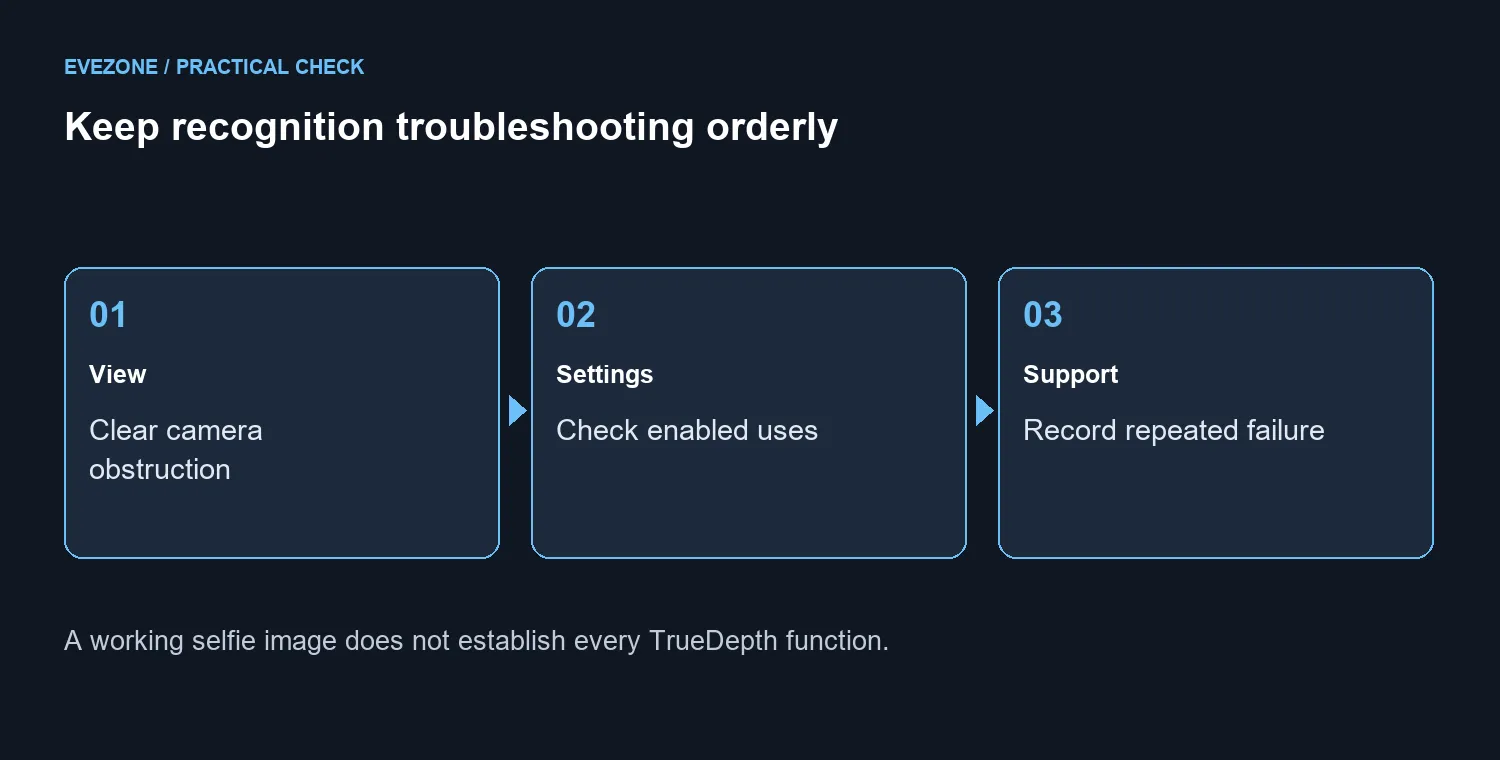
Look at the area around the TrueDepth camera. A case, protector or dirt can obstruct it. Check the physical fit without dismantling the phone, then try the normal position and distance for recognition. Avoid judging the system from an awkward angle you do not normally use.
Read the device's passcode request when it appears. Face authentication does not remove every reason the phone can ask for the passcode. Entering it as requested is different from disabling protection, and repeated guessing is not a useful diagnostic step.
⚙️ Check the task you expect to unlock
Inspect which uses are enabled under Face ID settings. A working device unlock does not automatically establish that every app is configured to use it. Test the ordinary lock-screen case separately from a particular application that refuses recognition.
Keep accessories separate from this fault. Bluetooth headsets and wireless headsets can serve listening needs, but neither is a repair for the TrueDepth camera. Do not buy a peripheral in the hope that it changes face enrolment.
🧰 Know when to stop repeating setup
After the basic checks and a normal restart, follow the supported setup guidance if a new registration is needed. Make sure you know the device passcode first. If setup keeps asking you to reposition without progressing, or the phone reports a camera problem, note the exact wording and seek support.
Do not open or modify the camera system as a home troubleshooting step. Keep a record of when the behaviour started, any repair history and whether the failure occurs at unlock or inside one app. That information gives a service assessment a useful starting point without claiming a particular damaged component from symptoms alone. A clear boundary between settings checks and repair prevents endless resets that never address a physical fault.
Frequently Asked Questions
What should I inspect before resetting?
Check that nothing blocks the TrueDepth camera and that Face ID is enabled for the intended task.
Can a case interfere?
A case or screen protector may obstruct the camera area. Inspect its fit without dismantling the phone.
Why is a passcode still requested?
Face ID does not replace every passcode requirement. Enter the device passcode when requested.
Should I keep retrying failed setup?
If setup repeatedly fails or a camera fault appears, record the message and contact support.
Do simple checks cost anything?
The settings, obstruction and restart checks cost R0. A repair quote is a separate question.
Can I repair the camera myself?
Do not open the camera system as a troubleshooting step. Use an appropriate service channel if basic checks fail.
Keep authentication checks focused
Keep recognition checks simple and ordered. Record repeated enrolment errors and use support when basic checks do not resolve them.