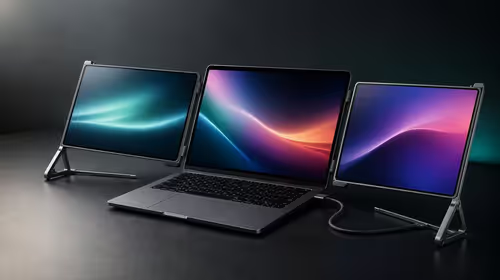
A 120Hz monitor can remain at 60Hz because the operating system, host output, cable or active resolution has not produced the intended mode. Fixing a portable monitor stuck at 60Hz begins with a direct connection and visible setting check. This UPERFECT UColor O2 diagnosis uses the R7,199 monitor.
Quick Answer
If the UColor O2 stops at 60Hz, the user's source mode, cable, connection or 3K bandwidth path is preventing selection of the monitor's 120Hz capability.
Connect the UColor O2 directly, select its native 2880x1800 resolution and inspect the refresh choices in display settings. Choose 120Hz, apply it and verify the mode after game launch and reconnection. The R7,199 panel supports 120Hz, while the exact host and cable still determine whether that resolution-and-refresh route works.
🧭 Confirm which display is active
Open advanced display settings and select the portable monitor rather than the laptop panel. Note current resolution and refresh. Mirrored layouts can inherit another screen's limits, so test an extended desktop while diagnosing.
After mapping the host route, examine exact refresh capabilities in Evetech's portable monitor range.
🧭 Return to the shortest connection
Remove adapters or docks and test the known cable directly from host to monitor. Try another suitable port or lead one at a time. USB-C power alone does not prove that the connection can carry the required video mode.
Record which path exposes 120Hz. Reintroduce the dock only after the direct baseline stays stable.
🧭 Add native resolution carefully
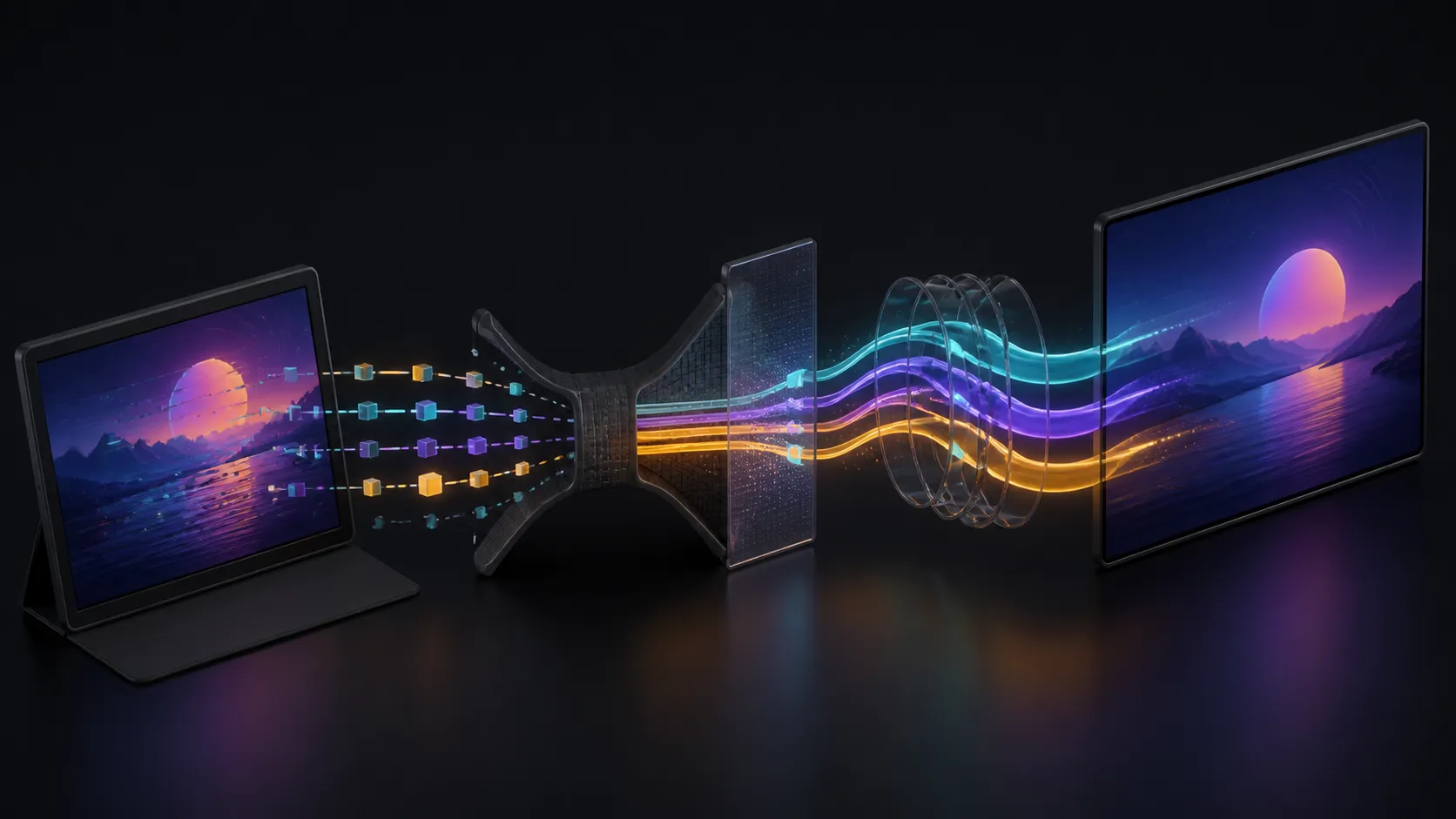
If 120Hz appears only at another resolution, return to 2880x1800 and inspect the available list again. The complete combination matters; a screen can support each headline feature without every host route delivering them together.
Keep HDR off until 3K at 120Hz survives sleep and reconnection. This limits the number of variables during repair.
🧭 Validate inside the application
Check the game's own display mode and whether it uses the intended screen. Use a repeatable motion scene, then confirm the operating system still reports 120Hz after exit. Frame rate and refresh remain separate measurements.
Compare fixed high-refresh options in the Evetech PC-monitor selection if the portable connection cannot meet a permanent desk requirement.
Test the game in exclusive and windowed modes
Some applications expose different display choices depending on how they present the image. Check the active monitor and refresh in the mode the player actually uses. Return to the desktop after closing the game and verify the UColor O2 did not remain at an unintended setting.
Record the mode with the successful profile. A correct Windows desktop does not prove the game selected the same refresh path.
Keep a 60Hz recovery route
Save a stable 60Hz profile at native resolution for diagnosis. If 120Hz disappears during travel or after a software change, the fallback keeps the second screen usable while the source path is checked. It should not be treated as the final fix when higher refresh is mandatory.
This recovery route separates continued work from troubleshooting. The user can restore function without erasing the evidence needed to find why 120Hz vanished.
Audit the selected cable after travel
Inspect the plugs, reconnect directly and verify the saved native-resolution profile. If 120Hz is missing, compare with the labelled baseline cable before altering software. A damaged or exchanged lead can look identical while changing the available mode.
Keep cable replacement separate from the final gaming test. Once 120Hz returns, repeat the known motion scene and record the restored path for the next journey.
Check the profile again after the laptop moves between mains and battery operation if that matches normal use. Record the active mode without drawing a battery-runtime conclusion. A source-state change can affect what Windows exposes, and the note should identify that transition before another cable is blamed.
Save the working mode, then test it after sleep.
Test a supported direct connection, remove unneeded adapters and open the source display settings after the picture stabilises. At 2880x1800, 120Hz carries a substantial data load. A cable that produces 60Hz can still fail the higher mode. Save the successful resolution, refresh and input combination, then confirm motion with a frame-rate test rather than assuming the menu selection applied.
Frequently Asked Questions
Can mirroring keep a portable monitor at 60Hz?
It can make displays share a common mode. Test an extended desktop and select the portable panel explicitly.
Does changing the cable solve every refresh issue?
No. Host output, port, cable, resolution and application settings all participate. Change one layer at a time.
Should HDR stay off while restoring 120Hz?
Yes. Obtain a stable native-resolution 120Hz baseline before adding another display mode.
Does 120Hz prove the game renders 120 frames per second?
No. Monitor refresh and source frame delivery are related but distinct.
Ready to restore 120Hz through a clean connection path?
Compare Evetech gaming monitors after checking the active display, native resolution, host and cable.