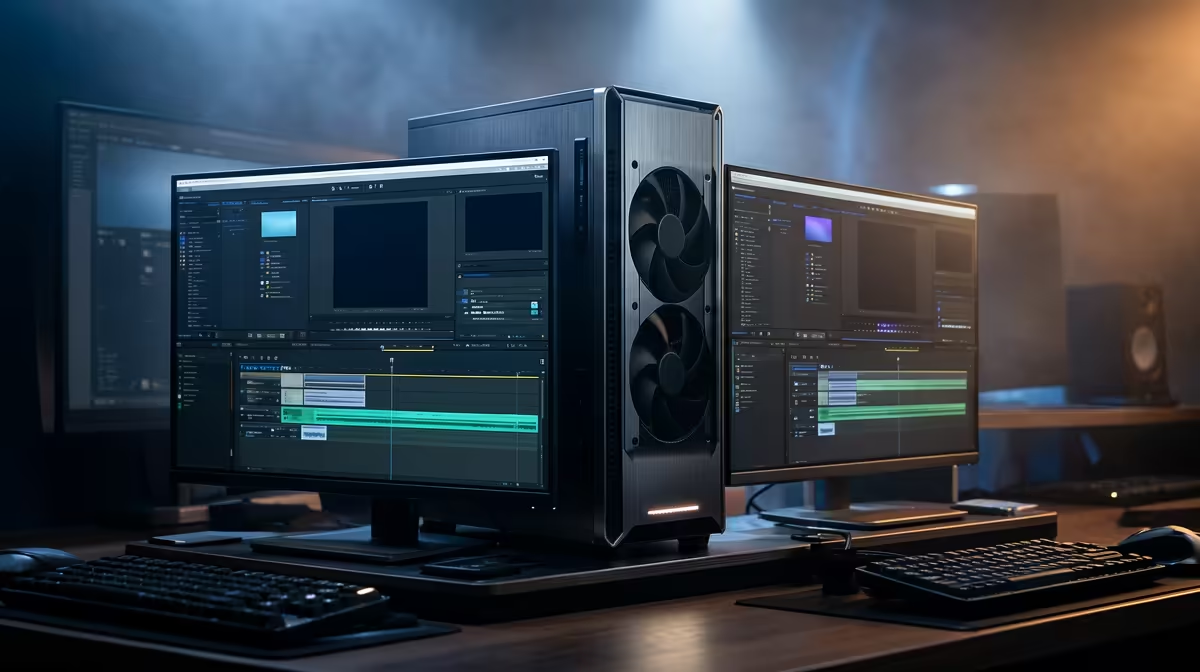
If a DaVinci Resolve export crawls along while your powerful GPU sits nearly idle, the program is almost certainly encoding on the CPU by default. Switching to hardware encoding in the Deliver tab is the single biggest fix, and it can cut delivery time from an overnight wait to a few minutes on the same machine. The setting is buried in plain sight, and most people never flip it.
Quick Answer
Fix slow exports in DaVinci Resolve by enabling hardware-accelerated encoding in the Deliver tab. Choose NVIDIA NVENC or AMD VCE instead of the default CPU-based "Native" encoder. On the same hardware this is commonly 5 to 8 times faster for H.264 and H.265 output.
Switch on hardware encoding first
Open the Deliver tab, select your video format and codec, and look for the encoder option below the codec dropdown. By default Resolve often uses its native CPU encoder, which is thorough but slow. Change it to your GPU's dedicated encoder: NVENC on an NVIDIA card, or VCE on an AMD card. These are purpose-built video encoding blocks on the GPU that handle H.264 and H.265 far faster than general CPU cores.
The quality difference at sensible bitrates is small and rarely visible for delivery work like YouTube uploads or client review files. The speed difference is enormous. For the vast majority of exports, hardware encoding is the right default, and you should only fall back to the CPU encoder when you need the absolute maximum quality at a low bitrate.
If your timeline is heavy and the GPU is still the bottleneck, a stronger card pays off everywhere in Resolve. The workstation graphics card range at Evetech shows the GPUs built for sustained encode and effects work. If you would rather start from a complete editing rig, the PC best sellers at Evetech include systems already balanced for Resolve work.
Cache the heavy nodes
A slow export is not always the encoder. If your timeline runs noise reduction, optical flow, or stacked effect nodes, Resolve has to render those on every frame as it exports. Render in place, or use Smart Cache, so those expensive nodes are pre-computed before you hit deliver. With the heavy lifting already cached, the export only has to encode, which is fast.
Set the cache to a fast drive, ideally an NVMe SSD, so reading the cached frames does not become its own bottleneck. Caching to a slow mechanical drive can undo the benefit entirely.
Pick a sensible codec and bitrate
Codec choice affects export time directly. H.264 encodes faster than H.265 on most hardware, so if you do not specifically need H.265's smaller file size, H.264 finishes sooner. Avoid exporting to heavy intermediate formats unless a downstream workflow demands them, because they write huge files and take longer.
Match the bitrate to where the file is going. A client review copy does not need the same bitrate as a master. Over-specifying bitrate wastes both export time and storage for no visible gain on the destination platform.
Check your storage and source media
Reading and writing are part of export time too. If your source footage and your export destination sit on the same slow drive, the disk thrashes between reading and writing. Put the export target on a separate fast drive where you can. Heavily compressed source formats like long-GOP footage also decode slowly, so on a tight deadline, optimised media or proxies speed up the whole pipeline.
Frequently Asked Questions
Why is my DaVinci Resolve export so slow?
The most common cause is CPU-based encoding. Resolve often defaults to its native encoder instead of your GPU's hardware encoder. Switching to NVENC or VCE in the Deliver tab usually delivers the largest single speed gain.
Where do I enable NVENC in DaVinci Resolve?
Go to the Deliver tab, choose your codec, then find the encoder dropdown below it. Select NVENC for NVIDIA or VCE for AMD instead of the native option. Resolve then uses the GPU's dedicated encoder.
Does hardware encoding reduce export quality?
At normal delivery bitrates the quality drop is small and rarely visible for uploads or review files. Use CPU encoding only when you need maximum quality at a very low bitrate.
Will caching effects speed up my export?
Yes. Pre-rendering heavy nodes like noise reduction and optical flow through Smart Cache or render-in-place means the export only has to encode, not recompute effects. Cache to a fast NVMe drive for the best result.
Is H.264 or H.265 faster to export?
H.264 generally encodes faster on most hardware. Choose H.265 only when you specifically need its smaller file size, since it takes longer to encode at the same settings.
Tired of watching exports crawl? The fix often starts with the GPU doing the encoding. Compare the workstation graphics card range at Evetech to put a card built for fast, sustained Resolve delivery in your edit rig.