


Quick Answer
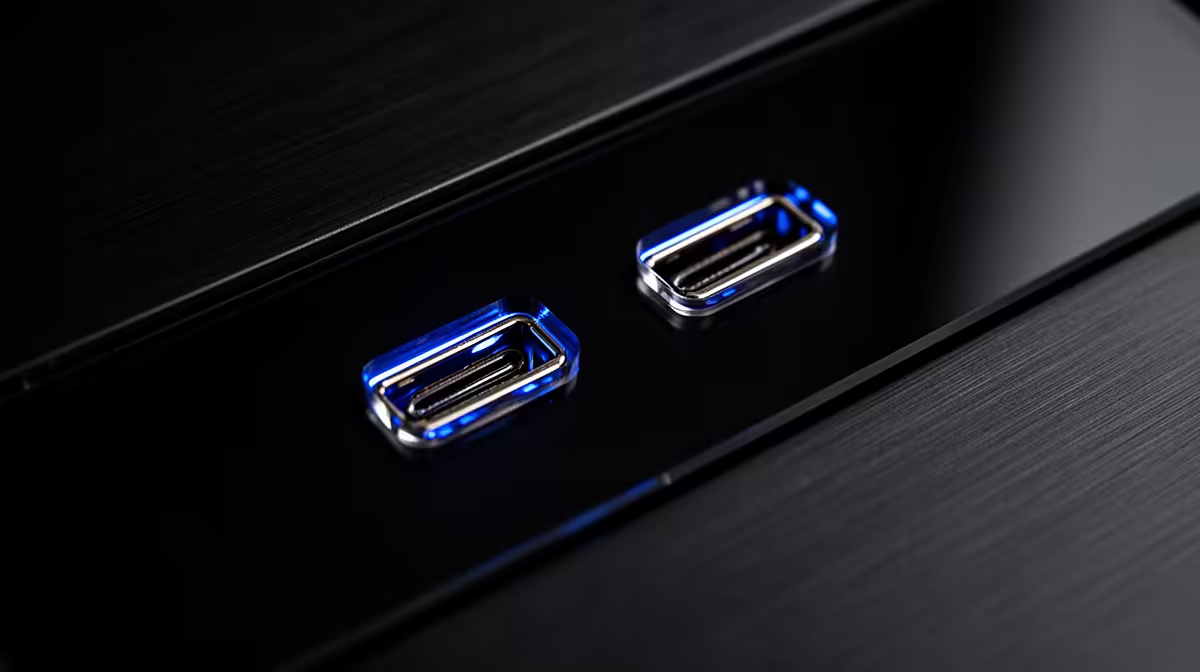
USB 3.2 Gen 2 Type-C front panel ports on a PC case deliver 10 Gbps data transfer speed through the physical USB-C connector. They require a corresponding USB 3.2 Gen 2 Type-C header on the motherboard to function and enable fast file transfers, connection of modern peripherals, and charging of USB-C devices directly from the front of the case without reaching around to rear ports.
What USB 3.2 Gen 2 Actually Means on a Front Panel 🔌
USB naming is notoriously confusing. USB 3.2 Gen 2 specifies a data rate of 10 Gbps, twice the 5 Gbps of USB 3.2 Gen 1 (also called USB 3.0). The physical USB-C connector shape does not by itself define the speed: a USB-C port can be Gen 1 at 5 Gbps or Gen 2 at 10 Gbps. For a front panel port to achieve 10 Gbps, the case cable must connect to a 19-pin or 20-pin USB 3.2 Gen 2 header on the motherboard, which is distinct from the common USB 3.0 internal header (19-pin, different keying). Many budget and mid-range motherboards include one such header; premium ATX boards often include two. If your board lacks the header, the front panel USB-C port will not function at all, or may require an adapter that limits speed.
Practical Uses for Front-Panel USB-C in a Gaming Build 🎮
A 10 Gbps front-panel USB-C port enables several useful workflows. Transferring footage from a GoPro or DJI action camera directly to the PC completes at near-full USB 3.2 Gen 2 speed if the camera supports it. Connecting a modern external SSD for backup or portable storage reaches 800 to 900 MB/s versus the 450 to 500 MB/s of a Gen 1 port. Charging a USB-C phone or tablet is fast and convenient without a separate dock. For SA gamers and creators who frequently move files between a gaming PC and a work laptop or portable drive, the front-panel Gen 2 Type-C port saves time and reduces desk cable clutter without permanently occupying a rear port.
What to Check Before Buying a Case for USB-C Front Panel 💡
Verify three things before purchasing. First, the case spec must explicitly state USB 3.2 Gen 2 Type-C, not just USB Type-C or USB 3.0. Second, check your motherboard's specifications for a USB 3.2 Gen 2 Type-C internal header, sometimes labelled USB 3.2 Gen 2x1 or USB 20Gbps Type-C on the spec sheet. Third, confirm the header location on the motherboard PCB does not conflict with the front panel cable length, as some compact ATX cases route the cable to the bottom edge where the header sits, while others require a longer cable for top-mounted headers.
Check Motherboard Header Before Buying ⚡
Before purchasing a case based on its front USB-C Gen 2 port, open the motherboard manual and search for the USB 3.2 Gen 2 Type-C internal header in the connector diagram. If it is absent, you can add a PCIe expansion card with an internal USB-C header to enable the front port later without replacing the motherboard.
FAQ
Is USB 3.2 Gen 2 the same as Thunderbolt 3 or 4?
No. Thunderbolt 3 and 4 use the same USB-C connector but deliver 40 Gbps bandwidth and additional protocols like PCIe tunnelling and DisplayPort. USB 3.2 Gen 2 at 10 Gbps is a completely separate, slower standard. Most PC case front panels do not support Thunderbolt.
Can I charge a laptop through the front-panel USB-C port?
Only if the port supports USB Power Delivery, which requires an additional PD controller. Most front-panel USB-C ports on cases carry data only, not power delivery. Check the case spec for PD wattage if charging capability is a requirement.
What connector does the case USB-C cable use on the motherboard side?
The internal cable uses a 20-pin USB 3.2 Gen 2 Type-E connector, sometimes called USB 3.2 Gen 2 front panel header. It is keyed and only inserts in one orientation, making installation straightforward.
Want a case with a modern USB-C front panel for your build? Evetech stocks PC cases with USB 3.2 Gen 2 Type-C front ports across a range of sizes and budgets, with local warranty and South Africa-wide delivery.











