An 11-inch 2360x1640 Liquid Retina display is most useful when it makes a focused task easier to see and touch. Detail helps, but the real gain comes from choosing the right app layout, lighting, and viewing distance for the job.
Quick Answer
A 2360x1640 11-inch display suits reading, annotation, photo review, drawing and focused video work. The IPS Liquid Retina panel offers dense detail in a compact area, while screen scaling and app layout determine how much working space feels usable. The iPad A16 combines that display with 128GB storage and a USB-C DisplayPort connection for compatible external-screen setups.
🔎 Use density for close work
Dense pixels help text, diagrams, and images look clear at normal tablet distance. That can make long readings, marked-up PDFs, and detailed photographs easier to inspect than on a lower-detail compact screen. It does not make tiny text comfortable by itself; adjust the text size or page view until you can read without leaning forward.
For annotation, test the document you actually receive. Some PDFs are scanned, some have narrow margins, and some apps show tools that reduce usable page area. A detailed display cannot repair a poor source document, but it can make a well-prepared one pleasant to work through.
Explore iPads if a compact screen for reading, notes, and media is the starting point.
✍️ Set up drawing and review deliberately
For drawing, begin with a canvas size and tool arrangement that leaves room for the artwork. For photo review, compare images at a useful zoom and check them in different ambient light. A panel can show detail clearly while bright sunlight or reflections still make critical judgement difficult.
Use a stand when a task lasts longer than a few minutes. Holding the tablet close for an entire lesson or review session creates fatigue that looks like a display problem. A stable angle also makes video calls and note-taking more comfortable.
🎞️ Keep video and reading distinct
Video benefits from a compact display that can move easily between rooms. Reading benefits from line length, text size, and posture. Avoid trying to use one setting for everything. A slightly larger text setting can make a technical document easier to finish, while a video app may look better with controls hidden and the tablet positioned farther away.
🖥️ Expand only when the task demands it
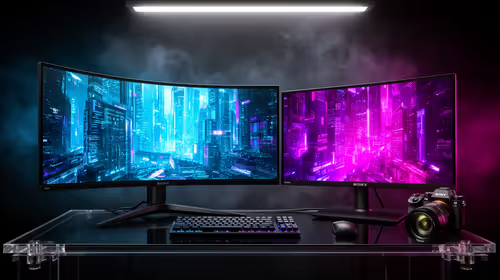
If you need several documents visible together, a portable monitor may solve the space problem more directly than constant zooming. The iPad's USB-C port supports DisplayPort, but confirm the cable and display connection before relying on it. Look through portable monitors after identifying which task genuinely needs a larger view.
Frequently Asked Questions
Is 2360x1640 good for reading PDFs?
It provides detailed text and diagrams on an 11-inch panel. Adjust text size, zoom, and posture so the document is comfortable for the full session.
Can it be used for drawing?
It can suit drawing and annotation where the chosen app and input tools meet your needs. Test canvas space and tool placement with a real project.
When should I use an external display?
Use one when your work needs several full-size views at the same time. Confirm the compatible cable, display input, and app behaviour first.
Ready to get more from a compact screen?
Set text, lighting, and viewing position for the task first, then add a larger display only when the workflow proves it needs one.