Boosting Your Desktop Connectivity
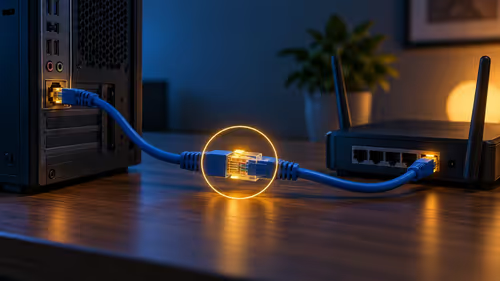
Is your gaming rig trapped in a laggy relationship with your router? We’ve all been there—trying to clutch a win in Valorant while your ping spikes because the signal has to travel through three walls and a fridge. If you are tired of unsightly Ethernet cables snaking across your lounge floor, it is time to upgrade. Learning how to install a PCIe WiFi card is one of the most effective ways to stabilise your connection and reclaim your desktop's freedom. ⚡
Why Choose PCIe Over USB?
While USB adapters are convenient, they often struggle with heat and data throughput when you are pushing high-speed gaming traffic. A dedicated PCIe WiFi card plugs directly into your motherboard, offering a more stable connection and better antenna positioning. If you are ready to make the jump, you can browse our full range of network adapters to see which speed class suits your home fibre setup.
Preparing for the Installation
Before you crack open your chassis, ensure you have the right gear. Most modern boards have an open x1 or x16 slot waiting for an upgrade. If you want reliable performance without breaking the bank, many South African gamers swear by TP-Link network adapters for their consistent driver support and range. 🔧
Pro Installation Tip ⚡
Always touch a grounded metal part of your case before touching internal components to discharge static electricity. Even better, keep your PC plugged into the wall outlet with the PSU switch set to 'OFF' to maintain a ground path while you work.
Step-by-Step Hardware Setup
- Power down: Switch off your PC and unplug the power cable.
- Open up: Remove the side panel of your case.
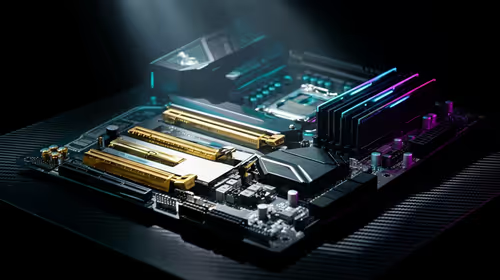
- Locate the slot: Identify an empty PCIe slot. If you are looking for something robust and feature-rich, brands like Cudy offer excellent Wi-Fi 6 cards that fit perfectly into these slots.
- Install: Remove the corresponding rear expansion bracket, slide the card in until it clicks, and secure it with a screw.
- Antennae: Once the card is seated, screw the external antennae into the back of the bracket. 🚀
Finalising Your Setup
Close your case, reconnect your power, and boot into Windows. Modern versions of Windows 10 and 11 usually detect these cards automatically, but it is always best practice to download the latest drivers from the manufacturer's website. Once connected, run a speed test to ensure you are getting the full benefit of your internet package. ✨