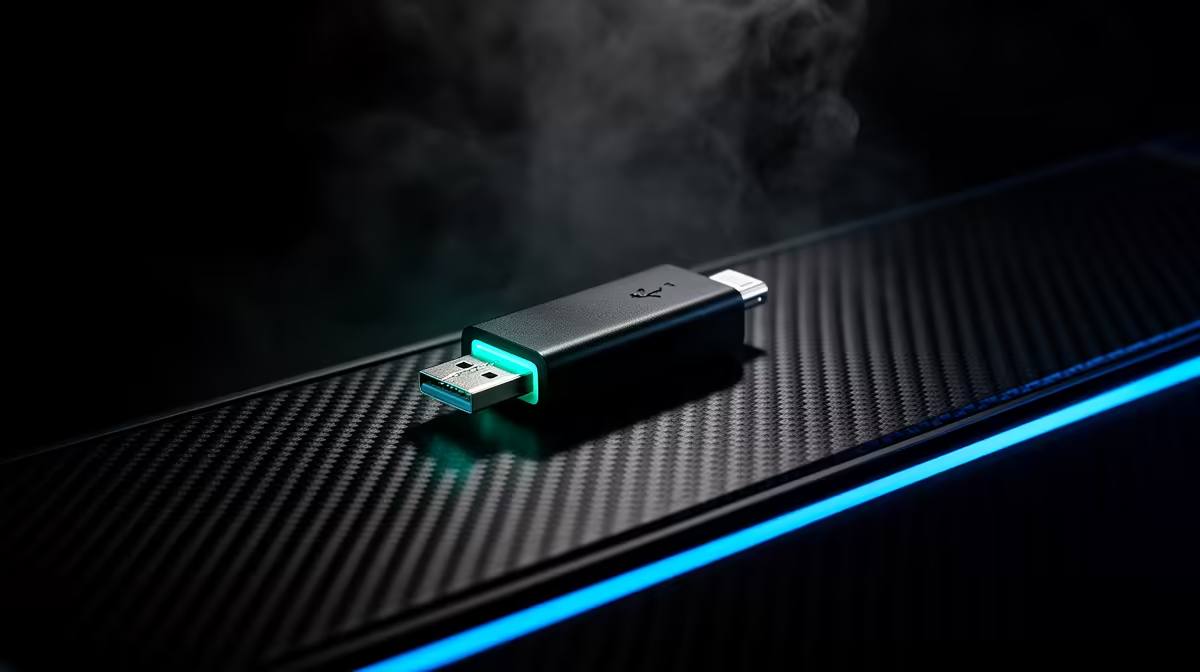
Your wireless mouse skips once during a fast turn, yet the battery is full. Look behind the PC. A tiny receiver buried between USB 3 cables and a metal case has a much harder radio path than one sitting on the desk. Better 2.4GHz dongle placement costs nothing if you already have a USB extension.
Quick Answer
Move the receiver from the rear of the PC to a short extension on the desk, within 20cm to 50cm of the mouse or keyboard. Keep it away from USB 3 storage, the Wi-Fi router and large metal surfaces, then test the same game. Evetech's July 2026 gaming-mouse snapshot had a R699 median price; relocate the R0 receiver path before buying another peripheral.
📡 Shorten the radio path
Plug a USB extension into the PC and place the receiver near the top edge of the mousepad. It needs line of sight more than it needs to sit centimetres from your hand. Keep enough distance that you cannot strike it during a wide swipe.
A PC under a metal desk, behind a wall or beside a large speaker can block or reflect the signal. Move the receiver above the desk for the first test. Do not change polling rate or game settings yet.
Evetech's peripheral best-sellers include wireless gear with different receiver and extension arrangements; check the box contents for the exact model.
🔌 Separate it from USB 3 noise
USB 3 devices and cables can emit interference near the 2.4GHz band. A receiver squeezed between an external SSD and a high-speed hub may lose packets even though both devices work on their own.
Move the dongle to a USB 2 port or use the extension to create physical distance from USB 3 storage. Leave the fast drive connected during the test so you can prove whether distance solved the conflict.
Avoid plugging the receiver into the side of the same hub as an external SSD. Even when the hub has a USB 2 socket, the high-speed controller and cable remain close. Put the extension on a separate rear port and route it away from the storage lead.
📶 Reduce nearby 2.4GHz traffic
Place the Wi-Fi router away from the receiver and use 5GHz or 6GHz Wi-Fi for the PC where coverage allows it. Disconnect spare Bluetooth devices for one run. A wireless headset, controller and mouse can share the desk without trouble, but an interference test needs a clean starting point.
Pair the receiver again through the maker's software if the device supports it. Update firmware with the peripheral connected by cable and keep a second pointing device nearby in case the update resets the link.
Check Windows USB power management if the stutter appears after idle time. In Device Manager, inspect the relevant hub and test with its power-saving checkbox disabled. Change only the hub feeding the receiver and restore the setting if it makes no difference.
🧪 Test movement and clicks, not a signal icon
Open a drawing app and make fast circles across the screen, then play the game scene that produced the skip. Watch for a broken line, missed click or sudden camera jump. Repeat with the external SSD transferring a file if the stutter appeared during backups.
Replace or recharge the battery after placement is ruled out. Try another PC with the receiver on the desk. A fault that follows the mouse through both systems points toward the device, while a clean result confirms the first desk has a radio or USB problem.
Store spare receivers in a labelled pouch rather than loose in a drawer. Some peripherals pair to one specific dongle, and two identical-looking receivers may not swap without a pairing tool. Keep the extension with the device so the next setup starts with the proven placement.
Evetech's gaming-accessory range gives you replacement options only after the free extension test and cross-PC check.
Frequently Asked Questions
Why does dongle placement affect wireless latency?
Distance, metal obstacles and radio interference can force retries or drop packets between the receiver and peripheral.
What is the free fix for dongle interference?
Use an existing USB extension to bring the receiver onto the desk and away from high-speed USB devices.
Should the dongle sit near the mouse or the PC?
Place it on the desk near the mouse, with a clear path and enough room to avoid a collision.
Does a USB 2 port avoid interference?
It can reduce nearby USB 3 noise. Physical separation often matters more than the port label alone.
Can other wireless devices add interference?
Yes. Routers, Bluetooth gear and other 2.4GHz receivers can compete in a busy area.
Is interference common on gaming receivers?
A good receiver can still struggle when hidden behind metal or placed beside a noisy USB 3 device.
Choosing wireless gear for a crowded gaming desk?
Compare peripherals and receiver accessories at Evetech, then reserve one clean desk-side USB position for the connection.