Why 60Hz to 144Hz Is the Upgrade You Will Feel Most
Quick Answer
Moving from 60Hz to 144Hz cuts the refresh interval from about 16.7ms to about 6.9ms. Mouse movement, scrolling and games gain many more visual updates each second.
For many people, this is the clearest refresh-rate upgrade because it removes almost 10ms from the scan interval. Later jumps still help, but they remove less time: 240Hz scans around every 4.2ms.
The panel needs fast enough pixel response, and the PC needs to deliver the frames. A poor 144Hz monitor can still smear.
Step 1: Feel It on the Desktop
You do not need a competitive game to see 144Hz. Move a window, scroll a long page or drag the mouse cursor.
The extra updates make motion appear more continuous. Input can feel more connected because the next display scan begins sooner.
That does not make the computer execute work faster. It changes how often the result is presented.
Step 2: Use It in Games
At 60Hz, the screen has one new scan opportunity every 16.7ms. At 144Hz, it has one every 6.9ms.
A game running above 100fps can show much more of its output. Camera pans become easier to track and control response feels tighter.
Adaptive sync handles frame-rate movement below the ceiling. A 90fps game still benefits from a 144Hz variable-refresh display.
Step 3: Check Pixel Response
Refresh rate sets the schedule, while the liquid-crystal or OLED pixels still need to change state. Slow transitions leave traces between frames.
Read measured response results and overshoot. The maximum overdrive setting may create bright ghost trails.
Check response at 144Hz and in the middle of the adaptive-sync range. The monitor should look clean in both.
Step 4: Match the GPU
You do not need 144fps in every game. Esports titles can use the ceiling, while a demanding single-player game can run inside the sync range.
Choose resolution with the graphics card. A 1080p 144Hz display is easier to drive. A 1440p 144Hz screen gives sharper detail and a heavier load.
Use current benchmarks for your CPU, GPU and games. Frame-time lows matter as much as the average.
Step 5: Decide Whether to Skip to 240Hz
If you play competitive shooters and the PC already exceeds 200fps, buying 240Hz from the start can avoid another upgrade.
For mixed gaming, 144Hz to 180Hz offers more panel and resolution choice. The money saved can buy a better stand, stronger contrast or 1440p.
The scan-time gain from 144Hz to 240Hz is about 2.8ms, smaller than the first move from 60Hz. Some players feel it and value it; others prefer image quality.
Step 6: Pick the Right Size and Resolution
A 24-inch 1080p screen keeps the picture crisp at common desk distance. It suits budget and competitive builds.
A 27-inch 1440p model provides more desktop space and cleaner text. It is the balanced choice for a stronger current GPU.
At 32 inches, 1440p looks larger and less dense. 4K is sharper but needs more GPU performance.
Step 7: Include Adaptive Sync
FreeSync and G-SYNC Compatible operation can reduce tearing without forcing the frame rate to one fixed divisor of refresh.
Check the supported range, input and GPU compatibility. Low frame-rate compensation helps below the normal floor on suitable displays.
Variable refresh does not repair game stutter. Stable CPU, storage and driver behaviour still matter.
Step 8: Shop the Complete Monitor
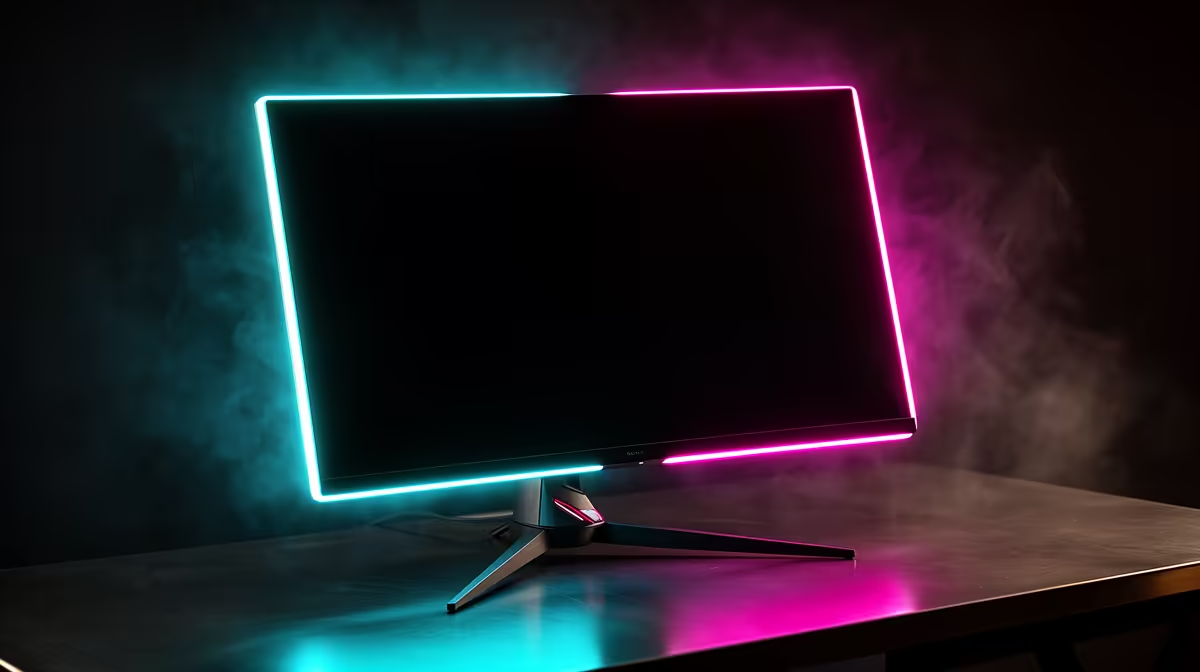
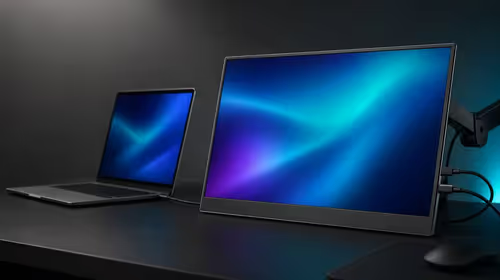
Browse current 144Hz-capable monitors, then compare popular screen choices across size, resolution and panel type.
Shortlist two. Check response measurements, contrast, minimum brightness, stand movement, VESA support and warranty.
Do not pay for weak HDR instead of better motion or ergonomics. A strong SDR 144Hz panel can be the better everyday screen.
Step 9: Set It to 144Hz
Connect through a port and cable that support the full mode. Select the native resolution and 144Hz in Windows.
Turn on adaptive sync and choose a balanced response mode. Confirm the incoming signal in the monitor menu.
If 144Hz is missing, remove docks or adaptors for the test and consult both timing tables. Do not create a custom mode before verifying official support.
Step 10: Keep the Upgrade Honest
Not every person values motion in the same way. View a high-refresh panel in person when possible.
The benefit is easiest to preserve when the whole PC remains stable and the screen stays at its proper setting. Driver changes can return a display to 60Hz, so recheck after major updates.
Use the monitor for ordinary desktop work as well as games. That is where a first high-refresh screen earns its value every day.
FAQ
How much does frame time drop?
The refresh interval falls from about 16.7ms at 60Hz to about 6.9ms at 144Hz.
Is 144Hz to 240Hz as noticeable?
It is a smaller time reduction. Competitive players can value it, while the first move from 60Hz is clearer to more people.
Do non-gamers notice 144Hz?
Many notice smoother scrolling, cursor motion and window movement. Preference still varies.
What GPU is enough?
Any GPU that supports the display mode improves desktop motion. Game benefit depends on delivered frame rate at the selected resolution.
Should you skip straight to 240Hz?
Do it for a competitive focus and a PC that feeds it. Choose 144Hz to 180Hz for mixed use and wider value.
Compare 60Hz and 144Hz with the same PC and game, then choose the resolution and panel response that keep the first high-refresh upgrade clean.