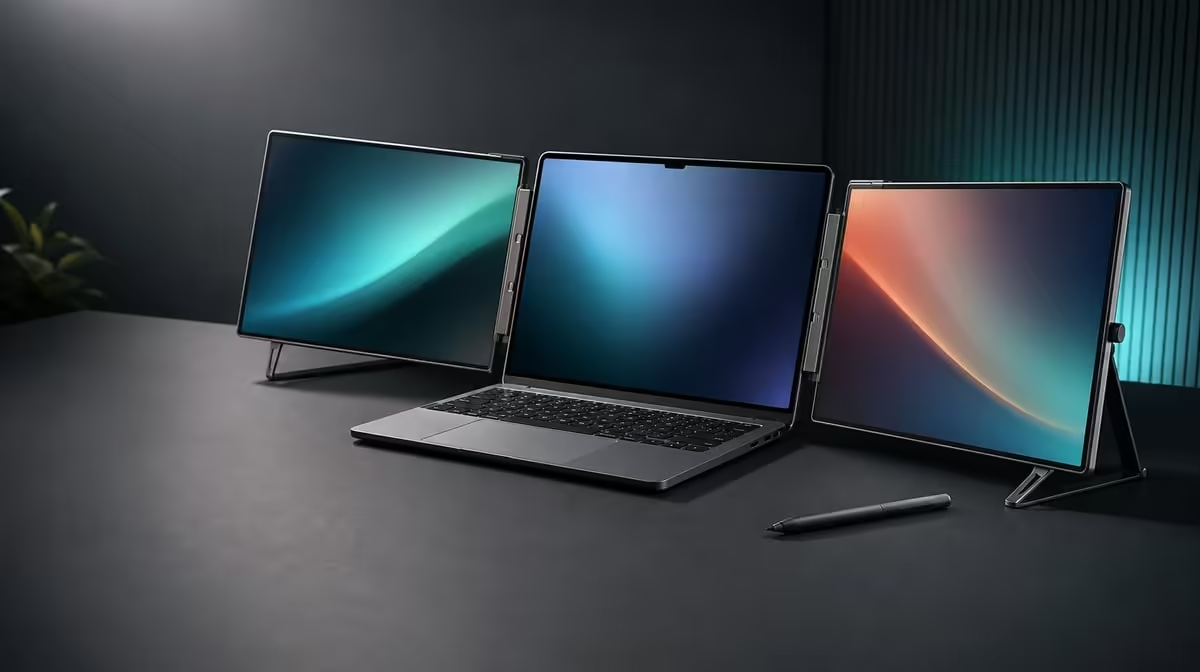
Multi-touch and pressure response answer different creative questions. A sound 10-point touch and pressure-input configuration first proves that each Delta panel places ordinary contacts correctly, then asks a compatible tool and application to interpret several fingers or changing force.
Quick Answer
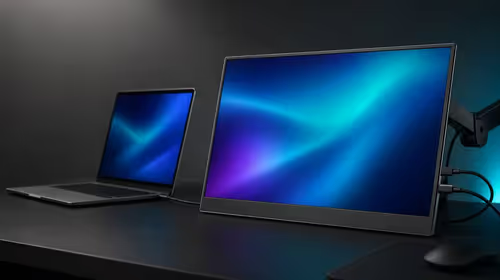
Set both Delta Pro Touch screens to 2560 x 1600 beside the laptop, test single contacts across each panel, then use a touch-aware application for several simultaneous points. At R11,999, the monitor supports 10-point control and pressure-sensitive input, while the compatible tool and software determine how pressure behaves.
👆 Establish single-contact accuracy
Open a blank canvas or another simple touch-aware screen. On the upper or first panel, tap the centre, corners and several edge points. Draw slow horizontal and vertical lines and watch whether input follows the contact.
Repeat the same sequence on the second panel. If a mark appears on the other display, stop and correct touch assignment before adding multi-finger gestures. Moving the laptop or changing orientation during this baseline would introduce unnecessary variables.
Browse Evetech's portable monitors with input support and the intended laptop software in view; a touchscreen is valuable only when its complete source-and-app workflow recognises it.
✋ Test several contacts without inventing app behaviour
The Delta Pro Touch supports up to ten touch points. Use an application that visibly responds to multiple contacts and begin with two fingers. Add contacts gradually while watching whether the app recognises them, cancels an action or assigns another gesture.
Ten-point hardware capacity does not force every program to use ten contacts. Some software may interpret only a few gestures. Record the maximum that the intended application handles rather than turning the display figure into a universal software claim.
The wider PC-monitor selection can help buyers decide whether direct input justifies this specialised dual-panel arrangement over a conventional laptop-plus-monitor desk.
✍️ Isolate pressure response in the creative tool
Pressure sensitivity must be judged inside the application and with a compatible input tool. Choose a brush, line or control that visibly changes with force, make several strokes from light to firmer input and compare the result.
Check current package contents and tool compatibility before choosing a pen. The practical question is whether the actual tool, application, laptop and Delta panel produce repeatable pressure variation for the intended task.
Test pressure on both screens. If the application window is moved to the second panel, confirm the same input behaviour remains available and that touch mapping has not followed the old screen position incorrectly.
🧪 Save separate finger and pressure profiles
Finger touch suits navigation, selection and multi-finger gestures. Pressure input suits compatible creative controls that change with force. Create a short test for each instead of expecting one to prove the other.
Rotate a panel to an intended working angle and repeat the test. Gravity sensing may change image orientation, but touch mapping and software focus still need confirmation. Keep the ergonomic stand stable so screen movement does not imitate inaccurate input.
Review Evetech's best-selling monitors as another current reference before deciding whether the R11,999 Delta's input layer will be used often enough. Recheck availability when ready to buy.
Document the laptop, application, compatible tool, screen position and successful gestures. This profile makes later troubleshooting much more precise than saying simply that touch works or fails.
Test contact combinations deliberately
Choose gestures the application documents or visibly supports. Begin with a two-finger action, add a third contact where meaningful and continue only while the software responds clearly. Do not press ten fingers simply to reach the hardware number.
Repeat the gesture on each panel and after moving the application window. Record whether the laptop operating system or program assigns different behaviour to the second screen.
Separate pressure, position and line quality
A force-aware stroke may show repeatable variation yet miss its target, or land accurately without changing through force. Test these properties separately on a blank canvas. Use slow straight lines for placement and repeated light-to-firm strokes for pressure.
If the stand moves, stabilise the physical setup before judging input. Screen movement can make the line appear inaccurate even when mapping is correct.
Check orientation changes
Rotate one panel to a planned creative angle, allow gravity sensing to settle and reopen the pressure test. Confirm the application remains on the intended screen and that input is not assigned to its former orientation.
Return to the main position and repeat. A useful input profile survives both directions without forcing a complete laptop display reset.
Review the real workflow
Use fingers for navigation and the compatible pressure tool for the creative control where each is strongest. Move between panels as the project requires and note unnecessary mode changes.
If pressure appears only in one application, keep that boundary in the ownership note. The Delta provides the input capability, but software interpretation remains part of the result.
Repeat the test after reconnection
Close the creative application, disconnect the monitor through the normal laptop routine and rebuild the same arrangement. Confirm both 2560 x 1600 images return to their recorded positions before opening the canvas again.
Run the single-contact, multi-finger and pressure checks in that order. A configuration is dependable when ordinary reconnection preserves its assignments, not only when it works immediately after a long troubleshooting session.
Frequently Asked Questions
Does 10-point touch describe pressure levels?
No. It counts simultaneous contacts; pressure response is a separate input behaviour.
Where should pressure be verified?
Inside the intended creative application with a compatible input tool.
Is a particular pen confirmed with the monitor?
No specific bundled pen is established, so choose and test compatible tools separately.
Why test the second panel too?
Each screen needs correct touch assignment and application behaviour.
Can finger navigation prove pressure response?
No. Use a pressure-aware control that visibly changes with force.
Ready to separate multi-touch control from creative pressure response?
Explore Evetech's portable monitors with your laptop, touch-aware applications and compatible input tools already identified.