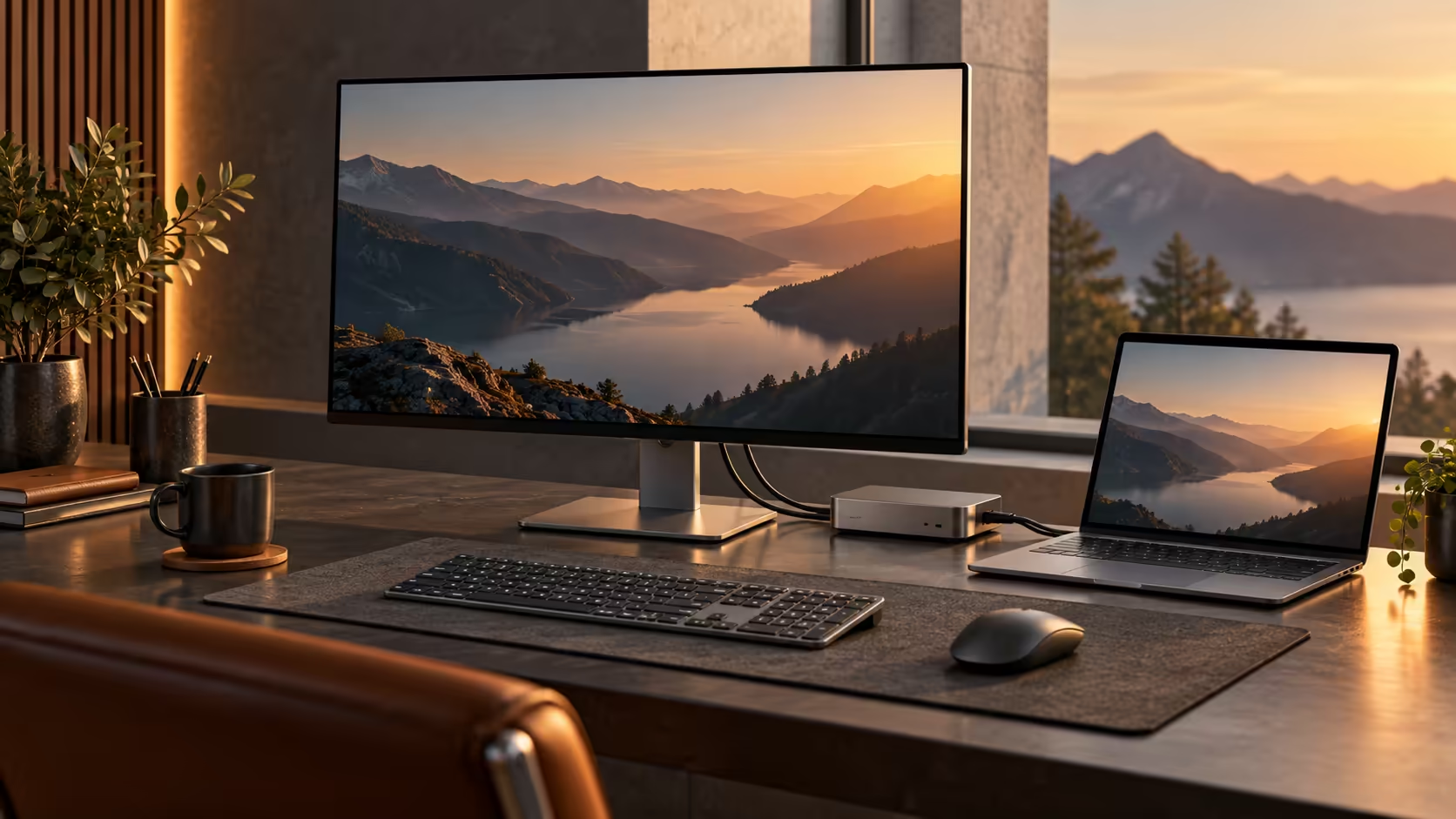
A tidy desk can hide an awkward working position or an incompatible adapter. A useful Googlebook desk setup begins with the way you read, type and move between tasks. Choose the workspace first, then make the cables support it, rather than letting a dock's long feature list decide everything.
Quick Answer
Pick the exact Googlebook model before choosing a dock, because video output and charging capabilities must be established for that device. Choose a monitor you can read comfortably at your working distance and an input layout that fits your tasks. Start with existing equipment where possible; a R0 layout rehearsal can reveal whether the problem is screen position rather than hardware.
🖥️ Choose useful space, not just extra pixels
Write down what you want visible simultaneously. A document beside a reference page needs a different layout from a single full-screen video call. Draw two rectangles on paper for your main windows. If their text must remain comfortably readable, a larger usable area may matter more than a high resolution viewed at tiny scale.
Resolution describes the pixel grid; scaling determines how large interface elements appear. A screen with many pixels can render smooth text, but it does not guarantee more useful work area at the scale you prefer. Consider the display size, viewing distance and applications together. Do not accept unreadably small menus just because an advertised workspace looks impressive.
Place the main screen in front of your natural sitting position. If the laptop becomes the secondary display, use it for occasional reference rather than work that keeps your neck turned. A raised laptop normally calls for an external keyboard and pointing device, so your hands do not have to follow the raised screen.
Evetech's monitor selection lets you compare size, resolution and physical adjustment. Check input connections alongside the image specifications. A monitor may accept the desired mode only through a particular input, and the stand's height range can matter every day even when it barely features in marketing.
🔗 Draw the complete connection path
Write the chain explicitly: laptop port, host cable, dock, display cable and monitor input. Beside each part, record the required capability. For a USB-C video path, confirm the host's supported display output and the dock's technology. A plug that fits is only the beginning of the compatibility question.
Some docks transport the laptop's native display signal. Other products depend on a software-based display solution with its own driver support. These are not equivalent purchases. Do not assume a driver offered for Windows or macOS also runs on Googlebook. Get the dock maker's support statement for the platform and configuration you intend to use.
Charging adds another line to the diagram. Distinguish a dock's maximum power input from the power it actually delivers to the host. The dock may reserve some for its own electronics and connected devices. Match the delivered output to the laptop's requirements, and use a cable that supports the necessary power and data modes.
Begin with one display and only the essential peripherals. A simpler setup makes it easier to identify where a fault lies. If the screen works directly but not through the dock, focus on the dock path rather than replacing the monitor. Add storage and other accessories after the main connection behaves as expected.
⌨️ Fit the input devices to the work
Keyboard choice starts with layout. If you enter columns of figures, a number pad might be useful; if desk width is limited, a smaller board can leave more room for the mouse. Test key spacing and reach instead of choosing entirely by lighting or switch terminology. Daily comfort is an interaction between your hands, the desk and the device.
Basic keyboard input does not establish support for macro editors, lighting software or firmware utilities. Those features can require platform-specific applications. If you depend on a custom shortcut profile, confirm whether it can be stored on the keyboard itself and used without a supported utility on the laptop. Avoid assuming the same behaviour across models from one brand.
A mouse, keyboard and headset can also compete for limited ports. Count the actual connectors you need before shopping for docking stations at Evetech. Include a spare port only when it solves a likely task, rather than buying the largest hub by default.
Finally, rehearse a normal working session. Open the applications, move a window between screens, join a short call and disconnect the desk at the end. Confirm that files have finished saving before removing storage. The best desk arrangement is the one you can connect, use and pack away reliably without re-learning it each morning.
Frequently Asked Questions
Should I buy a dock before selecting my Googlebook?
Choose the laptop model first. A dock must match its documented video, data and power capabilities.
Does a USB-C monitor always charge a laptop?
Only if the monitor supplies a compatible power output and the laptop accepts charging through that connection.
Is a high-resolution monitor always easier to read?
Text comfort depends on size, resolution and scaling together. More pixels can make text smaller without appropriate scaling.
Do gaming keyboard utilities work on Googlebook?
Basic input and advanced software support are separate. Confirm the manufacturer operating-system support for configuration tools.
Make the desk fit your daily routine.
Compare monitors and docks at Evetech with the complete connection requirements for your chosen laptop in hand.