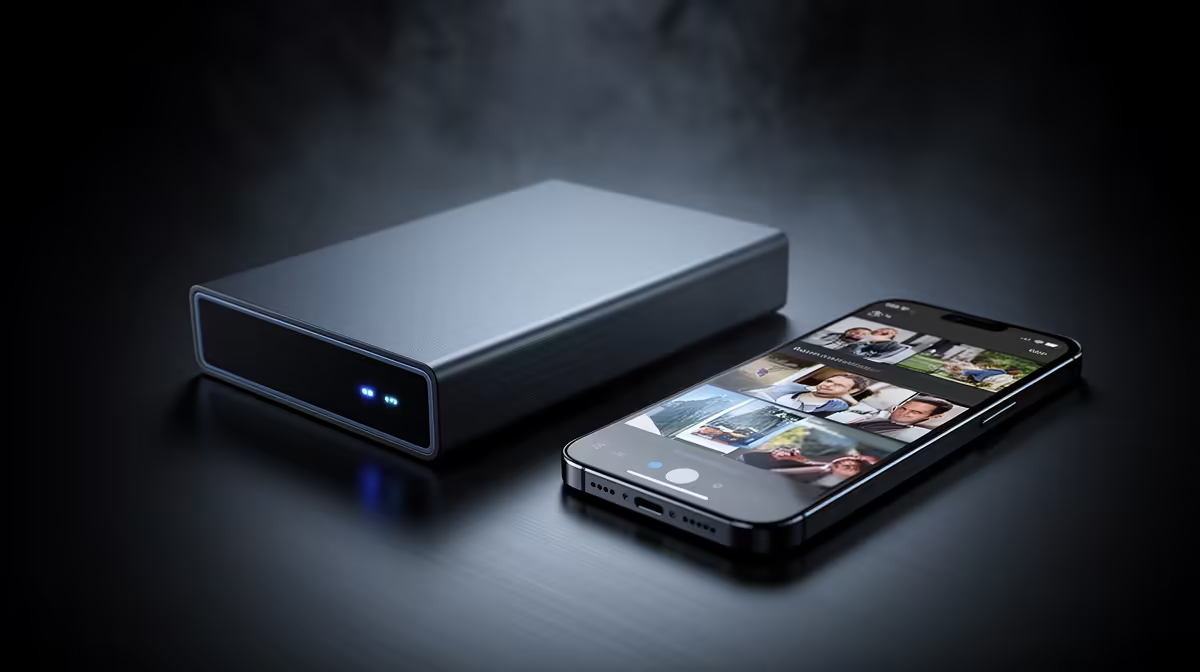
Your phone fills up, the cloud nudges you toward a monthly subscription, and every gigabyte of holiday photos quietly becomes a recurring cost. A NAS breaks that cycle. Set up correctly, it can automatically back up your phone photos the moment you walk in the door and connect to home Wi-Fi, with no per-gigabyte charge and no subscription, keeping a private copy of your camera roll on a device you own.
Quick Answer
Use Synology Photos or the open-source Immich to back up your phone's camera roll to a NAS automatically over Wi-Fi. Install the app, point it at your NAS, enable automatic upload, and new photos sync in the background with no cloud subscription. SA users on limited mobile data should switch the app to upload only on home Wi-Fi, so backups never eat into a data bundle.
Step 1: Pick your backup app
The whole system rests on one app running on your phone, so choose it first.
- Synology Photos is the built-in choice if you own a Synology NAS. It is polished, integrates tightly with the unit, and offers automatic camera-roll upload out of the box.
- Immich is the open-source option that works across NAS hardware, including a DIY server. It mimics the familiar cloud-gallery experience with timeline views, search and face grouping, while keeping everything on your own machine.
Both do the core job, automatic, ongoing backup of your photos and videos, without a subscription. Pick Synology Photos if you are in that ecosystem, and Immich if you want flexibility or run your own server. If you are still choosing the hardware to run either on, the NAS and storage range is the place to match a unit to your needs.
Step 2: Prepare the NAS
A little setup on the NAS side makes the phone side painless.
- Make sure the NAS is on your home network and reachable from your phone over Wi-Fi.
- Install the matching server package, Synology Photos on a Synology unit, or the Immich server through your NAS's container or Docker manager.
- Create or confirm a user account for yourself, since the phone app logs in with these credentials.
- Set aside a storage volume with room to grow, because a camera roll only gets bigger over time.
Getting this right once means the phone app simply finds its home and starts working.
Step 3: Install and connect the phone app
Now move to the device that actually holds your photos.
- Install the Synology Photos or Immich app from your phone's app store. Both have Android and iPhone versions.
- Open it and enter your NAS address and the account credentials you set up.
- Grant the app permission to access your photos and to run in the background, which is what lets it upload without you opening it each time.
Once connected, the app sees your camera roll and is ready to begin its first backup.
Step 4: Turn on automatic upload, on Wi-Fi only
This is the step that makes the whole thing hands-off, and the most important one for SA users.
- Enable automatic or background upload in the app's settings.
- Crucially, set uploads to occur on Wi-Fi only. This stops the app from backing up large photos and videos over mobile data, which protects your data bundle.
- Let the first full backup run while the phone is charging on home Wi-Fi, since the initial upload of an existing library can be large.
After that first pass, only new photos upload, and they do so quietly in the background whenever you are on home Wi-Fi. This Wi-Fi-only restriction is the difference between a free backup and an expensive surprise on your mobile bill.
Step 5: Verify and protect the backup
A backup you have not checked is just a hope, so confirm it works.
- Take a fresh photo, return to home Wi-Fi, and confirm it appears in the NAS gallery within a few minutes.
- Browse the app on the NAS to check older photos have come across intact.
- Remember that a backup on a single NAS is one copy. For irreplaceable photos, keep a second copy as well, whether on an external drive or a second location, so a single drive failure cannot wipe out your memories.
For the storage behind all this, faster and reliable drives matter, and the SSD best sellers are a quick way to find options suited to a NAS that is constantly receiving uploads.
Frequently Asked Questions
Do I need a cloud subscription to back up photos to a NAS?
No. That is the main appeal. Synology Photos and Immich back up your camera roll to your own NAS with no monthly fee and no per-gigabyte charge, since the storage is the device you already own.
How do I stop backups from using my mobile data?
Set the app to upload on Wi-Fi only in its settings. This ensures photos and videos back up only when you are on home Wi-Fi, which is essential for SA users on limited mobile data bundles.
Does this work on both Android and iPhone?
Yes. Both Synology Photos and Immich offer Android and iPhone apps that handle automatic camera-roll backup, so the same setup works regardless of which phone you use.
Will it back up videos as well as photos?
Yes. Both apps back up videos along with photos. Because videos are large, the Wi-Fi-only setting matters even more, and the first full backup of a video-heavy library can take a while.
Is one NAS copy enough to keep my photos safe?
It is a strong start, but a single NAS is one copy. Drives can fail, so for irreplaceable memories keep a second copy as well, on an external drive or another location, to guard against losing everything to one hardware failure.
Owning your photo backups instead of renting cloud space starts with the right NAS and a simple app. Pick a unit from the NAS and storage range, enable Wi-Fi-only automatic upload, and let your camera roll back itself up for free from now on.