Out of the box, memory kits rarely run at the number printed on the spec sheet, sitting instead at a conservative default speed until someone flips the right switch in firmware. Getting the full benefit from a memory kit takes minutes in the BIOS rather than assuming it already works at full pace. This walkthrough covers setting up the DDR5 kit correctly on a gaming mini pc so multitasking actually behaves the way the listing promises.
Quick Answer
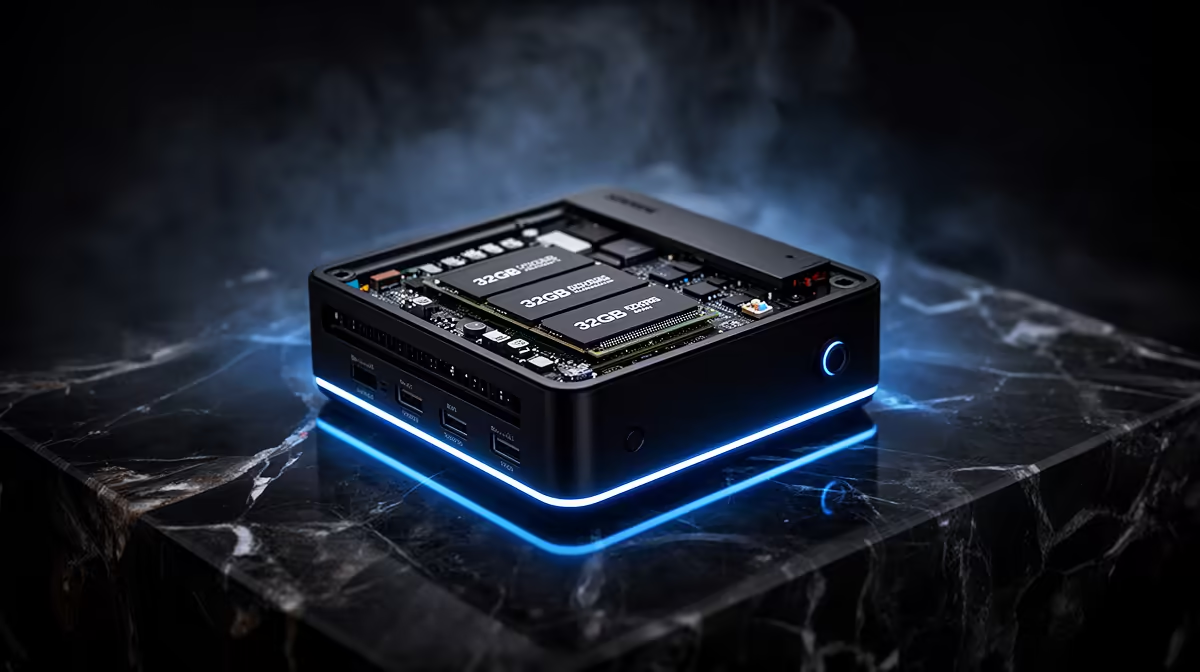
Configuring 32GB of DDR5 for multitasking mostly means switching on the XMP profile in BIOS so memory runs at its rated speed instead of a cautious default, then trimming whatever background software is quietly competing for that capacity. On the GR70, priced at R66,399, this small setup step keeps data flowing to both the processor's sixteen Ryzen 9 9955HX cores and the graphics side, an RTX 5070 with 8GB to itself, during heavy multitasking.
⚙️ Turning On the Memory Profile
Most DDR5 kits, the 32GB installed here included, run below their rated frequency until XMP, or the equivalent profile setting, is switched on manually inside the BIOS. Restarting into that menu and enabling the correct memory profile is typically a single toggle, yet skipping it means leaving real bandwidth on the table every session the machine runs.
Doing This Before Installing Anything Else
On first setup, entering the BIOS before loading a single game or application and confirming the profile is active saves the trouble of troubleshooting sluggish performance weeks later and wondering why the machine feels slower than the spec sheet suggested.
🧵 Trimming What Competes for That Capacity
Even with the profile enabled, thirty-two gigabytes can fill up quickly with background updaters, browser tabs nobody closed, and startup programs nobody actually uses. Cutting Windows 11 Home's startup list down to only what is genuinely needed frees meaningful headroom for the games, browsers and creative apps you are actually running side by side.
Finding What Launches Automatically
Task Manager's startup tab shows exactly what loads the moment you sign in, and disabling anything unnecessary there is a five-minute job that pays off on every single boot afterward.
🎨 Where Bandwidth Gets Noticed Under Load
For anyone using this machine for light editing or rendering between gaming sessions, memory bandwidth becomes more obvious under sustained load than at idle. Alongside the profile setting, pausing background updaters and cloud sync tools during an active export or render reduces competition for both memory bandwidth and the read and write speed of the 1TB NVMe SSD, both of which affect how quickly a heavy task actually finishes.
Storage Speed Plays a Part Too
Fast memory paired with a nearly full drive still creates a bottleneck under heavy multitasking, so confirming that terabyte of storage is not close to capacity, which slows write speed considerably, is worth checking alongside the memory settings themselves.
🔌 Keeping Network Traffic From Competing for Resources
Background activity from cloud backups or game updates can quietly compete for system resources while you are multitasking, so routing larger downloads through the 2.5G LAN port rather than Wi-Fi 7 keeps that traffic predictable and less likely to interrupt whatever else is running. Bluetooth 5.4 peripherals add negligible overhead, though it is still worth confirming drivers stay current after the initial Windows setup. Checking the full spec sheet for this Ryzen 9 build is a good way to compare against your own configuration, and if graphics performance ends up the bottleneck for heavier render work later, Evetech's current GPU pricing is worth a look. Comparing this setup against the broader mini PC lineup also helps confirm whether 32GB genuinely suits your workload or a different configuration makes more sense.
Frequently Asked Questions
Do I need to switch on XMP manually?
Yes, most systems ship with memory running below its rated speed until the profile is enabled manually in BIOS during initial setup.
How much difference does enabling that profile actually make?
It restores the kit to its intended bandwidth, which becomes noticeable once several demanding applications are running at the same time rather than one at a time.
Should every startup application be disabled to free memory?
Disable anything you do not use regularly, but keep essential drivers and security software running rather than trimming those.
Does storage speed affect multitasking as much as memory does?
A fast NVMe drive complements fast memory well, but performance can still suffer if the drive is nearly full or under heavy simultaneous read and write load.
Is 32GB enough for gaming alongside light editing work?
For most combinations of modern gaming and lightweight editing or streaming, yes, particularly once the memory profile is enabled and background clutter is trimmed.
Does closing background apps really make a measurable difference?
On a 32GB system it is rarely dramatic, but it does free up the exact headroom that matters during your heaviest multitasking sessions specifically.
Ready to multitask without your setup choking?
Explore ASUS's GR70 mini rig on Evetech's selection of mini PCs, going for R66,399 and will keep heavy multitasking from ever slowing the system down.