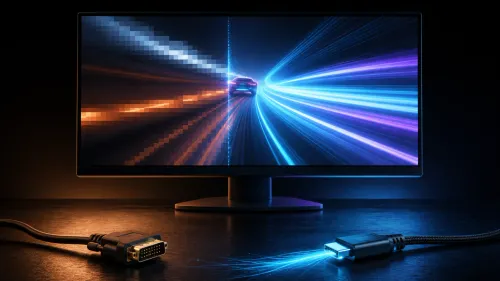
A single USB-C lead can make a laptop desk dramatically easier to use, but only when video, power and networking are tested as separate functions. Connecting a laptop to a 49-inch monitor with USB-C 65W charging begins with a compatible port and cable. The R14,999 Dahua LM49 combines that route with a 5120 x 1440 screen.
Quick Answer
Connect a compatible laptop to the R14,999 LM49 using a suitable full-featured USB-C cable, select the USB-C input and set the display to 5120 x 1440. The monitor can pass through up to 65W for charging. Test image, power and the RJ-45 network route separately before relying on the one-cable desk.
🔌 Prove the laptop connection in stages
Start with the laptop awake and its normal charger nearby. Connect USB-C directly between the laptop and monitor rather than through another adaptor, then select the correct display input. Wait for the operating system to discover the external panel before changing resolution or rearranging windows.
Next, inspect the laptop's charging indicator. A 65W pass-through route can support many mobile work routines, while the laptop's own workload and power design determine whether the battery rises, holds steady or declines under heavy use. Evetech's curved monitor range helps compare this convenience with other panel formats.
Finally, disconnect and reconnect once. A setup is not ready until it recovers after an ordinary docking cycle without rebuilding every setting.
🖥️ Configure the wide desktop
Choose 5120 x 1440 and then set comfortable operating-system scaling. Place the laptop below or beside the LM49 in the display arrangement so pointer movement follows the physical desk. If the built-in laptop panel is not needed, test lid behaviour before closing it so sleep settings do not interrupt the external display.
Create three working zones across the 49-inch canvas. Keep the main document or timeline near the centre, with communication and reference tools at the edges. The LM49's ergonomic tilt and swivel stand can align the curve with the seated position.
Check cable capability and placement
A connector shape alone does not describe a cable's functions. Use a cable intended for the required video and charging workload, keep it within a practical length, and avoid tight bends near either port. Label the working lead instead of mixing it with charge-only cables.
🌐 Add the wired network route
Connect the desk's network cable to the LM49 RJ-45 port, then inspect the laptop's network status after USB-C is attached. Temporarily disable Wi-Fi during the test so traffic cannot silently continue over the wireless route. Run an ordinary web and file-access check, then reconnect Wi-Fi according to the workplace policy.
The monitor now acts as the centre of the laptop desk: display, up-to-65W charging and Ethernet travel through the planned connection path. Browse Evetech's Dahua monitors to keep those docking functions alongside size and picture requirements.
🎨 Finish with image and source tests
Use a neutral picture mode for work. The LM49 is specified for 99% sRGB and Delta-E under 2 colour accuracy, while correct creative output also depends on application colour management and a stable workflow. Save brightness and scaling choices after a normal working session.
If a desktop computer shares the monitor, Picture-By-Picture can show both sources. Configure the laptop alone first, then introduce the second device and adjust each side independently. Evetech's gaming monitor catalogue offers alternative screen and connection combinations.
Before packing away the laptop charger, run the most demanding normal workload for an hour. Check battery direction, network stability, wake behaviour and cable temperature. Keep the original charger accessible for travel and workloads that exceed the desk's power plan.
Diagnose one missing function without dismantling the desk
If video works but charging does not, leave the display settings untouched and inspect the laptop power state, cable and direct connection. If charging works but the screen stays blank, keep the power route connected while checking the selected input and external-display controls. A function-by-function approach preserves the parts that already work.
For an absent wired network, confirm that the RJ-45 cable reaches an active network point, then inspect the laptop's Ethernet adaptor after USB-C is connected. Disable Wi-Fi briefly only for the test and restore the intended network policy afterwards. Replacing every lead together hides the faulty link.
Sleep and wake deserve their own trial. Close ordinary files, let the laptop enter its normal low-power state and wake it with the established desk controls. Confirm that the LM49 returns at the correct resolution, the charging indicator resumes and Ethernet reconnects. Repeat after a complete restart as well.
Keep a spare proven USB-C cable labelled for diagnosis. It should not be borrowed for unrelated charging jobs, because its value is knowing that it previously carried the complete monitor workload. That small discipline can turn a long docking failure into a quick comparison.
Document the final laptop power mode and display arrangement beside the cable label. Those two details complete the repeatable docking baseline.
Frequently Asked Questions
Does the LM49 charge a laptop over USB-C?
It supports up to 65W charging pass-through for a compatible laptop and cable.
Which resolution should the laptop select?
Use 5120 x 1440 for the full DQHD canvas, followed by comfortable scaling.
Can Ethernet travel through the monitor setup?
Yes. The built-in RJ-45 port can provide the laptop's wired network route through the planned connection.
Can a desktop remain connected too?
Yes. Picture-By-Picture can display two sources, or the monitor can switch between them.
How much does this Dahua monitor cost?
The LM49 is priced at R14,999.
Ready to make one tested cable carry the laptop into a 49-inch workspace?
Compare Evetech USB-C monitors, label the proven lead, and validate video, charging and Ethernet before clearing the desk.