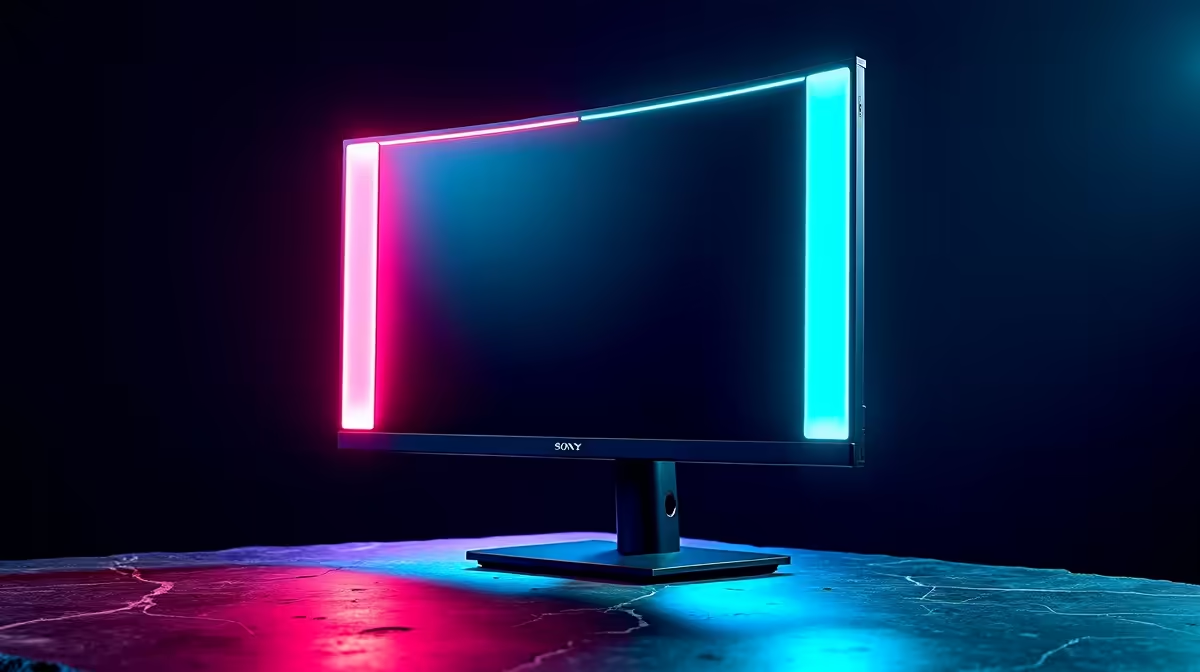
A black screen on a 240Hz monitor setup is almost always fixable at home, and SA gamers can usually trace it to one of a handful of culprits without a workshop visit.
Quick Answer
Yes, a black screen on a 240Hz monitor is usually a quick fix: reseat the display cable and GPU, plug the monitor into the graphics card, and clean-install the latest driver. Start with that the DisplayPort 1.4 cable is rated for 240Hz and that Windows refresh rate is set to 240Hz before spending money on replacements.
Drivers, Firmware, and Software
A bad GPU driver is a leading black-screen cause. Boot into safe mode, remove the driver with DDU, and reinstall the current version. On a 240Hz monitor, set the monitor refresh rate in Windows Display Settings and the GPU control panel to 240Hz. A clean driver reinstall using DDU often clears display faults that survive a simple reboot.
Isolate the Faulty Part
Disconnect everything except one monitor and the boot drive, then add parts back. Swap one variable at a time so you know which part of the 240Hz monitor chain is at fault. Try a second DisplayPort cable and a different port to rule out the cable before the panel.
When to Get SA Support
If the black screen survives every check, the issue may be hardware. 240Hz panels carry a 2 to 3 year warranty; log the fault with the retailer. Keep proof of purchase and note the exact symptom so Evetech support or the brand RMA process moves faster.
FAQ
Why does my 240Hz monitor show a black screen at boot?
It usually means the display is not receiving signal: check that the DisplayPort 1.4 cable is rated for 240Hz and that Windows refresh rate is set to 240Hz. A cable that cannot carry 240hz or a wrong refresh-rate setting is the most common trigger and rarely means dead hardware.
Can a driver cause a black screen on a 240Hz monitor?
Yes. A corrupt or outdated GPU driver is a frequent cause. Boot into safe mode, run DDU, and reinstall the latest driver to clear it.
How do I tell if my 240Hz monitor hardware has actually failed?
Swap the cable, port, and ideally test on another PC. If the 240Hz monitor still shows nothing after every check, then 240Hz panels carry a 2 to 3 year warranty; log the fault with the retailer.
Pro Tip
For a black screen, plug the monitor straight into the graphics card with a known-good DisplayPort cable, then check that the DisplayPort 1.4 cable is rated for 240Hz and that Windows refresh rate is set to 240Hz before assuming the 240Hz monitor has failed.