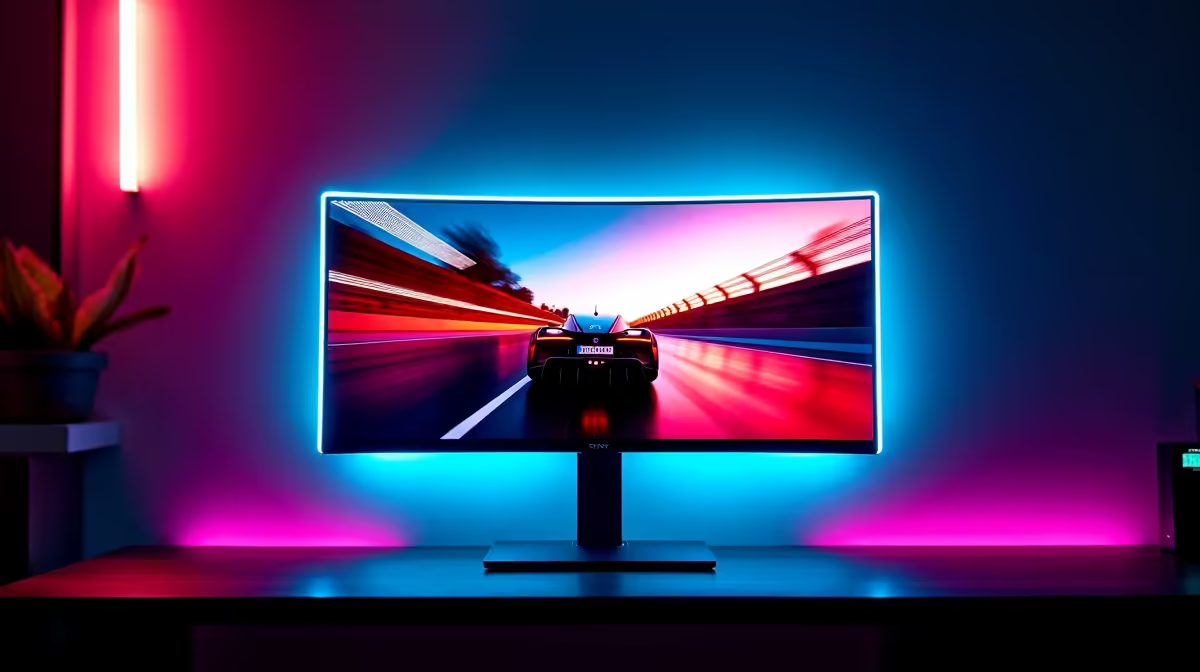
Treat the steps here as a checklist you can run before you commit. A ghosting issue on a OLED gaming monitor setup is almost always fixable at home, and SA gamers can usually trace it to one of a handful of culprits without a workshop visit.
Quick Answer
A ghosting issue with a OLED gaming monitor most often traces to a DisplayPort handshake issue or an aggressive panel-protection sleep mode. set the monitor to its full refresh rate, choose a medium overdrive level, and update the GPU driver. Work from cheapest check to most involved.
Isolate the Faulty Part
Test a different game and a desktop UFO test to confirm whether ghosting is panel-wide or game-specific. Swap one variable at a time so you know which part of the OLED gaming monitor chain is at fault. Connect a second device over the same cable to see if the OLED panel still goes dark.
When to Get SA Support
If the ghosting issue survives every check, the issue may be hardware. OLED monitors usually carry a 3 year warranty including burn-in cover; raise an RMA if needed. Keep proof of purchase and note the exact symptom so Evetech support or the brand RMA process moves faster.
First Checks for Your OLED gaming monitor
Confirm the panel is running at its rated refresh rate in Windows and the GPU control panel, since running below it makes smearing worse. For a OLED gaming monitor specifically, confirm that DisplayPort is seated firmly and that pixel-protection sleep is not blanking the panel. OLED panels run firmware for burn-in protection that can blank the screen; a firmware update often helps.
FAQ
Can the GPU cause ghosting with a OLED gaming monitor?
An old or mismatched GPU driver can cause frame-pacing issues that look like ghosting. Update the driver and confirm V-Sync or G-Sync settings.
What causes ghosting on a OLED gaming monitor?
Ghosting is trailing pixels from slow response or a too-low overdrive setting. With a OLED gaming monitor, also check that DisplayPort is seated firmly and that pixel-protection sleep is not blanking the panel and set the monitor overdrive to a balanced level.
Does refresh rate affect ghosting on a OLED gaming monitor?
Yes. Running below the panel's rated refresh, such as 60Hz on a 144Hz or 240Hz display, increases visible smearing. Set the full refresh rate in Windows and the GPU panel.
Pro Tip
To cut ghosting, set a medium monitor overdrive and confirm that DisplayPort is seated firmly and that pixel-protection sleep is not blanking the panel; the maximum overdrive level usually adds overshoot instead of helping.