If your screen feels sluggish despite its spec sheet, the refresh rate is probably set below what the panel supports, and the cure is a settings change plus the right cable. For South African builders the calm approach matters, since shipping a part back across the country costs days you do not need to lose.
Quick Answer
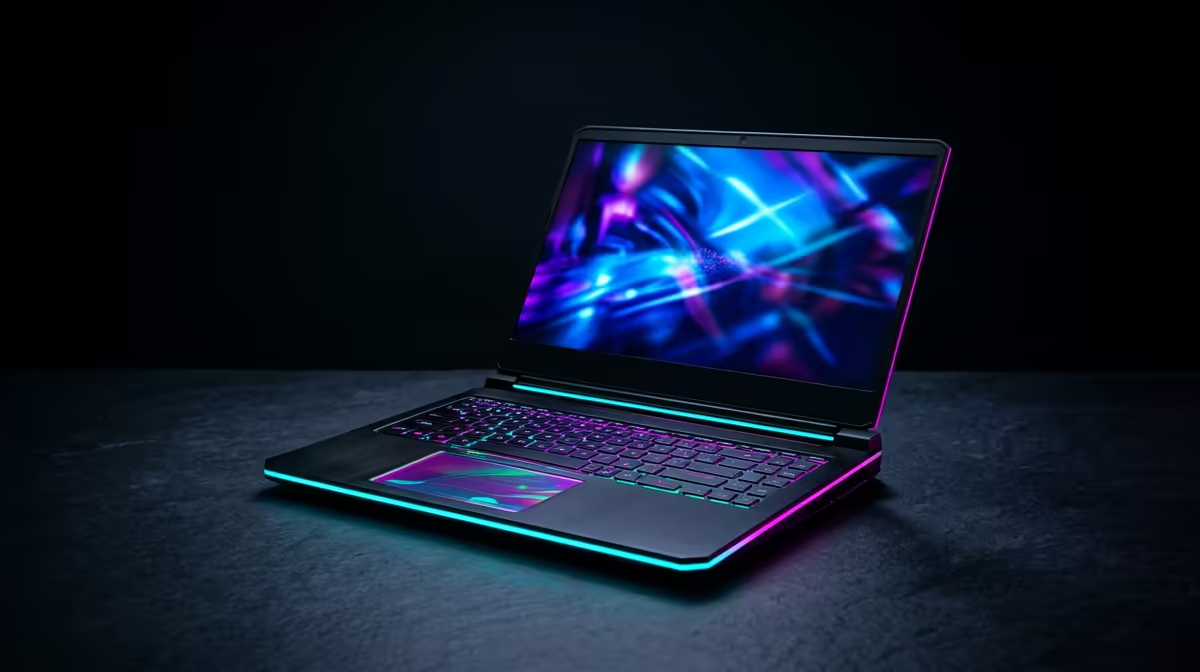
A wrong refresh rate on a gaming laptop setup is a settings or cable-bandwidth problem, not a hardware limit. Set the top rate in Advanced display settings, fit a cable rated for a 165Hz panel, and the panel runs at its full speed for free. If a part does turn out to be faulty, expect roughly R18,000 to R55,000 for a like-for-like swap, which is reason enough to test before you buy.
Set the rate in Windows display settings
Open Advanced display settings, pick the panel, and choose the highest listed refresh rate from the dropdown. Windows frequently saves a safe default after a driver update or a fresh install, so the panel runs slow until you raise it by hand. Apply, keep the change, and the difference is immediate.
Check in-game and per-app overrides
A game may force its own refresh or be capped by a frame limiter, so the desktop can read correct while play feels slow. Set the game to your panel's native rate, disable any background limiter, and confirm vsync is not pinning you low. Per-app settings override the desktop value more often than people expect.
Enable the high-refresh mode on the panel
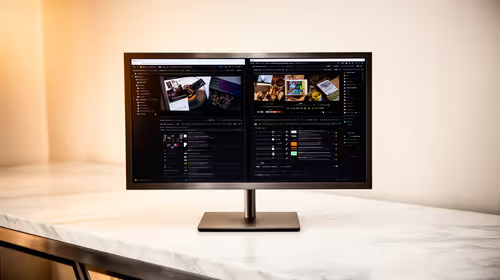
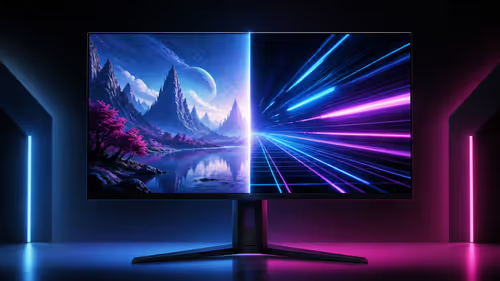
Some monitors ship with an OSD setting that gates the top refresh rate or limits the active DisplayPort version. Dig into the on-screen menu, switch the input to its fastest mode, and confirm overdrive or the high-bandwidth toggle is on. Only then will Windows list the full range up to 165Hz.
FAQ
Does the resolution affect which refresh rates I can pick?
It does, because higher resolution needs more bandwidth, so a marginal cable may only offer the top rate at a lower resolution. A certified high-bandwidth cable lets you keep both the full resolution and the full rate.
Should I enable adaptive sync as well?
If the panel and card support it, yes, adaptive sync smooths pacing and removes tearing without capping your rate. Turn it on in the GPU control panel after you have set the correct refresh rate.
How much should I budget if a part is actually faulty?
For this class of gear plan on roughly R18,000 to R55,000 depending on tier and brand, and only buy after the free checks rule out cables, settings, and seating. Most readers never reach this step.
Sort the signal path before you replace anything.
Compare gaming laptops alongside cables and panels so the card, cable, and display target all line up the first time.