A high-refresh display only feels fast once Windows and the driver agree on the number, and getting them to agree is a short, repeatable checklist. For South African builders the calm approach matters, since shipping a part back across the country costs days you do not need to lose.
Quick Answer
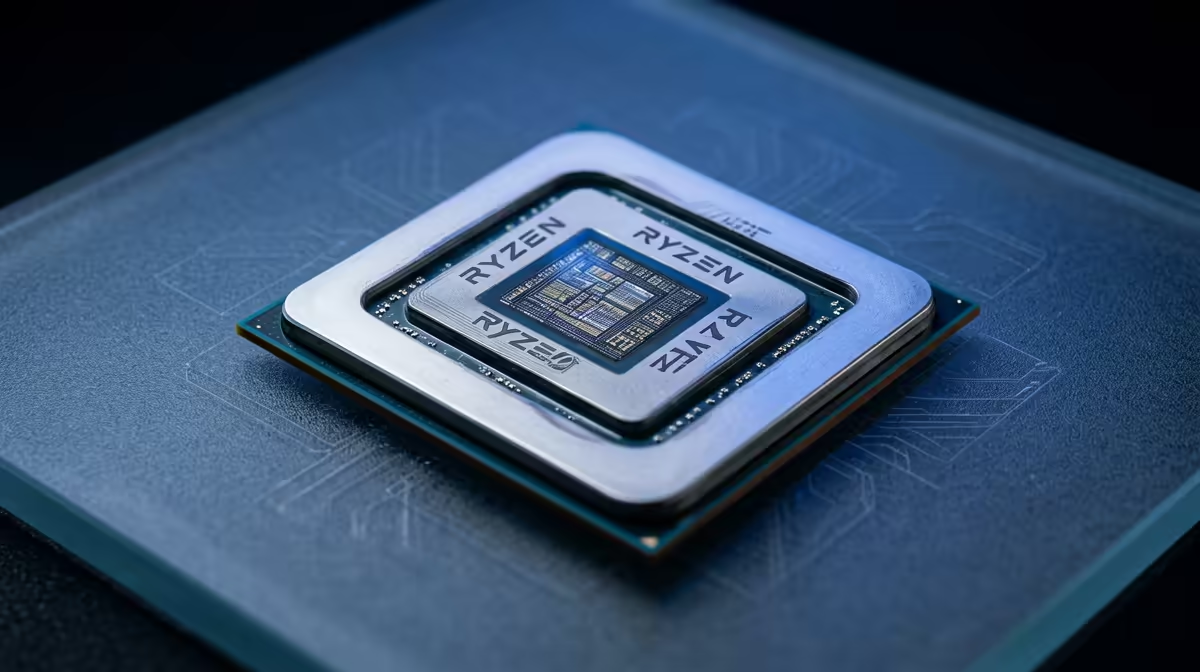
On a ryzen 9 9950x3d build the refresh rate sits low because Windows saved a safe default or the cable caps the bandwidth. Raise it by hand and confirm the cable supports a 175Hz workload; no new parts are usually needed. Replacement parts in this class run about R8,500 to R19,000, so the free checks below are well worth the few minutes first.
Set the rate in Windows display settings
Open Advanced display settings, pick the panel, and choose the highest listed refresh rate from the dropdown. Windows frequently saves a safe default after a driver update or a fresh install, so the panel runs slow until you raise it by hand. Apply, keep the change, and the difference is immediate.
Match the cable to the bandwidth you need
High refresh at high resolution needs the right cable standard, so use DisplayPort or a high-bandwidth HDMI run rated for the panel. A cheap or old cable will cap the list of available rates well below a 175Hz workload. Swapping to a certified cable often unlocks numbers that simply were not appearing before.
Check in-game and per-app overrides
A game may force its own refresh or be capped by a frame limiter, so the desktop can read correct while play feels slow. Set the game to your panel's native rate, disable any background limiter, and confirm vsync is not pinning you low. Per-app settings override the desktop value more often than people expect.
FAQ
Why does Windows keep defaulting my refresh rate to a lower value?
Windows often saves a safe default after a driver update or a clean install, so the panel runs slow until you raise it by hand. Set the top rate in Advanced display settings and it will hold.
Is it safe to keep using the rig while I troubleshoot?
For display and settings issues, yes, it is safe to keep testing. If you see heat warnings, repeated shutdowns, or burning smells, power down and inspect before continuing, since those point at power or thermal faults rather than software.
Should I enable adaptive sync as well?
If the panel and card support it, yes, adaptive sync smooths pacing and removes tearing without capping your rate. Turn it on in the GPU control panel after you have set the correct refresh rate.
Pro Tip
Keep one known-good cable and a spare display port mapped before you build, so the next time the Ryzen 9 9950X3D goes quiet you confirm the signal path in under five minutes instead of swapping parts.