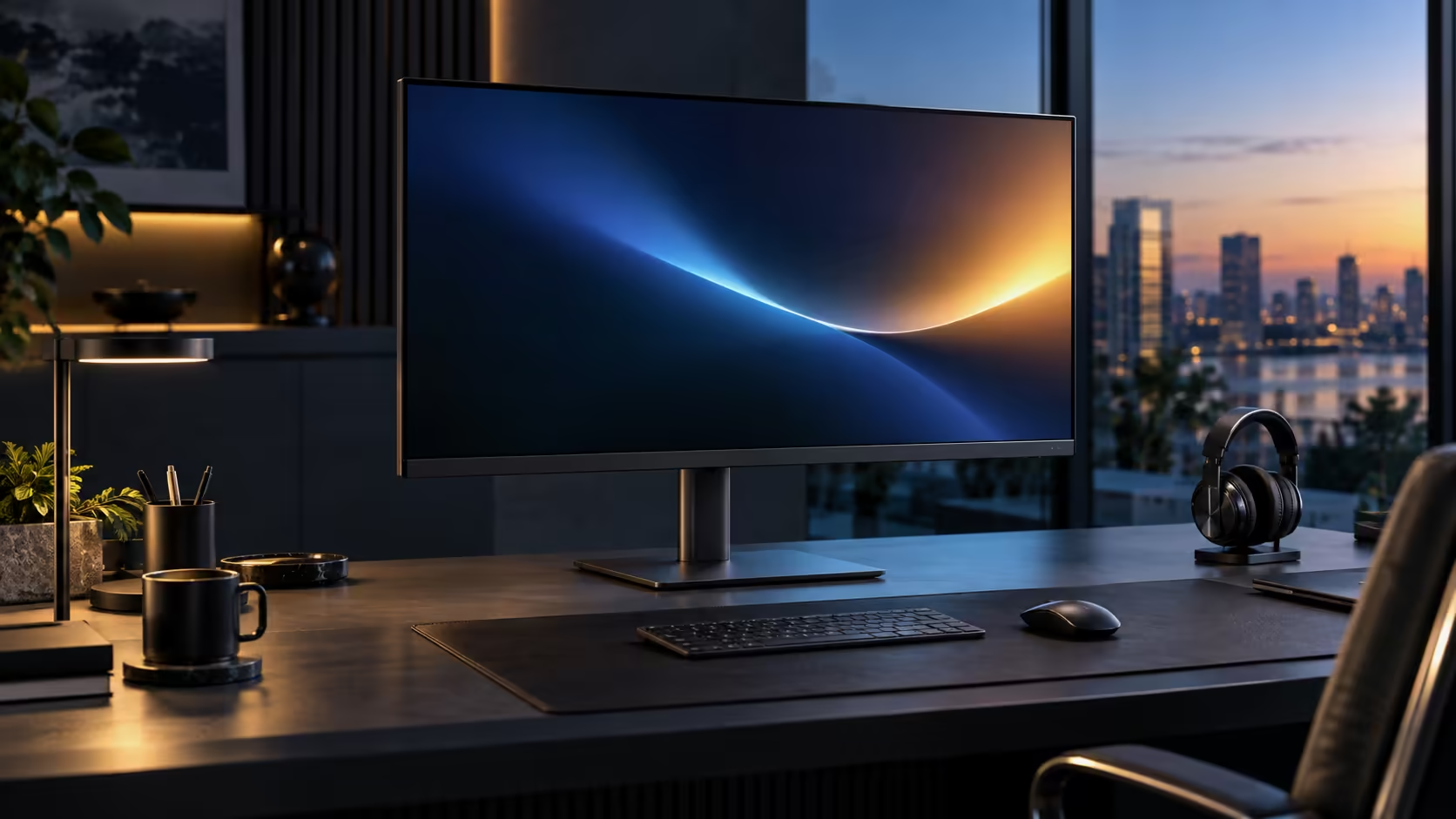
A 31.5-inch screen changes the setup order slightly compared with a smaller monitor, mostly because of desk depth and cable slack rather than anything technical. The Dell Pro 32 Plus P3225DE carries the same one-cable trick as its smaller sibling, just with more glass to fit on the desk first, and it comes to R8,799.
Quick Answer
Measure your desk depth before anything else, since a 31.5-inch panel needs roughly 75 to 80cm to sit at a comfortable distance. Then connect peripherals and the network cable to the monitor, and finish with a single USB-C lead running video, data, network and up to 90W of charging to the laptop. The Dell Pro 32 Plus P3225DE runs this whole setup for R8,799.
📏 Measuring the desk before you plug anything in
Get this step right first, because a 31.5-inch panel is a different physical object from the smaller monitors most one-cable guides assume.
Allow around 75 to 80cm from the front edge of the desk to the wall or monitor arm mount, which gives enough room to sit back far enough that the screen does not dominate your entire field of view. A standard 600mm-deep home office desk sold in South Africa is tighter than that, so check the stand's footprint and whether it will overhang the back edge before ordering. The included stand adjusts for height, tilt, swivel and pivot, which helps you claw back comfort on a shallower desk by angling the screen rather than moving it further away.
🔌 Connecting the peripherals first
Do the wiring in this order and the setup goes smoothly on the first try.
Give the monitor mains power on its own first and let it finish booting. From there, get the keyboard, mouse and any other regular peripherals plugged into its own USB ports, and feed the network lead into the RJ45 socket if wired Ethernet is part of the plan. The laptop only joins right at the end, over the single USB-C lead, which is the moment picture, data and charging all switch on together.
Connecting the USB-C lead last avoids the black-screen problem that comes from the laptop trying to negotiate video and power roles before the monitor's own ports have settled.
⚡ Confirming the 90W charge is actually landing
A working picture on a 31.5-inch screen does not prove the charging side is working, so check it separately.
Open Settings, then System, then Power & battery, and watch the battery percentage while the laptop sits on the monitor's cable with the original wall charger unplugged. A steady climb confirms the 90W link is doing the job. Most 13 to 16-inch business laptops draw comfortably within that limit; a workstation-class machine with a discrete GPU under heavy load can still draw more than 90W and will lose charge slowly rather than gain it, which is normal rather than a fault.
Route the network cable, USB leads and the single USB-C lead with the comprehensive cable solutions range if the desk needs tidying, and compare a dedicated docking station if your particular laptop turns out not to carry video over USB-C. The full office monitor range is worth browsing before you settle on a size.
🖧 Getting wired Ethernet onto a big screen without extra clutter
The RJ45 port earns its place more on a 31.5-inch desk than a smaller one, because a bigger panel usually means a more permanent, less mobile setup worth wiring properly.
Run the fibre router's cable to the monitor's RJ45 socket rather than the laptop, since most modern laptops have no Ethernet port of their own. Once the single USB-C lead is connected, Windows lists the monitor as a wired network adaptor, and video calls stop competing with the rest of the household for Wi-Fi bandwidth. Check the link speed by opening Settings, then Network & internet, then Ethernet, and confirming the connection shows as active rather than limited.
Because a 31.5-inch panel tends to anchor a desk for longer stretches than a portable second screen, running the network cable along a cable channel or under a desk mat at setup time is worth the extra five minutes; it is the one lead in this whole build that is genuinely awkward to redo later once the monitor is mounted and the desk is arranged around it.
Frequently Asked Questions
Do I need to move my desk away from the wall for a 31.5-inch panel?
Aim for 75 to 80cm between the desk's front lip and whatever sits behind it, more if your seating position already puts you further back for other reasons.
Why should I connect the USB-C cable last?
Connecting it after the monitor and its peripherals are already powered avoids the negotiation failures that cause a blank screen when everything is plugged in at once.
Will a 31.5-inch panel charge my laptop slower than a smaller monitor?
No. Charging wattage depends on the monitor's Power Delivery rating, not its screen size. This model supplies up to 90W regardless of the panel size.
Does the stand adjust enough for a shallow desk?
Yes. Height, tilt, swivel and a full pivot let you angle the panel for comfort even when the desk itself is shallower than ideal.
Ready to fit a 31.5-inch one-cable desk into your space?
Measure the depth first, then wire the peripherals into the monitor before you connect the laptop.