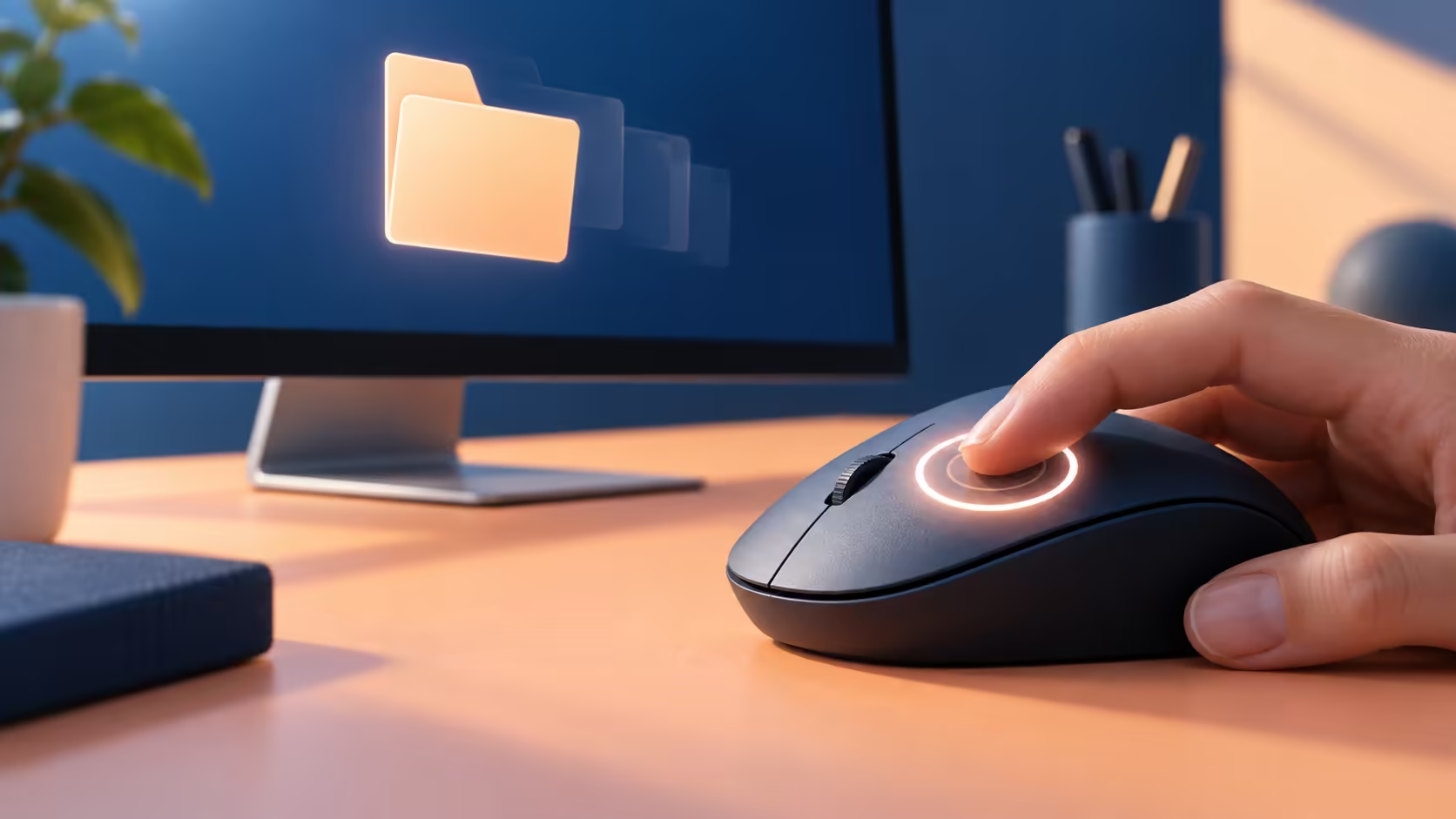
If opening a folder with two clicks feels awkward, Windows offers another convention. File Explorer single click lets one deliberate click open an item, with pointing used for selection. It is a preference to learn and test, separate from diagnosing a mouse that unexpectedly sends extra input.
Quick Answer
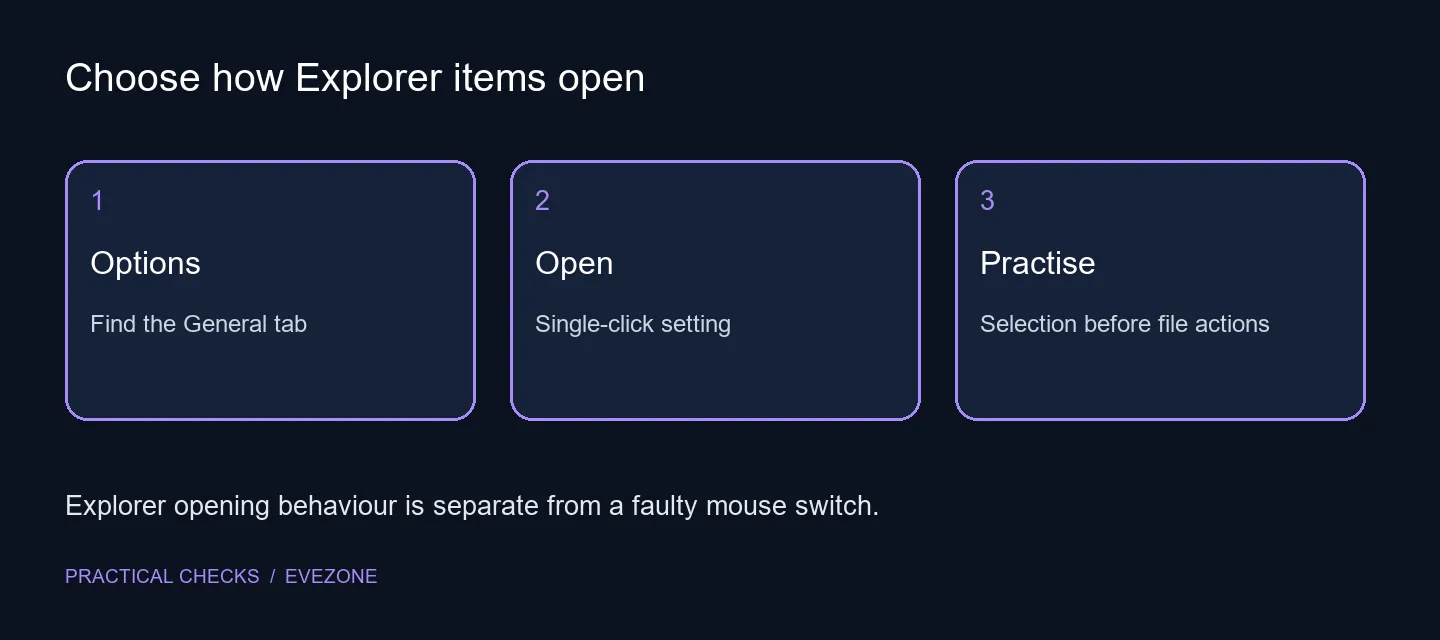
Open File Explorer Options, select the General tab and choose Single-click to open an item. Apply the change and practise with harmless files before using move or delete commands. The setting costs R0 and does not change every application's controls. The Marvo MS003 wired mouse carried a R59 catalogue price on 12 October 2026; a new mouse is not required to choose this convention.
🗂️ Change the opening convention deliberately
Use the Explorer Options dialog rather than the mouse double-click speed control. These settings answer different questions: one chooses how an item opens, while the other changes the timing of a two-click input. Write down the current Explorer choice before applying a change, so returning to the familiar convention is straightforward.
Read the option's description of pointing to select. The distinction matters when a person is accustomed to clicking once merely to highlight an item. A familiar click can now open it instead. Start in a simple test folder and avoid using valuable files as the practice material for a new interaction pattern.
🖱️ Practise selection before file operations
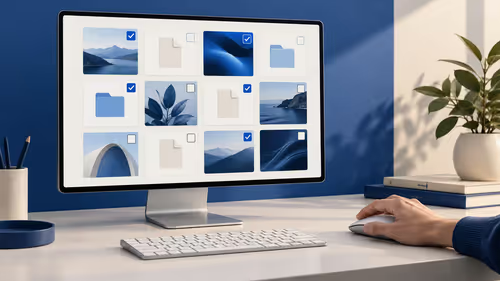
Point at an item, observe the selection behaviour and then use a deliberate click to open it. Close the opened item and repeat with another. The aim is to build a predictable habit rather than to click faster. Once opening feels comfortable, practise selecting a group without immediately performing another action.
Review the selected group before using a context menu or a keyboard command. This is particularly useful when moving between machines with different opening settings. A person can easily carry a learned gesture from one PC to another and get an unexpected result. Check the local convention instead of assuming it follows the mouse itself.
🔎 Keep input faults on a separate test path
If one physical press produces multiple actions unexpectedly, changing the Explorer preference has not established the cause. Note whether the behaviour also appears in another application and whether it follows the same mouse. That description separates a preference question from a potential input problem without treating either as proof of the other.
Browse gaming mice for a genuine comfort or button requirement, and compare mouse accessories around a specific surface or desk need. The dated R59 reference is only a local basic-mouse example. If single-click opening feels less predictable after a trial, return to Explorer Options and restore double-click opening. A useful setup is the one that makes selection and opening clear during ordinary work, not one that reduces clicks at the cost of mistakes.
Frequently Asked Questions
Where do I enable single-click opening?
Open File Explorer Options, use the General tab and choose Single-click to open an item, then apply the setting.
Does the setting apply to every app?
No. It changes the Explorer item-opening convention. Other applications can retain their own controls and behaviours.
How does selection change?
The option describes pointing to select and a single click to open. Practise in a test folder before carrying out file operations.
Is this the same as double-click speed?
No. Choosing an opening convention is different from adjusting the timing allowed between two clicks.
Will it repair a mouse that sends extra clicks?
No. A faulty or unintended extra input is a separate symptom. This setting only changes how Explorer interprets the opening action.
What does it cost to try?
The Windows option costs R0. A Marvo MS003 wired mouse was R59 on 12 October, but changing the convention needs no purchase.
Try the opening convention safely
Practise single-click opening in a test folder, then keep the convention that makes selection and file actions predictable.