Closing a laptop on a desk and closing it before a journey look similar but need different planning. Laptop lid action tells Windows what to do when the lid closes, with separate battery and plugged-in choices on supported machines. A convenient desk arrangement should not become an accidental travel setting.
Quick Answer
In Control Panel, open Power Options and choose what closing the lid does. Review the available actions for battery and plugged-in use, save your selection and test safely. Do nothing is not proof that a closed laptop is ready to pack. The adjustment costs R0; a catalogue ASUS Core i3 laptop was R7999 on 12 October 2026, with no replacement needed to investigate this behaviour.
🖥️ Establish the desk setup before closing anything
First make the external display work with the lid open. Check that the intended desktop appears and that the keyboard and pointing device can control it. A lid setting cannot fix a disconnected display cable or an incorrect input on the monitor. Separating those checks makes it clear whether the remaining issue is power behaviour or the display path.
If you choose Do nothing for plugged-in use, understand what it changes: closing the lid does not request the selected sleep or shutdown action in that condition. It does not guarantee that every laptop is intended for every closed-lid arrangement. Follow the device's ventilation and placement instructions, and keep the machine on a suitable surface.
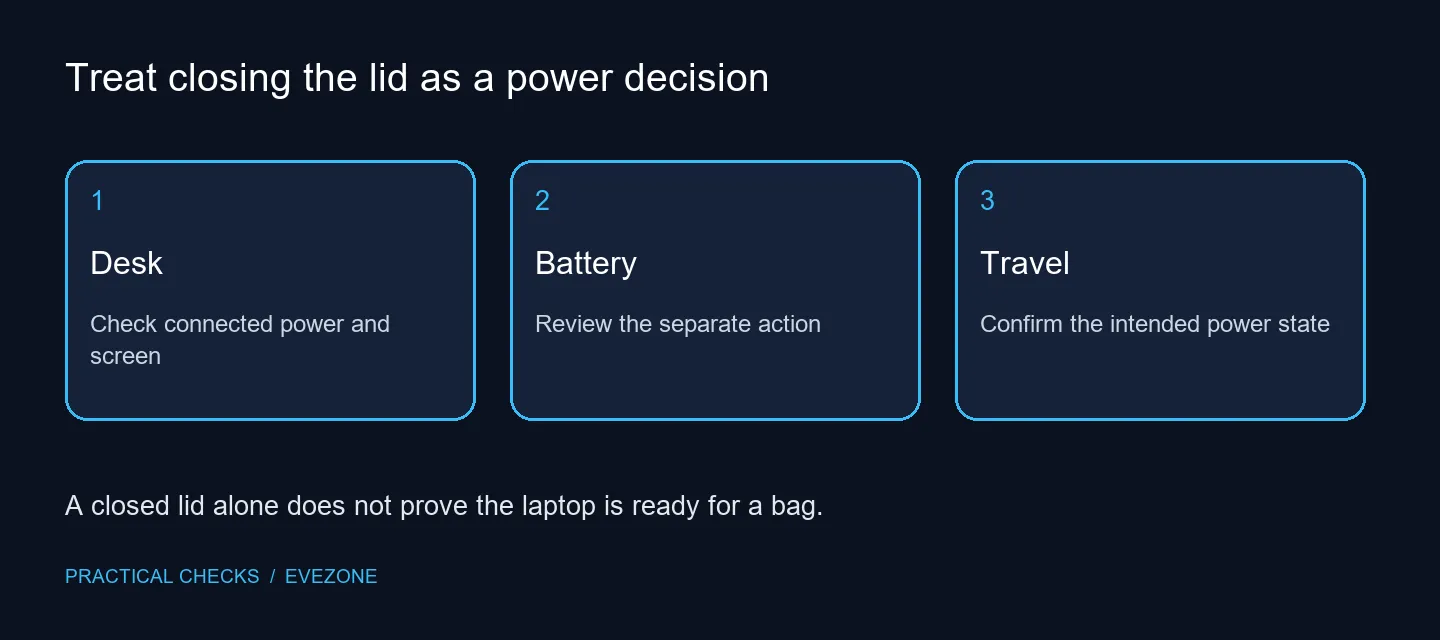
🔋 Give battery use its own review
Read the battery column separately before saving. The laptop may leave the desk without the charger, and the power condition can change even though the lid position does not. Choose the available behaviour that suits portable use rather than assuming the plugged-in choice applies everywhere. Note any settings managed by an organisation.
Test with your work saved and observe the actual result. If the screen remains active or the laptop resumes differently from expected, record the selected action and the power condition. That gives a concrete support question. Avoid using repeated forced power-offs as a substitute for understanding the available power states.
🎒 Confirm the state before packing
Before placing the machine in a bag, finish the desk session and select an appropriate deliberate power action. A dark screen or a closed lid alone is not a complete check. If your routine needs hibernation, confirm that it is available and behaves as expected on this device instead of assuming every model offers it.
When comparing laptop deals, consider the ports and portable workflow you need as well as performance. Review Intel laptops against those same requirements if the shopping question is real. A lid-action mismatch is a reason to inspect the existing settings first. A dependable desk-to-travel routine comes from checking the power condition, saving work and confirming the intended state before moving the laptop.
Frequently Asked Questions
Where is the lid-close setting?
Open Control Panel, Power Options and Choose what closing the lid does. Review the actions available on your laptop.
Can the plugged-in action differ from battery?
Yes, where Windows shows both columns. Set and test each according to the way the laptop is used.
Does Do nothing guarantee an external monitor works?
No. It prevents that lid action from requesting a power-state change; the display connection and configuration still need to work.
Should I leave it running in a bag?
No. Before packing, save your work and confirm the deliberate power state you selected rather than relying on the lid position.
Is Hibernate available on every laptop?
No. Available states vary by hardware and configuration. Use the choices actually offered on your machine.
Do I need a new laptop for this setting?
No. The settings check costs R0. An ASUS Core i3 laptop was R7999 on 12 October, but that price is only a dated shopping reference.
Set a desk-to-travel routine
Test the lid action on each power condition and confirm a deliberate power state before packing your laptop.