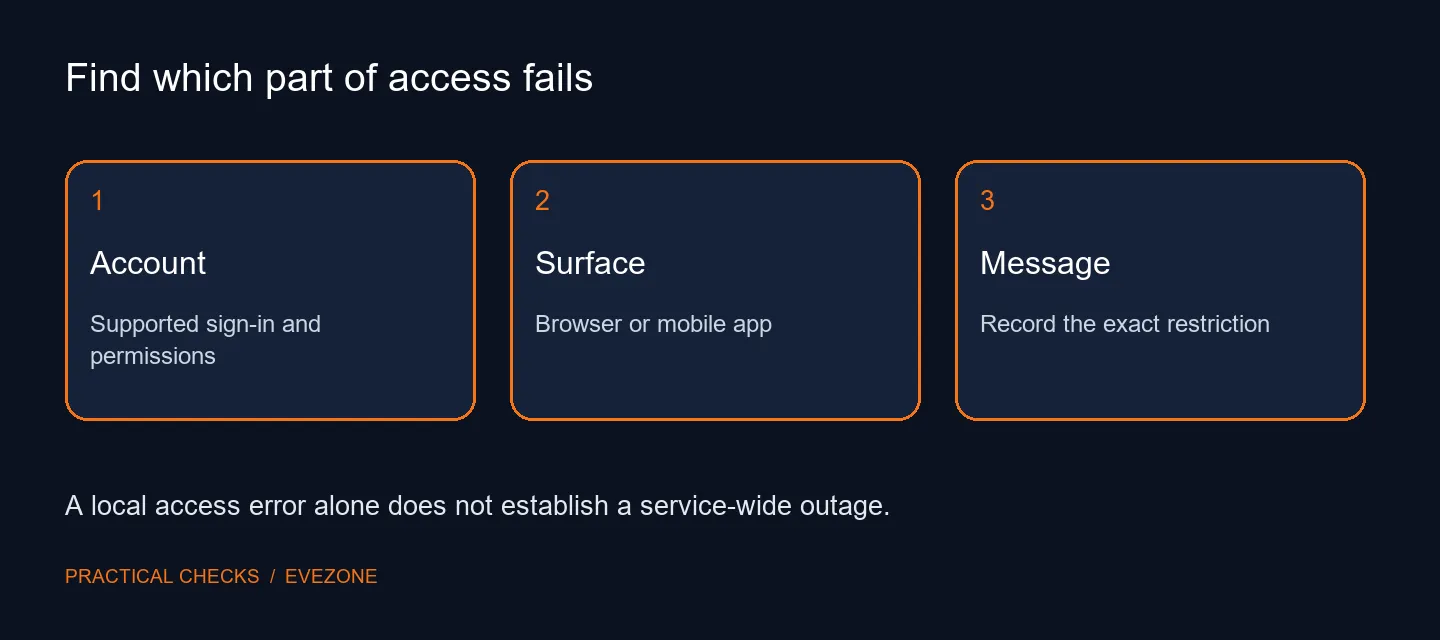
An assistant that opens on one device and refuses another has given you a useful clue. Gemini not working can describe account access, an app requirement or a problem in the current browser session. Start by naming the failing surface and reading its message, rather than assuming that all these symptoms share one fix.
Quick Answer
Confirm the Google account, record the exact error and distinguish Gemini in a browser from the mobile app. Check account eligibility and administrator permissions for managed accounts, then review the mobile app's current availability and requirements if that is the failing surface. The checks need no hardware purchase. An ASUS Core i3 laptop was R7999 in the catalogue on 12 October 2026, but replacing a PC does not remove an account restriction.
👤 Verify which account is being tested
People often use a personal account on one device and a work or school account on another. Those are different access tests. Check the account shown in the interface and note whether an organisation manages it. If the error points to administrator control, ask the relevant administrator about access instead of repeatedly changing unrelated device settings.
Do not share a password, sign-in code or private conversation while seeking help. The useful details are the surface, the account type and the exact wording of the restriction. Keep any screenshot free of personal data. That evidence lets support distinguish a permission issue from a page that simply failed to load.
📱 Treat mobile requirements as their own question
Browser availability does not prove that the mobile app supports the same device or account situation. Check the current official app requirements for device, region, language and account eligibility. Avoid treating a missing app-store option as evidence that the entire service is unavailable. It may be a different access boundary from the one affecting a browser session.
Likewise, a problem in an integration or a particular phone interface is narrower than a failure of every Gemini feature. Describe what action fails and whether a simpler direct interaction works. Keeping the test specific prevents a working route from being overlooked and avoids claiming an outage on the basis of one local error.
🌐 Retest without making broad destructive changes
After confirming the account and requirements, retry the supported browser or app path. If only one session fails, note that distinction before clearing data or removing applications. A broad reset can discard useful state without establishing the cause. Follow the support instructions appropriate to the exact message rather than applying every suggested fix at once.
Review laptop deals only when there is a separate performance or portability need. Use office keyboards for an actual typing requirement, not as a response to account eligibility. Finish with a small ordinary prompt on the supported surface and record whether it completes. If access still fails, the exact account type, interface and message form a practical support report without inventing an explanation or a service-wide status claim.
Frequently Asked Questions
What should I check first?
Record whether the failure is in the browser or mobile app and note the exact message. Confirm which Google account is signed in.
Can a work or school account be restricted?
Yes. Access can depend on the account and administrator settings. Ask the administrator about a managed-account restriction.
Does browser access prove the Android app is supported?
No. Mobile app availability and requirements are separate. Check the current device, region and account requirements for that app.
Does an error prove Gemini is down everywhere?
No. An individual account or device error does not establish a service-wide outage. Compare the exact symptom before making that claim.
Should I clear all browser data immediately?
No. Start by confirming the account and failing surface. Avoid removing unrelated saved sessions as the first troubleshooting step.
Do I need a new laptop?
Not merely because access fails. The R7999 ASUS Core i3 listing is a dated local reference, not a fix for account eligibility or permissions.
Identify the failing Gemini surface
Confirm the account, check the relevant app or browser requirements and preserve the exact error before making broader changes.